WordPress SEO: The Complete Guide for Business Websites
WordPress will publish every page you give it, but on its own it will not tell Google which of those pages deserve to be found, or for what. That job is WordPress SEO: the settings, fields, structure and habits that turn a working website into one people reach from search. The platform already does much of the heavy lifting, and most of what remains is a set of clear decisions made once and a short routine repeated every month. What follows covers the whole subject in an order a business owner can follow, from how Google reads a WordPress site, through titles, structure, content, images, speed, schema and redirects, to measuring results. Each section gives the essentials and the reasoning, so you can make sensible choices without touching code. By the end you will know what to fix first, what can wait, and how to keep the website healthy without it taking over your week. It all starts with our ai website generator.
Check your WordPress website, approve the fixes and they are applied for you: titles, descriptions, keywords, schema, alt text and redirects, each with undo.
Get the AI Website SEO Plugin for WordPress →How Google finds and ranks a WordPress site
Google works in three stages, and each can fail on a WordPress site for different reasons. First it crawls, following links and sitemaps to discover your addresses and download the pages. Then it indexes, reading each page and deciding whether to keep it, which it will not do for pages marked noindex or pages it judges duplicate or too thin. Only then does it rank, choosing which indexed pages best answer each search, using signals such as relevance, the usefulness of the content, links from other websites and how well the page works for the reader. A page that is never crawled cannot be indexed, and a page that is not indexed cannot rank, which is why WordPress SEO starts with the plumbing before the writing. Google also indexes the mobile version of your pages, so what a phone visitor sees is what counts.
WordPress creates more addresses than most owners realise. Besides pages and posts, it can produce category, tag, author and date archives, search result pages, feeds and, on older sites, a separate page for every uploaded image. Some archives are useful, like a category page where a bakery in Lyon groups its celebration cakes, but many are thin lists that compete with your real pages. The aim is to decide which kinds of address deserve to be in search and to give each of those a clear job. The figure shows how the parts of the work fit together, from the foundations at the bottom to the routine at the top.
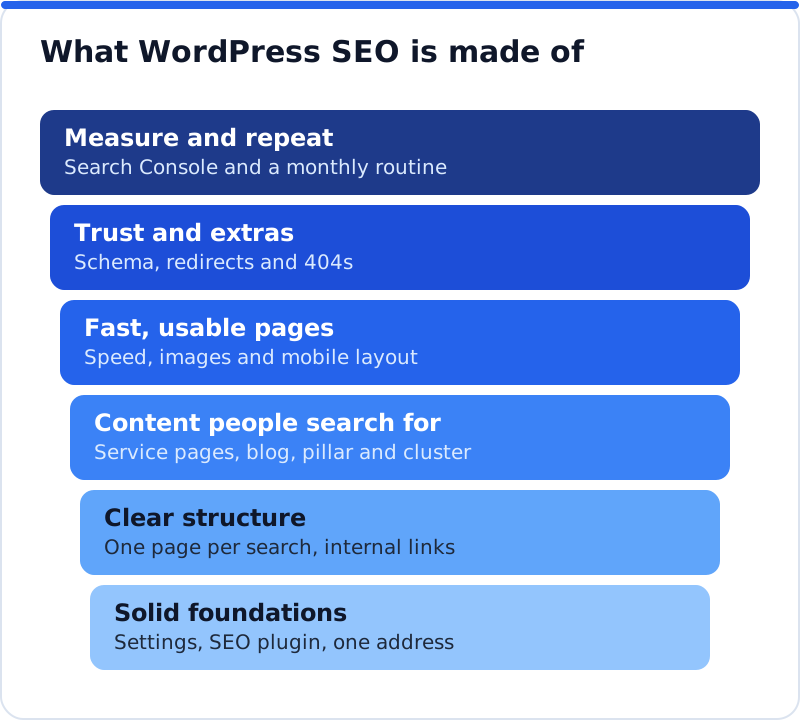
WordPress settings that matter on day one
A handful of dashboard settings decide whether Google can see the website properly, and checking them takes ten minutes. Under Settings, Reading, "Discourage search engines from indexing this site" must be unticked on a live website. Under Settings, Permalinks, choose "Post name", so addresses read /emergency-roof-repair/ rather than /?p=123, and decide early, because changing it later changes every address. Under Settings, General, the WordPress Address and Site Address should both use https and the same form, with or without www, as the address you advertise. The website should load on that one address only, with the other versions sending visitors there by permanent redirect, which you can test by typing each version into a browser. Finally, Tools, Site Health flags problems such as an outdated PHP version that quietly hurt speed and reliability.
| Setting | Where in WordPress | What to choose |
|---|---|---|
| Search engine visibility | Settings, Reading | Unticked on the live website |
| Address format | Settings, Permalinks | Post name, chosen before launch |
| WordPress and Site Address | Settings, General | The https address, in one form of www |
| Site Title and Tagline | Settings, General | The business name and a plain description |
| Site Health | Tools, Site Health | Critical items fixed, PHP kept current |
| XML sitemap | Built in, or your SEO plugin's | One sitemap, submitted in Search Console |
Choosing and setting up an SEO plugin
WordPress on its own prints a title and a canonical tag for each page and a basic sitemap, and little else, so most business websites add an SEO plugin. The best-known are Yoast SEO, Rank Math, All in One SEO and SEOPress, and each gives every page fields for a search title, a meta description and a focus keyword, plus a sitemap, schema output and settings for which pages appear in search. They differ in layout and in the extras they bundle, and any of them can run a business website well. What matters far more than the choice is using exactly one, because two SEO plugins printing titles and schema leave Google with conflicting signals on every page. If a website already has one installed and working, keeping it is usually sensible.
Most of these plugins offer a guided setup, and its answers matter more than they appear to. You will be asked for the business name and logo and which content types should appear in search, and these answers feed the schema and the sitemap. A sensible default for a business is to keep pages, posts and useful category archives in search, and to keep tag and date archives out. Set the title templates so pages you never edit still get a clean title built from their own name. If you switch plugins, most include import tools for the main rivals' data, but check a sample of pages afterwards rather than trusting the transfer blindly.
Titles, descriptions and focus keywords
Three plugin fields shape how each page appears in Google and what it is aimed at. The search title is usually the blue clickable line in results, and Google typically shows about 50 to 60 characters of it, depending on pixel width. The meta description is the summary that often appears beneath; Google frequently writes its own snippet when it thinks that fits a search better, but a good description still earns clicks when it is used. The focus keyword is never read by Google: it tells the plugin's analysis which search the page should win, so it can check that title, heading and text agree. Used properly it is a planning tool that gives every important page its own search.
| Field | What it does | Guide length | Weak | Stronger |
|---|---|---|---|---|
| Search title | The clickable line in Google | About 50 to 60 characters | Services | Roof Repair in Denver: Leak Fixes and Same-Week Inspections |
| Meta description | The summary under the title | About 140 to 160 characters | Welcome to our website. | Leaking roof in Denver? Licensed roofers inspect the same week, photograph the damage and quote before any work starts. |
| Focus keyword | Tells the plugin which search the page targets | One phrase a customer would type | roofing | roof repair Denver |
Writing these fields well means matching the words people search and giving them a reason to choose you. Start each title with the service and, for a local business, the place, then add one detail that sets the page apart. Write each description as a short promise: what the page offers, who it suits and what happens next. Never give the same focus keyword to two pages, and check your choices against the queries already shown in Search Console. The commonest mistakes are the business name first in every title, one description copied across many pages, and titles stuffed with variants of a phrase. Set the site-wide templates first, then hand-write the pages that bring in work.
Site structure, URLs and internal links
Structure is how Google and your visitors work out which pages matter and how they relate. For most business websites the right shape is shallow: the home page links to the main pages, such as each service, and each of those links to the detail beneath, so any page is two or three clicks away. In WordPress, pages suit lasting content like services and locations, while posts suit dated articles in the blog. Keep slugs short and descriptive, and avoid changing them once a page ranks, because every change needs a redirect. A dental practice in Manchester does better with one clear page per treatment, linked from a Treatments page, than with every treatment squeezed into one long page that ranks for none of them.
Internal links are the links between your own pages, and they are one of the few ranking signals entirely in your hands. Each one tells Google the target page matters and, through its anchor text, what it is about, so "furnace servicing in Columbus" says far more than "click here". Link from pages that already get attention, such as the home page and popular posts, toward the pages that bring in enquiries. Keep a simple keyword map, a spreadsheet of each important page and the one search it should win, so no two pages compete. When two pages do compete, Google tends to alternate between them and neither ranks well, and the usual fix is to merge them and redirect the weaker one.
Content and the blog, pillar and cluster
Pages rank because they answer a search better than the alternatives, and no setting can stand in for that. The most valuable content on a business website is usually the service and product pages, so give each enough substance: what is included, who it suits, how pricing works, the area served, common questions and examples of past work. Thin pages of two short paragraphs struggle against competitors who explain more. Google's guidance asks for helpful, reliable content made for people, with signs of real experience, which a business shows naturally when it writes about its own work. An accountant in Dublin who explains how a sole trader's tax return works, with the deadlines and documents involved, is doing exactly that.
The blog answers the questions customers ask before they are ready to buy, and it works best when organised. In the pillar and cluster model, one broad pillar page covers a topic at overview level, cluster articles each go deep on one part, and they link to each other so Google sees a clear body of expertise. A yoga studio in Austin might have a pillar on starting yoga as an adult, with clusters on choosing a class style and what to bring to a first class, each linking to the pillar and the timetable. Give each article its own search from the keyword map, and point readers toward the related service. Two strong, well-linked articles a month beat ten thin ones, and refreshing an older article that already gets visits often pays back faster than writing a new one.
Images and alt text
Images make pages convincing, but they are also the commonest cause of slow WordPress pages. Before uploading, resize photos to the largest size they will display at, because a photo straight from a phone can be many times larger than needed. WordPress creates several sizes of each upload, serves a suitable one to each screen, supports smaller formats such as WebP and lazy-loads images further down the page by default. Name files sensibly before uploading, such as bridal-bouquet-peonies.jpg rather than IMG_4821.jpg, because the name becomes part of the image address. A florist in Edinburgh whose gallery is full of huge, unnamed files pays twice: slower pages, and photos that are hard to find in image search.
Alt text is the written description of an image, read aloud by screen readers and used by Google to understand what the image shows. Every meaningful image needs a short, accurate description of what is in it, not a list of keywords. You set it in the Media Library or in the block editor's sidebar under Alternative Text, and decorative images such as dividers can be left empty so screen readers skip them. Alt text from the Media Library is copied into an image when you insert it, so images already placed in older posts may need fixing on the page itself. That is why missing alt text tends to pile up on older websites.
Speed and Core Web Vitals on WordPress
Slow pages lose visitors before they read a word, and Google uses page experience signals, including Core Web Vitals, in its ranking systems. Core Web Vitals measure real visits: Largest Contentful Paint (how quickly the main content appears), Interaction to Next Paint (how quickly the page responds to a tap) and Cumulative Layout Shift (how much the layout jumps). Google's thresholds for a good experience are an LCP of 2.5 seconds or less, an INP of 200 milliseconds or less and a CLS of 0.1 or less. PageSpeed Insights shows them for any page, combining real-visit data, where Google has enough, with a lab test, and Search Console has a Core Web Vitals report for the whole website. Speed rarely makes a page rank first, but a slow website drags down everything else you do.
On WordPress, slowness usually comes from overloaded hosting, a heavy theme or page builder, too many plugins loading scripts everywhere, and oversized images. Good hosting with a current PHP version is the foundation, because no plugin can make a slow server fast. Page caching, from a plugin or your host, saves finished pages so they are not rebuilt for every visitor, and often makes the largest single difference. Remove plugins you no longer use, since each adds code and another thing that can break. A pet grooming business in Portland that swaps a heavy image slider for one well-sized photo will often see its home page load noticeably faster with no other change.
Schema markup for a business website
Schema markup is structured data that states facts in a form machines read reliably: that this is a business, with its name, address, phone, hours and logo. Google uses it to understand the business and to show rich results it supports, such as breadcrumbs or event details, though it never guarantees them. Most SEO plugins output a basic layer automatically, and some let you choose a specific type such as LocalBusiness or a subtype for a dentist or a restaurant. The useful step is making sure the home page carries accurate business schema that matches the website, your Google Business Profile and directory listings exactly. The main mistake is duplication, with a theme, an SEO plugin and a schema plugin each printing their own business block. After any change, test the page in Google's Rich Results Test, which shows the structured data Google can read and whether the page is eligible for rich results.
Redirects, 404s and changed addresses
When an address changes or disappears, visitors from Google, old emails and other websites reach a "not found" page, the 404, and most of them leave. Google eventually drops the dead address, and the value of links pointing to it is wasted. The fix is a 301 redirect, a permanent instruction that sends people and search engines to the most relevant live page and carries the old page's standing across. Redirect to a genuinely equivalent page rather than the home page, which Google may treat as a soft 404 anyway. A few 404s for addresses that never existed are harmless, so focus on former pages and addresses other websites link to.
Redirects can be managed by a redirect plugin, by the redirect feature some SEO plugins include, or at the server by your host. The best habit is preventive: before deleting a page or changing its slug, decide where its visitors should go and add the redirect at once. To find existing problems, look in the Pages report in Search Console for addresses listed as not found. A garden centre in Kent that reorganised its product categories without redirects would watch the old addresses fall out of search one by one while customers' bookmarks stopped working. Flatten redirect chains too, so each old address points straight to its final destination.
Staging copies and launches
A staging copy is a private duplicate of the website for testing changes, and it is a common source of quiet SEO damage. If it is reachable and indexable, Google can find it and treat it as a duplicate of your real website. Protect every staging copy with a password, the most reliable way to keep search engines out, and tick "Discourage search engines" on it as well. The opposite accident is just as common: a website launched from staging with that setting still ticked, or a noindex rule carried across, which keeps it out of Google until someone notices. After any launch or migration, check Settings, Reading, view the home page source for a noindex tag, confirm the sitemap lists live addresses, and inspect the home page with the URL Inspection tool in Search Console.
Measuring WordPress SEO in Search Console
Google Search Console costs nothing and is the only place that shows how Google itself sees your website and how people find it. Add the website as a Domain property, verified through your DNS settings so it covers every version of the address, then submit your sitemap in the Sitemaps report. The Performance report shows the searches that brought up your pages, with clicks, impressions, click-through rate and average position. The Pages report shows which addresses are indexed and why others are not, and URL Inspection shows how Google sees one page and lets you request indexing after a change. Glance at the Core Web Vitals, Links, Manual actions and Security issues reports each month as well.
Measuring well means comparing like with like and changing only a few things at a time. Once a month, compare the last 28 days with the previous 28, and with the same period last year if the business is seasonal. Look first at clicks to the pages that bring in work, then at pages with many impressions and few clicks, which usually need a better title, then at pages just off the first page of results, which often need more content or internal links. Keep a log of what you changed and when, so you can tie a movement in the numbers to a cause. The wider AI SEO tools for business websites can add a scored view of the whole website to this routine, but the habit matters more than any tool.
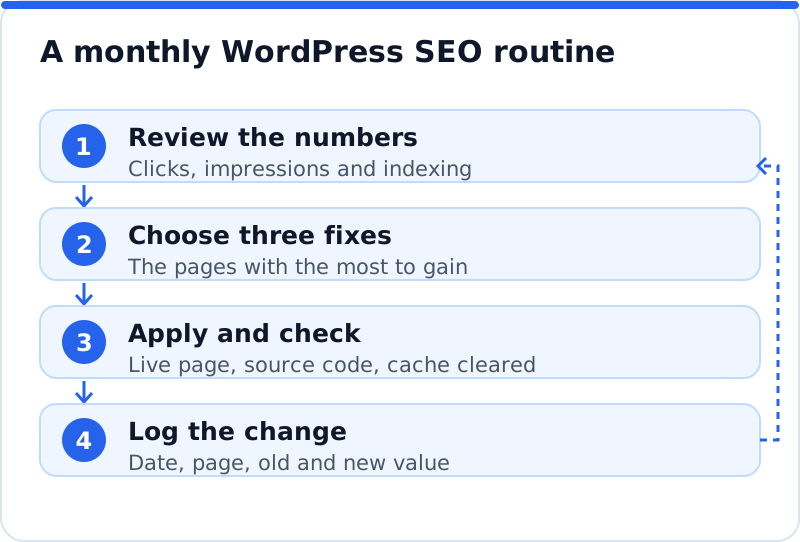
Where AI helps with WordPress SEO
Most of the work above is repetitive rather than difficult: titles and descriptions for every page, alt text for hundreds of images, 404s to catch and schema to keep consistent. Our WordPress plugin, AI Website SEO Tools, is downloaded from aiwebmaker.co as a zip, installed through Plugins, Add New, Upload Plugin, and activated. Straight after activation you can run a check from the WordPress dashboard, before creating any account, and see a score out of 100, the problems costing the most visitors and the traffic within reach. Pressing "Connect to AI WebMaker" signs you up or in, with your email filled in, and links the website, with a connection code as the fallback for cases such as a password-protected staging site. It needs WordPress 5.8 or later and PHP 7.4 or later.
In your account, fixes are written for your own pages and you press Apply on the ones you want. The plugin writes titles, descriptions and focus keywords into the fields of Yoast SEO, Rank Math, All in One SEO or SEOPress, so pages never get two titles, and with no SEO plugin it prints the title, description and sharing tags itself. It can also add alt text to images that have none, redirect pages showing "not found", add business schema to the home page (skipped when your SEO plugin already outputs the same) and place AI Blog Writer articles as drafts unless you allow publishing. Each area has its own permission, headings change only if you allow it, every change is logged with the value it replaced and can be undone in one click, and it never runs code it is sent or touches your theme. Installing, the check and applying cost nothing, while the AI work uses credits: about 0.1 to 0.3 credit per page fix and 2 credits per article, at about $0.65 a credit, with no subscription. You can see what it would change first with the WordPress SEO plugin that applies fixes with approval and undo.
Questions business owners ask
Is WordPress good for SEO?
WordPress gives you what Google needs: clean addresses, full control over titles and content, sitemaps and room for structured data. Websites of every size rank well on it, from local trades to large publishers. What makes the difference is how it is set up and looked after: the theme, the hosting, the plugins and the content. A poorly configured WordPress website can rank badly, just as a well-run website on any platform can rank well. Treat WordPress as a strong starting point that still needs the settings and habits described here.
Do I need an SEO plugin?
You can run WordPress without one, but you then have to handle titles, descriptions, sitemaps, schema and indexing rules some other way, often in the theme or custom code. For most business owners an SEO plugin is the simpler route, because it puts these controls in one place with a field on every page. Choose one, set it up carefully and never run a second alongside it. WordPress itself still provides a basic sitemap and title tags if you prefer a lighter website. What matters is that each page ends up with exactly one title, one description and one set of schema.
How long does WordPress SEO take to show results?
Better titles and descriptions can change clicks within a few weeks, once Google has recrawled the pages. New pages and articles usually take a few months to settle, especially on a newer website with few links from elsewhere. Removing an accidental noindex can bring pages back quickly, because the content was already there. Competitive searches in big cities take longer than specialist or local ones, and nobody honest can promise a date. Judge progress month by month, and give each change a few weeks before deciding whether it worked.
Should I hire someone or do it myself?
Much of this is within reach of an owner who can spare an hour or two a week: the settings, the plugin setup, the titles, the alt text and the monthly routine. Content is often best written by the business itself, because nobody knows the work and the customers better. Hiring help makes sense for the technical end, such as a slow server, a messy migration or a theme that prints duplicate tags, and for very competitive markets. If you hire, ask for a written list of what will change and how it will be measured, and keep administrator access to your own website and Search Console. Either way, knowing the basics helps you judge the work.
Your first week of WordPress SEO
You do not need to do everything at once, and the order matters more than the speed. The plan below fits into about an hour a day for five days and covers the changes that usually make the biggest difference. It starts with the foundations, because nothing else counts if Google cannot reach the pages, and ends with the routine that keeps the work going. Note each change and its date as you go, since that becomes the first entry in your monthly log. After the first week, take one section of this page each week until the whole website has been through it.
- On day one, check Settings, Reading, Permalinks and General, confirm the website loads on one https address, and verify it in Google Search Console.
- On day two, install or review one SEO plugin, set its title templates and indexing choices, and submit its sitemap in Search Console.
- On day three, rewrite the search title, description and focus keyword for the home page and the three pages that bring in the most work.
- On day four, add alt text to the images on those pages, test them on mobile in PageSpeed Insights, and redirect any old addresses listed as not found.
- On day five, test the home page in the Rich Results Test, write a simple keyword map of your main pages, and choose next month's three fixes.
By Friday the foundations will be sound, the pages that earn money will have titles written for them, and Search Console will hold a baseline to measure against. The changes take a few weeks to show, so resist rewriting everything again in the meantime. Use those weeks to plan the content your customers search for and to tidy the internal links toward your main pages. When the month is up, run the routine and let the numbers choose the next three fixes. Start today: open Settings, Reading on your website and make sure Google is allowed in.
All WordPress SEO guides
- AI SEO Plugin for WordPress: How It Works and What It Should Fix
- WordPress SEO Titles That Google Shows in Full
- WordPress Meta Descriptions for Every Page, Without Losing a Week
- Image Alt Text in WordPress: A Practical Guide for Businesses
- Focus Keywords in WordPress: Giving Every Page Its Own Search
- WordPress SEO Plugin With AI: What to Expect Before Installing
- Yoast SEO and AI: Filling Every Yoast Field Without the Typing
- Rank Math and AI: Using Site-Wide Fixes Alongside Rank Math
- All in One SEO and SEOPress With AI Fixes
- WordPress SEO Without an SEO Plugin: What You Still Need
- Automatic SEO for WordPress: Letting a Plugin Apply Fixes Safely
- Fixing 404 Errors in WordPress With Redirects That Keep Visitors
- Schema Markup for a WordPress Business Website
- Tracking SEO Changes in WordPress, and Undoing the Ones That Hurt
- Does an SEO Plugin Slow Down WordPress?
- Best AI SEO Plugin for WordPress: How to Choose for Your Business
- WordPress SEO Checklist for Business Websites
- WordPress SEO Audit: Checking Your Website the Way Google Does
- WordPress Blog SEO: Articles That Bring Visitors
- WordPress Staging Sites and SEO: Keeping Copies Out of Google