WordPress SEO Checklist for Business Websites
An ordered checklist for a business website on WordPress, grouped from basic settings to measuring results, with where each setting lives and why it matters.
- Works with Yoast SEO and Rank Math
- You approve every change
- One-click undo
Pilots run through a checklist before every take-off, not because they have forgotten how to fly, but because one skipped switch can undo everything else they do well. Search works the same way on a business website. A beautifully written service page earns nothing if a single box in WordPress tells Google to stay away, and a fast site still loses visitors if every page shares the same title. This WordPress SEO checklist puts the checks in the order that matters, starting with settings that can block everything and ending with how to measure the results. Each item says where it lives in WordPress and why it is worth your time. Work through it once properly, then repeat the short version every few months.
To have these fixes applied on your own WordPress website, try our AI website SEO plugin for WordPress, part of our AI SEO Tools.
Run the AI website SEO plugin for WordPress check and see which items your site fails
Why order matters in a WordPress SEO checklist
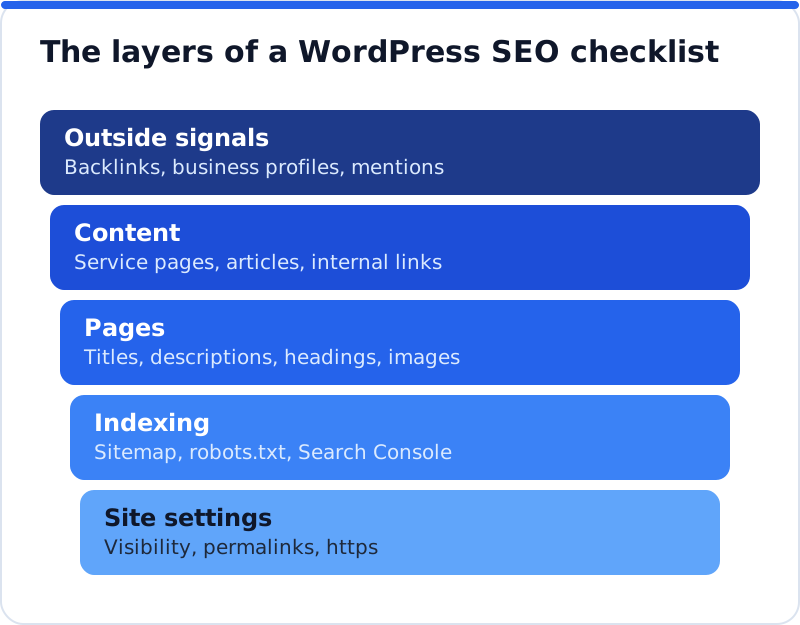
SEO tasks depend on each other, which is why a random list of tips wastes effort. There is no point polishing meta descriptions while the site still tells search engines not to index it, and no point building links to pages that return an error. The sensible order runs from the foundations upwards: site settings first, then whether Google can find and index the pages, then the pages themselves, then content, and finally the signals that come from outside your site. A physiotherapy clinic in Bristol that follows that order fixes its biggest blocker in the first hour and its smaller details later. Following the layers also makes problems easier to diagnose, because you know the floor below is solid.
Settings to check in the first hour
Four settings decide whether the rest of your work counts. Each takes a minute to check and can take months to recover from if it is wrong, so start here even if you think the site is fine. Three of them live in the main Settings menu of the WordPress dashboard and the fourth depends on your host, so none of them sits in an SEO plugin. Check them on the live site rather than on a copy, since staging and live sites often differ in exactly these places. If you manage several client sites, add these four to your handover routine.
- Under Settings, Reading, make sure "Discourage search engines from indexing this site" is not ticked, because it asks search engines to keep every page out of their results.
- Under Settings, Permalinks, choose a readable structure such as Post name, but on an established site plan redirects first, because changing it changes every address.
- Under Settings, General, both the WordPress Address and the Site Address should start with https, and your host should redirect every http address to the https version.
- Decide whether your address uses www or not, then make sure the other version redirects to it, so Google sees one website rather than two copies.
The www and https checks catch more sites than you would expect. Type every variation of your address into a browser: with and without www, with http and with https. All four should end on the same address, ideally in a single hop. If one of them shows the site without redirecting, Google may treat it as a separate copy and split your signals between them. Your host's control panel or a short rule from their support team usually fixes it in minutes.
Indexing: sitemap, robots.txt and Search Console
Next, make sure Google can discover and index every page you care about. WordPress has created a basic XML sitemap at /wp-sitemap.xml since version 5.5, and most SEO plugins replace it with their own, so use the sitemap address your SEO plugin shows in its settings. WordPress also serves a basic robots.txt file automatically, which you can view by adding /robots.txt to your domain. That file should not block your pages or the folders that hold your images, styles and scripts. If someone added a "Disallow: /" line during development and forgot it, nothing else on this list will matter until it is removed.
Google Search Console is where you confirm all of this from Google's side, and it costs nothing to use. Add your site as a Domain property, verified through a DNS record, so it covers every version of the address at once. Submit your sitemap in the Sitemaps report, then wait a few days and open the Page indexing report to see which pages are indexed and why others are not. Reasons such as "Excluded by noindex tag" or "Duplicate without user-selected canonical" point straight to the fix. For a single important page, the URL Inspection tool shows whether it is indexed and lets you request indexing after a change.
Page checks: titles, descriptions, headings, keywords
With the foundations sound, move to the elements on each page that shape how it appears in Google. The search title is the blue headline in results, and Google usually shows about 50 to 60 characters of it, depending on pixel width. The meta description is the short text beneath, which Google often uses when it matches the search, though it may pick other text from the page. Every page should also have one main heading (the H1), which in most WordPress themes is the page or post title, so avoid adding a second Heading 1 block in the content. A plumbing firm in Phoenix with one page per service should give each page its own title, description and focus keyword, rather than repeating the company name everywhere.
| Element | Where it lives in WordPress | Good example | Weak example |
|---|---|---|---|
| Search title | Your SEO plugin's box under or beside the editor | Emergency Plumber in Phoenix, Open 24 Hours | Home |
| Meta description | The same SEO plugin box | Burst pipe at 2am? A licensed plumber reaches most of Phoenix within the hour. Call now. | Welcome to our website. We offer many services. |
| Main heading (H1) | The page or post title at the top of the editor | Emergency Plumbing Repairs | Services |
| Focus keyword | The SEO plugin's focus keyword field | emergency plumber Phoenix | plumbing |
The table shows the pattern that runs through every good example: specific, local and honest about what the visitor gets. Weak examples are usually vague because they were left at a default or written for the business rather than the searcher. Check for duplicates too, because two pages with the same title compete with each other and Google may choose the wrong one. Your SEO plugin's overview screens, or a site crawler, will list pages with missing or repeated titles. Fix the pages that matter most for enquiries first: home, main services, contact and location pages.
Content and internal links
Pages need enough substance to answer the search they target. A service page that says only "We do bathroom renovations, call us" gives Google little reason to rank it over a competitor who explains the process, the timescales, the areas covered and the common questions. Give every main service its own page instead of listing six services on one, because each page can then target its own search. Link between related pages with descriptive anchor text, such as "our boiler servicing page" rather than "click here", so visitors and Google can follow the connections. Every important page should be reachable within a few clicks of the home page, and none should be an orphan with no links pointing to it.
A blog extends this layer by answering the questions customers ask before they buy. A bakery in Lyon might publish articles on ordering a celebration cake or choosing bread for a wedding, each linking to the relevant order page. Articles earn visits over months and years, so consistency matters more than volume. Review older posts once a year and update facts, prices and dates rather than leaving outdated advice live. Thin pages with a few lines each, such as empty tag archives or test pages, are better improved, merged or set to noindex.
Images, speed and mobile
Images are often the heaviest part of a WordPress page, so they come next. Resize photos before uploading, since a phone photo can be several megabytes when the page needs a fraction of that. WordPress has supported WebP uploads since version 5.8 and adds lazy loading to images by default, which helps, but neither fixes a huge original file. Give every meaningful image alt text that describes what it shows, which helps screen reader users and image search alike. Purely decorative images can keep an empty alt attribute.
For speed, run your home page and a main service page through PageSpeed Insights and read the mobile results first. Google indexes the mobile version of your site, so a page that is fine on a desktop but awkward on a phone is judged on the phone. The Core Web Vitals report in Search Console groups your pages by real visitor experience, using loading, responsiveness and layout stability. A caching plugin, a good host and fewer heavy sliders or embedded videos usually make the largest difference. After any change to the site, clear the cache so visitors and Google see the new version.
Schema and sharing tags
Structured data, often called schema, describes your business in a format search engines read directly. For most business websites the essential piece is LocalBusiness or Organization schema on the home page, stating your name, address, phone number, opening hours and logo. Many SEO plugins can output this from their settings, so check yours before adding a second block that might contradict it. Test the home page with Google's Rich Results Test, which shows the structured data Google can use for rich results and any errors in it. Keep the details identical to your Google Business Profile, because consistent name, address and phone number across the web builds trust.
Sharing tags, known as Open Graph tags, control the title, description and image shown when someone shares your page on Facebook, LinkedIn or WhatsApp. Without them, those apps guess, and the preview often shows a cropped logo or the wrong text. SEO plugins add these tags automatically and usually let you set a different image per page. Paste a page address into a private message to yourself to see the preview a customer would see. A good preview makes a recommendation from one customer to another much more likely to be clicked.
Redirects, 404s and backlinks
Broken addresses waste both visitors and the links other sites gave you. The Page indexing report in Search Console lists addresses that return "Not found (404)", and many come from renamed pages, deleted services or an old website structure. Point each one with a 301 redirect to the closest living page, not to the home page by default, so visitors land on what they expected. A law firm in Munich that renamed its practice area pages, for example, should redirect each old address to its new equivalent. Keep redirects to a single hop, because chains of redirects slow visitors down and dilute the signal.
Backlinks, links from other websites to yours, remain one of the strongest outside signals Google uses. For a business the realistic sources are local: a complete Google Business Profile, trade associations, chambers of commerce, suppliers, local press and reputable directories. One relevant link from a respected local site is worth more than many from unrelated directories. The Links report in Search Console shows which sites link to you and which of your pages they link to. Check it every few months and thank, or follow up with, the sites that send you real visitors.
How the plugin turns the checklist into fixes
Most of the page-level items on this list can be checked and fixed together rather than one page at a time. The AI Website SEO Tools plugin, installed from a zip downloaded at aiwebmaker.co, runs a check from the WordPress dashboard right after activation and shows a score out of 100 and what costs the most visitors. Once connected, fixes are written for your own pages and applied when you press Apply: search titles, meta descriptions, focus keywords, home page business schema, alt text for images that have none and 301 redirects for pages that show "not found". It writes into the fields of Yoast SEO, Rank Math, All in One SEO or SEOPress, keeps a log of what it replaced and lets you undo any change. If you are comparing tools for this kind of work first, the criteria in the guide to the best AI SEO plugin for WordPress show what to look for.
Questions business owners ask
How often should I go through the checklist?
Go through the whole list once properly, then repeat a shorter version every three months. The settings and indexing checks rarely change, but a theme update, a migration or a new plugin can quietly break them, so a quick look each quarter is cheap insurance. Page checks are worth repeating whenever you add or rewrite pages. The Page indexing and Performance reports in Search Console deserve a glance every month. Put the dates in your calendar, because a checklist that waits for a quiet week never gets done.
Do I need an SEO plugin to complete the list?
You can complete most of it without one, but it becomes slower. WordPress itself handles the title tag, the sitemap and readable permalinks, yet it has no built-in field for a custom search title or meta description. An SEO plugin such as Yoast SEO, Rank Math, All in One SEO or SEOPress adds those fields, along with sharing tags and basic schema. For a business site with more than a handful of pages, the time saved is usually worth it. Just make sure only one plugin prints titles and descriptions, or you will end up with two of each.
Which item should I fix first?
Fix anything that blocks indexing first, because it cancels everything else. That means the search engine visibility setting, a robots.txt file that blocks the site and pages marked noindex by mistake. After that, give your most valuable pages, usually home, main services and contact, proper titles and descriptions. Then deal with 404 errors on addresses that other sites link to. Speed, schema and backlinks follow, as they build on top of pages Google can already find and understand.
Working through the list this month
A WordPress SEO checklist only helps if it gets finished, so break it into sessions rather than waiting for a spare day. Spend the first session on settings and Search Console, the second on titles and descriptions for your top ten pages, and the third on images, speed and redirects. Note what you changed and when, so you can match changes to movements in the Performance report a few weeks later. Once the basics are done, keep a rhythm of quarterly checks and one or two content improvements each month. To see how this checklist fits with checking backlinks and fixing pages across the whole site, look at the AI SEO tools for business websites. Start today with the four settings in the first hour section, because they take minutes and protect everything else you do.
Check your WordPress website, approve the fixes and they are applied for you: titles, descriptions, keywords, schema, alt text and redirects, each with undo.
Get the AI Website SEO Plugin for WordPress →