WordPress Staging Sites and SEO: Keeping Copies Out of Google
Why staging copies of WordPress sites end up in Google, which protections actually work, and how to launch without carrying a noindex onto the live site.
- Works with Yoast SEO and Rank Math
- You approve every change
- One-click undo
A staging site is a rehearsal, and the one audience it must never have is Google. It exists so you can try a new theme, update plugins or rebuild a page without visitors seeing the half-finished result. Yet copies of WordPress sites turn up in search results surprisingly often, complete with test prices, placeholder text and contact forms that send enquiries nowhere. The opposite accident is just as common: a site goes live carrying the staging copy's "do not index" instruction and quietly disappears from Google. WordPress staging site SEO is about preventing both mistakes with the right protection on the copy and the right checks at launch. The steps below explain which protections work, which only look as if they work, and what to check in the hour after going live.
To have these fixes applied on your own WordPress website, try our WordPress SEO plugin with AI fixes, part of our AI SEO Tools.
Install the AI website SEO plugin for WordPress, which pauses itself on staging copies
How staging copies end up in Google
Google finds pages by following links, and a staging copy needs only one link from anywhere Google can crawl. That link often comes from somewhere harmless: a preview address pasted into a public forum while asking for help, a menu item in the live site that still points to the copy after a migration, or an image whose address was never updated. Hosting companies tend to give staging copies predictable addresses, such as a staging subdomain, which makes them easy to stumble on. Some owners submit the copy's sitemap to Search Console by mistake, inviting Google straight in. Once Google has the address, it crawls the copy exactly as it would crawl any other site.
A restaurant in Boston rebuilding its website shows how quickly this goes wrong. The designer shares the staging address with the owner, who forwards it to the head chef, who posts it in a public local food group asking for feedback on the new menu. Within a week, searches for the restaurant show two results: the real site and a copy with last year's prices and a reservation form wired to a test inbox. Guests who book through the copy never get a table. Nothing malicious happened, only an ordinary chain of sharing, which is why protection has to be built into the copy rather than relying on everyone being careful.
Why WordPress staging site SEO matters for rankings
Google does not punish a site simply because a copy exists, but duplicates still cost you. When two addresses show the same content, Google picks one to show and largely ignores the other, and it does not always pick the one you want. Links, mentions and signals can end up split between the two versions, especially if anyone links to the copy. A staging copy also tends to be behind the live site in some places and ahead in others, so visitors who land on it see wrong prices, missing pages or unannounced changes. For an online shop or a business with a booking form, that is a direct loss of orders and enquiries, not just an SEO issue.
What "Discourage search engines" really does
The most familiar protection lives under Settings, Reading in the WordPress dashboard: a box labelled "Discourage search engines from indexing this site". Since WordPress 5.3, ticking it adds a robots meta tag with a noindex instruction to every page and no longer blocks crawling in robots.txt, which older versions did, and it also switches off the built-in sitemap. Google respects noindex, so a copy with this box ticked will usually stay out of results once Google has crawled it. But it is a request rather than a lock: anyone with the address can still open the copy, and the setting does nothing for files such as PDFs and images. WordPress itself warns, next to the box, that it is up to search engines to honour the request.
The bigger weakness is where the setting is stored. It lives in the WordPress database, in the same options table as your site title and permalinks, so it travels with the database wherever the site is copied. Push the staging database to live and the box comes with it, ticked. Copy the live site to a new staging address and the box arrives unticked, unless your host's staging tool ticks it for you, leaving the copy open until someone remembers. That is why the setting is useful as one layer of protection but should never be the only one. A protection that lives outside the database is far safer, because it belongs to the environment rather than to the content.
Comparing the protection options
Each method of keeping a copy out of Google works differently, and some interfere with each other. The most common trap is combining robots.txt with noindex: if robots.txt blocks crawling, Google cannot fetch the page and therefore never sees the noindex tag. A blocked page can then still appear in results as a bare address, with no description, if other sites link to it. A canonical tag pointing from each staging page to its live equivalent is a hint, not a command, so Google may ignore it. Password protection is the only option on the list that stops both Google and curious humans.
| Method | What it does | Strength | Weakness |
|---|---|---|---|
| Discourage search engines setting | Adds a noindex robots meta tag to pages | Built in, one click | Stored in the database, travels with it |
| Noindex header set on the server | Sends a noindex instruction with every file | Covers PDFs and images, stays on the server | Needs hosting access or support to set up |
| Robots.txt disallow | Asks crawlers not to fetch pages | Simple to add | Hides any noindex, bare addresses can still appear |
| Canonical to the live page | Suggests which version to index | Helps if a copy is already crawled | A hint that Google may ignore |
| Password protection | Asks for a login before any page loads | Stops search engines and people | Can block outside services you want to test |
Password protection as the first line
Put a password on the whole staging copy, not just on individual WordPress pages. Most hosts that offer staging include a switch for this in their control panel, and on Apache servers the same result comes from HTTP authentication set in the .htaccess file. When Google requests a protected page, it receives a 401 status, which means authorisation is required, and it cannot index content it cannot see. Password protection also stops customers, competitors and journalists from stumbling into unfinished work, which matters when a copy contains a product launch or new prices. It should be the default for every staging site a business runs.
Add a server-level noindex header as a second layer if your host can set one. Because it lives in the server configuration rather than the WordPress database, it stays on the staging environment when you push content to live. Password protection does have one side effect: outside services such as uptime monitors, payment test hooks and connected plugins cannot reach the copy either. Most of them offer a way round it, such as a test mode or a code you paste into the plugin, so check before removing the password. Removing protection to make a test work is how many staging copies end up indexed.
Going live without carrying the noindex over
The classic launch mistake looks like this. A site is built or redesigned on staging with "Discourage search engines" ticked, the database is pushed to live, and nobody unticks the box. The live site now asks Google to drop every page, and within days or weeks traffic falls away. An estate agent in Bath relaunching its website can lose a month of property enquiries before anyone checks the setting, because the site still looks perfect to every visitor. The same can happen with noindex set per page in an SEO plugin during testing, or with a physical robots.txt file copied across from staging.
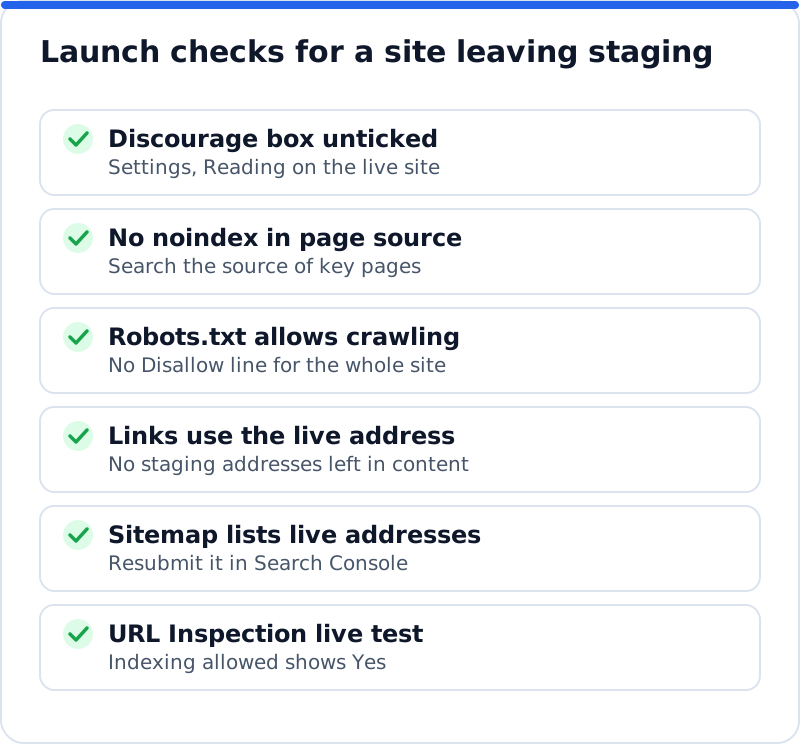
The fix is a short launch routine that someone owns. Agree who will run it and when, ideally in the first hour after the switch, and repeat the key checks the next morning. Treat it like locking up a shop: simple, routine and never skipped because everyone assumes someone else did it. The figure shows the checks that catch nearly every launch mistake. Each takes a minute or two.
Staging addresses left in content are the quieter problem. When a site moves, internal links, image addresses and settings saved by plugins may still point to the staging domain. Use a proper search and replace tool that understands WordPress's stored data, or your host's migration tool, rather than editing the database by hand. Then crawl the live site, or at least click through the main pages, and look for any address that still contains the staging domain. Every leftover link is an invitation for Google to visit the copy.
Plugins and connections on a copy
A staging copy is a full working website, so every plugin on it keeps doing its job unless told otherwise. That is useful for testing and dangerous for anything that talks to the outside world. An online wine shop in Bordeaux that copies its live site to staging may suddenly have two sites sending order emails, charging payment methods and syncing stock with the same supplier. Review every plugin that connects outward before or straight after making a copy. Good plugins detect that they are running on a new address and pause themselves, but many do not.
- Email and marketing plugins should be stopped or redirected to a test inbox, so customers never receive messages from the copy.
- Payment gateways should be switched to test mode, so no real card is ever charged by a test order.
- Scheduled tasks such as backups, feeds and imports should be paused, so the copy does not overwrite live data or storage.
- Analytics and tracking should be disabled, so test visits do not distort your real figures.
- Connected services that write changes to your pages, including SEO tools, should be paused, so changes meant for the live site never land on the copy.
Removing a copy that is already indexed
If a copy is already in Google, protect it first and remove it second. Add password protection or a noindex instruction so Google has a reason to drop the pages when it next visits. Then verify the staging address in Search Console, or rely on a Domain property, which covers every subdomain of your domain. The Removals tool can hide the copy's addresses from results for about six months while Google processes the change, but it is temporary and does not replace protection. A web agency in Berlin that finds a client's staging copy indexed should follow exactly this order, because removing addresses without protection simply lets them return.
Checking after launch
Search Console gives you the clearest view of how Google sees the live site after a launch. Open the URL Inspection tool, enter the home page and run a live test, then look at the line that says whether indexing is allowed. Do the same for one service page and one article. Over the following weeks, watch the Page indexing report for a rise in pages "Excluded by noindex tag", which would mean a setting slipped through somewhere. A quick search for your brand also shows whether a staging address is appearing next to the real one.
How AI WebMaker's plugin handles staging copies
Connected plugins are where staging copies cause the most confusion, so the AI Website SEO Tools plugin was built to behave safely on them. When a website is copied to a staging address, the plugin notices that the address changed and pauses itself, so fixes approved for the live site never land on the copy. For a password-protected staging site, where the "Connect to AI WebMaker" button cannot reach the site, a connection code works as the fallback. Requests are signed in both directions, and on hosts that block incoming requests the plugin fetches approved changes itself every 15 minutes and whenever an administrator opens the dashboard. If you are comparing tools before trialling one on a copy, the guide to the best AI SEO plugin for WordPress explains what else to check.
Questions business owners ask
Do I really need a staging site?
For any change bigger than editing a paragraph, a staging copy saves a lot of stress. Theme updates, new plugins and redesigns can break layouts, forms or checkouts in ways that only show up once the change is live. Testing on a copy lets you find those problems without visitors or Google seeing them. Many managed hosts include staging in their plans, often with one-click copying in both directions. If yours does not, a backup taken right before every change is the minimum protection.
Can a staging copy get my site penalised?
Google does not apply a penalty just because a duplicate copy of your site exists. What happens instead is that Google chooses one version to show, and it may sometimes choose the copy or split signals between the two. The practical damage is visitors landing on the wrong version, with outdated details or broken forms. The cure is the same either way: protect the copy, remove it from results if needed and make sure the live site is the one Google indexes. Treat it as a housekeeping problem rather than a crisis, but fix it promptly.
Should staging use a subdomain or a separate domain?
Either works if the copy is protected, and the choice usually depends on your host. A subdomain such as staging.yourdomain.com keeps everything together in one Search Console Domain property, which makes monitoring and removals simpler. A separate domain keeps the copy further from your brand if it ever leaks, but needs its own verification. Whatever you choose, never put the copy in a subfolder of the live site, because it then shares the live site's robots.txt and is easier to expose by accident. Password protection matters far more than the address.
Keeping WordPress staging site SEO under control
Good WordPress staging site SEO comes from two habits: protecting every copy from the moment it exists, and checking the live site the moment it launches. Put a password on the whole copy, add a server-level noindex if your host allows it, and treat the "Discourage search engines" box as a helpful extra rather than the main defence. Pause every plugin that sends emails, takes payments or writes changes to your pages while it runs on a copy. After going live, untick the box, check the source, the robots.txt file and the sitemap, and run a live URL Inspection test. For a wider view of how to check and fix your website once it is live, see the AI SEO tools for business websites. Before your next staging copy goes up, write the launch checks into your project plan so they happen every time.
Check your WordPress website, approve the fixes and they are applied for you: titles, descriptions, keywords, schema, alt text and redirects, each with undo.
Get the AI Website SEO Plugin for WordPress →