Image Alt Text in WordPress: A Practical Guide for Businesses
How to add image alt text in WordPress the right way, from the Media Library and the Image block to product photos, decorative images and a full library clean-up.
- Works with Yoast SEO and Rank Math
- You approve every change
- One-click undo
A screen reader that reaches a picture on your website reads out whatever words are attached to it, and on many WordPress websites those words are nothing at all, or a filename like IMG_4471. Search engines are in a similar position: they can analyse an image, but they lean on its text description to understand what it shows and why it is on the page. Image alt text in WordPress is that description, and getting it right helps visitors who cannot see the image, helps Google Images understand your photos, and makes your pages clearer overall. You will learn where WordPress stores alt text (there is more than one place), how to write it for different kinds of images, and which images should have none. You will also see how to find every image that is missing a description and fix a whole media library without going image by image for a month.
To have these fixes applied on your own WordPress website, try our WordPress SEO plugin with AI fixes, part of our AI SEO Tools.
Put alt text on images that have none with the AI website SEO plugin for WordPress
Why alt text matters on a business website
Alt text, short for alternative text, is a short written description stored in the alt attribute of an image. Its first job is accessibility: people who use screen readers hear it in place of the image, and everyone sees it when an image fails to load. The Web Content Accessibility Guidelines treat a text alternative for meaningful images as a basic requirement, and accessibility rules in many countries point to those guidelines. Since June 2025, the European Accessibility Act has applied to many online shops and consumer services in the EU, and in the US, website accessibility claims are often brought under the Americans with Disabilities Act. None of that makes alt text a legal checklist item on its own, but it shows the direction of travel, and good alt text costs very little.
Its second job is search. Google's own guidance on images says it uses alt text, together with the content around an image and what it can see in the image itself, to understand the picture and decide where it should appear in Google Images. For a business, that matters most where images are what people search for: products, finished projects, interiors, food and venues. A florist in Brighton whose wedding bouquets are described accurately has a fair chance of appearing when someone browses image results for bridal flowers in the city. Alt text also adds context to the page, because it is one more signal that the page is about what the headings say.
Where WordPress stores image alt text
WordPress keeps one alt text value for each image in the Media Library, stored with the image file itself. When you insert that image into a post with the Image block, WordPress copies the alt text into the block at that moment. From then on, the two are separate: changing the alt text in the Media Library does not update posts where the image is already placed, and changing it in a block does not update the Media Library. Featured images and many product images work differently, because themes and WooCommerce usually print them straight from the Media Library value. So the place you edit depends on where the image appears, and the table sets out the usual cases.
| Where the image appears | Where its alt text comes from | Where to edit it |
|---|---|---|
| Image block inside a post or page | The block's own copy, saved in the content | Select the image, then Alternative text in the block settings |
| Featured image of a post | The Media Library value | Media, Library, click the image, Alternative Text |
| WooCommerce product image and gallery | The Media Library value in most themes | Media, Library, or the image details when you set the product image |
| Gallery block | Each image inside it is its own Image block | Select each image inside the gallery |
| Image added in a page builder widget | Varies by builder; many read the Media Library value | Check the widget's settings first, then the Media Library |
| Background image set in a theme or cover block | Usually has no alt text by design | Put any important words in real text on the page |
Adding alt text step by step
There are two routes, and most websites need both. The Media Library route fixes the stored value, which matters for featured images, product images and every future use of the image. The block route fixes what visitors and Google actually see in a post that already contains the image. Doing the first without the second is the most common reason people think they have added alt text when the live page still shows none. The steps below cover both in the order that saves the most time.
- Go to Media, Library, switch to grid view and click an image to open its Attachment details.
- Type a description into the Alternative Text field; it saves as soon as you click away, with no button to press.
- Open each post or page that uses the image in the editor and select the image to show its block settings.
- Check the Alternative text field in the block sidebar, update it if it is empty or wrong, and press Update on the page.
- View the live page, right-click the image, choose Inspect and confirm the alt attribute carries your words.
Writing image alt text that helps
Good alt text says what the image shows and why it is there, in the fewest words that do the job. Picture describing the image to someone on the phone who cannot see your page: you would mention what matters to the page and skip what does not. A photo on a yoga studio's class page in Austin might be described as "Instructor guiding a beginners' vinyasa class in a sunlit studio", which tells a listener what the class looks like. There is no need to start with "image of" or "picture of", because screen readers already announce that it is an image. Keep most descriptions to a sentence, and as a rule of thumb under about 125 characters, since long alt text is tiring to listen to.
Keywords belong in alt text only when they are also the truth. If the photo really is a balayage colour finished at a hair salon in Chicago, saying so helps both a screen reader user and Google. If you squeeze in "best hair salon Chicago cheap haircut" instead, you help nobody and invite Google to treat the text as spam. Context changes the right wording too, because the same photo can need different alt text on different pages. A picture of a kitchen island used on a project page should describe the finished work, while the same picture in a post about choosing worktops should mention the quartz surface. The table compares weak and stronger alt text for a range of images.
| Image | Weak alt text | Stronger alt text |
|---|---|---|
| Room at a boutique hotel in Porto | hotel room porto best hotel cheap | Double room with a balcony overlooking the Douro river |
| Handmade mug from a ceramics shop in Amsterdam | IMG_2231 | Speckled blue stoneware mug with a hand-thrown rim, 300 ml |
| Team photo at an estate agency in Galway | Our team | Five members of the lettings team outside the Eyre Square office |
| Before and after from a kitchen fitter in Leicester | Kitchen | Dated pine kitchen before refit, beside the finished white shaker kitchen |
| Map image on a contact page | Map | Map showing the clinic two minutes' walk from the train station |
Decorative images, logos and linked images
Not every image should be described. Decorative images, such as a background texture, a divider line or a stock photo that adds mood but no information, should have empty alt text, so screen readers skip them. WordPress says as much under its alt text field, with a note to leave it empty if the image is purely decorative. When the field is empty, WordPress prints an empty alt attribute, which is the correct signal for a decorative image. The question to ask is simple: if this image vanished, would a visitor lose any information?
Logos and linked images follow their own rules. A logo should carry the business name, because that is the information it gives, and adding "logo" is optional. When an image is a link, its alt text becomes the link text, so it should describe where the link goes, such as "Book a consultation", rather than what the picture looks like. Icons that sit next to a text label already doing the same job can be left empty, because the label speaks for them. Images of text, such as a banner reading "Spring sale", should repeat that text in the alt attribute or, better, in real text on the page.
Product, team and project photos
Product photos are where alt text earns the most from search, because people browse Google Images when they shop. Describe the product as a shopper would: its name, colour, material and anything that tells two similar items apart. When a product has several gallery images, vary the alt text by what each one shows, such as the side view, the detail of the stitching or the item in use. WooCommerce and most themes print product images from the Media Library value, so edit those in the Media Library. A quick review of your bestsellers is usually the best place to start.
Team and project photos build trust, and alt text should keep the useful detail. For team photos, the person's name and role are what matter, along with where the photo was taken if it helps. For project photos, describe the finished work in the terms a customer would use, mentioning the area when the business serves local customers, such as a loft conversion in a particular district. Before and after pairs should say which is which, because a screen reader user cannot see the difference. These images are also the ones most often uploaded straight from a phone, so they are the most likely to arrive with no description at all.
Filenames, captions and image titles
The Media Library shows several text fields for each image, and only one of them is alt text. The Title field is filled from the filename on upload and is mainly for your own reference in the library. The Caption is visible text shown under the image on the page, where your theme supports it, and it is read by everyone. The Description field appears on the image's attachment page, which WordPress 6.4 and later switch off on new websites and which many SEO plugins redirect because it adds little value. The title attribute, which some themes add as a hover tooltip, is not a substitute for alt text and is not reliably read by screen readers.
Filenames still deserve a moment before you upload. A file called "dublin-office-reception.jpg" gives Google a small clue and gives you a readable title in the library, while "DSC00981.jpg" gives nothing. Use lowercase words separated by hyphens, and keep it short and accurate. Renaming a file after upload is awkward in WordPress, because the address of the file is already used in your posts, so it pays to rename before. Captions are worth using where the image needs explanation, but they should not repeat the alt text word for word, since a screen reader user would then hear the same sentence twice.
Fixing image alt text in WordPress at scale
The first task is finding the gaps, and that is harder than it sounds. Google's Lighthouse audit, which you can run in Chrome's developer tools or through the accessibility section of PageSpeed Insights, reports images with no alt attribute on a page. WordPress, however, usually prints an empty alt attribute when the field is blank, and the audit treats that as a deliberate decorative image, so many missing descriptions pass without a warning. A site crawler or an SEO checking tool that reports empty alt attributes across every page gives a truer picture. The AI SEO tools for business websites include this check as part of a full website review. Once you have the list, fix the images on your most visited pages first, then featured and product images in the Media Library, then the long tail of older posts.
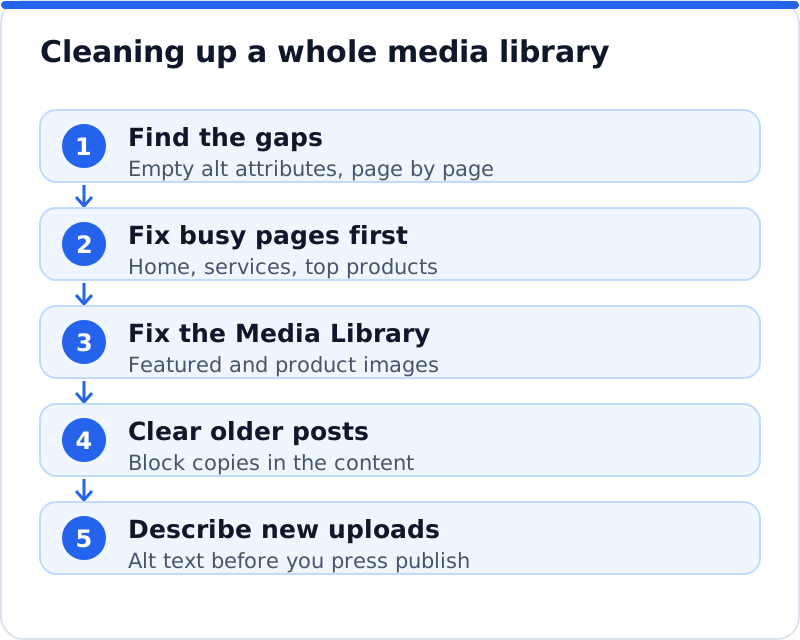
A plugin can take care of the most tedious part. Our AI website SEO plugin finds images that have no alt text and proposes a short description for each, and you approve them before anything changes. Images that already have alt text are left alone, and you can reject any proposal for an image you deliberately left empty as decorative. Every change is logged with its previous value and can be undone in one click, and if you edit the alt text afterwards, your version is kept. The same approach covers titles, descriptions, keywords and redirects, as the overview of the AI SEO plugin for WordPress explains. The writing is paid in credits, about 0.1 to 0.3 credit per page fix at about $0.65 a credit, while installing the plugin and running the first check cost nothing.
Mistakes to avoid
Keyword stuffing is the classic error, and it lingers on websites optimised years ago. A list of town names and services in the alt text of every photo reads as spam to Google and as noise to a screen reader user. Reusing one description for every image is almost as bad, because it tells nobody what each image shows. Leaving the camera filename as the alt text, which some upload tools do, is a missed chance rather than a description. Alt text written in a different language from the page confuses listeners too.
The other mistakes are about process rather than wording. Owners fix the Media Library and assume every post is updated, when the blocks still hold their old empty values. Page builders sometimes keep their own alt setting, which overrides the library and goes unnoticed. New team members upload photos straight from their phones with no description, and the gap reopens within weeks. Thumbnails on category and archive pages are often forgotten too. They take their alt text from the Media Library, so one fix in the library covers every place they appear.
Questions business owners ask
How long should alt text be?
Long enough to say what the image shows and why it matters, and no longer. For most images that is a single sentence, often under about 125 characters, which is a common rule of thumb because long descriptions are tiring to hear. There is no penalty for a longer description when an image is complex, but detailed information belongs in the page text where everyone can read it. Start with the most important detail, since listeners may skip ahead. Leave out what the page text already says.
Does alt text help my Google rankings?
It helps Google understand your images, which matters most for appearing in Google Images and for pages where images carry the content, such as products and portfolios. Its effect on the ranking of a normal text page is small compared with titles, content and links. That does not make it optional, because it also makes your website usable for more people. Treat it as part of publishing an image properly rather than as a ranking trick. Over a whole website, the steady benefit adds up.
Should every image have alt text?
Every meaningful image should, and decorative images should have deliberately empty alt text. The difference is whether a visitor would lose information if the image disappeared. A product photo, a team portrait or a map clearly carries information, while a background texture or a decorative divider does not. An empty value tells screen readers to skip the image, which is a kindness, not an omission. What you want to avoid is the accidental gap, where an important image simply has nothing.
A house rule for every new image
Clean-ups are worth doing once, but habits keep a website tidy. Agree a simple rule with anyone who publishes on your WordPress website: rename files before upload, add alt text in the Media Library or the block before publishing, and leave it empty only for images that add no information. Check the live page once, using Inspect on an image, so you know the description reached visitors. Review new pages each month for gaps, especially those built from phone photos. Then fix the backlog on your busiest pages first, and work outward from there until every meaningful image on the website says what it shows.
Check your WordPress website, approve the fixes and they are applied for you: titles, descriptions, keywords, schema, alt text and redirects, each with undo.
Get the AI Website SEO Plugin for WordPress →