Automatic SEO for WordPress: Letting a Plugin Apply Fixes Safely
A practical look at automatic SEO for WordPress: which fixes a plugin can apply on its own, which need a human, and the safety net of approval, logs, undo and careful measurement.
- Works with Yoast SEO and Rank Math
- You approve every change
- One-click undo
A plugin that edits your website while you are with a customer is either the most useful thing you install this year or the most worrying. Automatic SEO for WordPress sits right on that line, because the same speed that fills two hundred empty meta descriptions in an afternoon can also overwrite good work in seconds. The difference between the two outcomes is not the cleverness of the writing, it is the safety around it. You will learn which jobs are low risk enough to hand over, which ones should always pass a human first, and how approval, change logs and undo should work. You will also see how changes physically travel to a WordPress site, why caches and staging copies trip people up, and how to tell after a few weeks whether a change helped. By the end you should be able to judge any automation tool on the right questions instead of on its promises.
To have these fixes applied on your own WordPress website, try our AI SEO plugin with undo, part of our AI SEO Tools.
This article is part of our complete guide: WordPress SEO.
Start with the AI website SEO plugin for WordPress and approve each fix before it goes live
What automatic SEO for WordPress really means
Most WordPress owners already use an SEO plugin such as Yoast SEO, Rank Math, All in One SEO or SEOPress. Those plugins give every post and page a set of fields (an SEO title, a meta description, a focus keyword, social sharing details) and they print the right tags in the page head. What they do not do on their own is fill those fields for you across the whole website. That job usually falls to the owner, a member of staff or an agency, and on a site with eighty pages it quietly never gets finished. Automatic SEO for WordPress means a tool that finds the gaps, writes a fix for each specific page, and places the result into those same fields without someone copying and pasting.
The word "automatic" covers a wide range of behaviour, so it helps to be precise. At one end, a tool suggests text and you paste it in yourself, which is safe but slow. In the middle, a tool prepares fixes, you review them in a list, and nothing changes until you press a button. At the far end, a tool changes the site with no review at all, which is fast and occasionally disastrous. The sensible place for a business website is the middle, with the option to loosen control for areas you have come to trust.
What is safe to automate, and what is not
The best test for any change is simple: if it turns out wrong, how much harm does it do, and how quickly can you reverse it? A meta description is low risk, because it only affects the snippet shown in search results and can be replaced in seconds. Alt text on an image that had none carries almost no risk, since an accurate description is better than nothing. A rewritten page heading or a new paragraph on a service page carries more weight, because it changes what visitors read and what the page is about. Deleting content, changing URLs or editing the theme is a different category altogether and should never be automated on a business website.
| Change | Risk if wrong | Sensible approach |
|---|---|---|
| Meta description on a page with none | Low | Apply after a quick scan of the batch |
| Search title rewrite | Low to medium | Review titles for key service pages |
| Image alt text where it is missing | Very low | Apply in bulk |
| 301 redirect for a missing page | Medium | Check the target before approving |
| Business schema on the home page | Medium | Confirm name, address and phone |
| Page heading or body text | High | Always read before publishing |
| URL changes, deletions, theme edits | Very high | Never automate |
A roofing company in Denver gives a good example of why the line matters. Its owner might happily let a tool write descriptions for forty project pages, because each one simply describes a finished roof. The same owner would be furious if a tool rewrote the opening of the "storm damage repair" page, since that text was shaped by years of conversations with insurers and homeowners. Content carries tone, legal care and local knowledge that no outside tool fully knows. Metadata carries far less of that weight, which is why it is the natural place to start.
Approval and trust levels
Good automation lets you decide how much trust each area gets, rather than offering one big switch. A practical setup has three levels. Some areas are switched off entirely, so the website refuses any change to them even if one is sent. Some need approval, where you see the old value next to the new one and press a button. Some are trusted, where approved fixes go straight in because you have already watched that area behave well for a month.
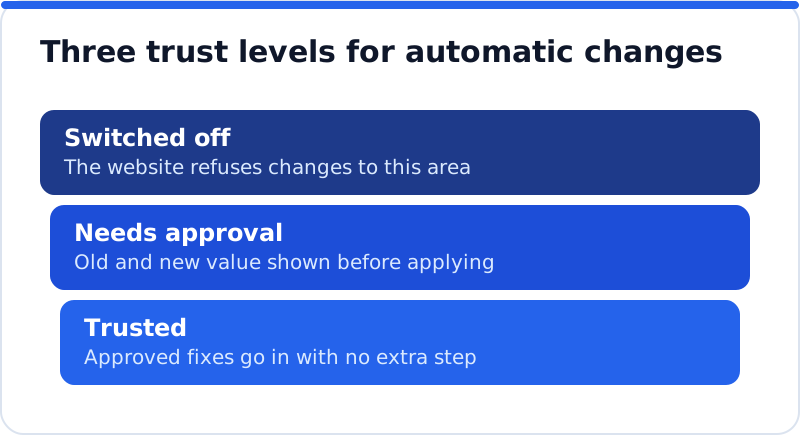
An accountant in Dublin might start with page headings switched off, search titles on approval, and image alt text trusted. After a month of reading every title before it goes live, she might find she agrees with nearly all of them and move titles to trusted as well. Headings may stay switched off forever, and that is a perfectly good outcome. The point is that trust is earned per area, with evidence, and that it can be withdrawn just as quickly. Any tool that cannot express those levels is asking for all or nothing, and that is a poor bargain for a working business.
Logs and undo are the real safety net
Approval protects you before a change, but a log and an undo button protect you after it, which is when most surprises are found. A useful log records the page, the field, the old value, the new value, the date and who or what made the change. With that record, a question such as "why did our contact page title change in March?" takes ten seconds to answer instead of an afternoon of guessing. Without it, you cannot connect a dip in clicks to anything in particular. WordPress revisions do not help much here, because by default they keep the post title and content but not the fields an SEO plugin stores alongside them.
Undo needs one more piece of care to be safe. Imagine a tool changed a page's meta description on Monday, and on Wednesday your marketing manager improved it by hand. If you press undo on Thursday, a careless tool would restore the original Monday value and wipe out Wednesday's work. A careful one checks whether the field still holds the value it wrote, and if someone has edited it since, it leaves the human version alone. That single rule is the difference between an undo button you can press without fear and one that creates fresh problems.
How changes reach a WordPress site
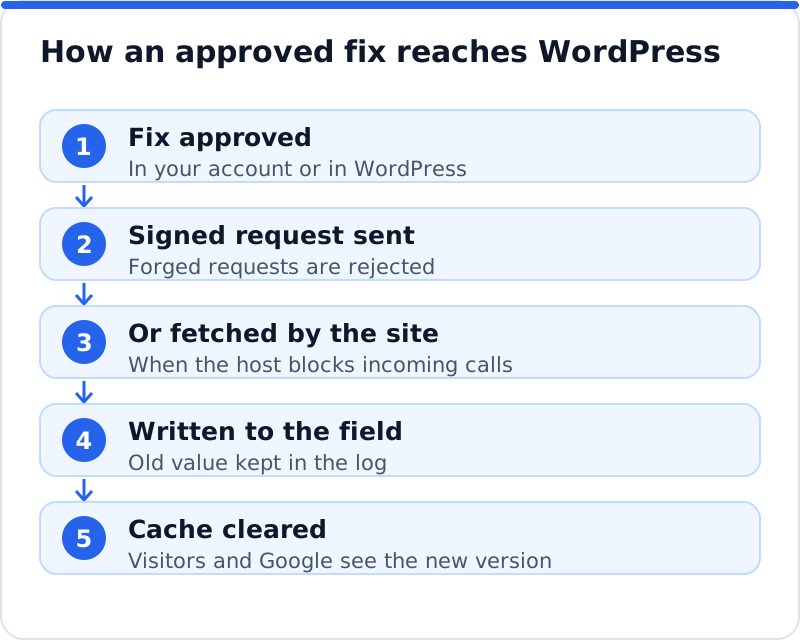
Behind the dashboard, a fix has to travel from wherever it was written to your WordPress database. The usual route is a request sent to the website, which the plugin receives and checks before writing anything. That check matters, because a website that accepts instructions from anyone is a security hole. Well-built tools sign every request with a secret shared only between your site and your account, so a forged request is rejected. The plugin should also accept only data for known fields, never code to run, and it should never touch your theme or other plugins.
Some hosts and security plugins block incoming requests of this kind, often with good intentions. A firewall, a locked-down REST API or a password on a staging site can all stop a fix from arriving. The dependable answer is for the plugin to reach out instead, fetching approved changes on a timer (for example every 15 minutes) and whenever an administrator opens the dashboard. That way a strict host slows delivery slightly rather than breaking it. When you evaluate any tool, ask what happens when incoming requests fail, because on real business hosting they sometimes will.
Caches and staging copies
A change that has been applied but not cleared from the cache is invisible, which confuses owners more than any other part of automation. Caching plugins such as WP Rocket, LiteSpeed Cache, W3 Total Cache and WP Super Cache store a finished copy of each page so it loads quickly. Many hosts add their own server cache on top, so there may be two layers to clear. If the new title sits in the database while the old page sits in the cache, visitors and Google keep seeing the old one until the cache expires. A good automation tool purges the common caches after each change, and if yours does not, clearing the cache by hand should be part of your routine.
Staging copies cause the opposite problem. Agencies and careful owners often clone a live site to a staging address to test a new theme or plugin update. If the SEO plugin on that copy still believes it is the live site, it may fetch and apply changes there, or report the wrong pages back to your account. The safe behaviour is for the plugin to notice that the website address has changed and pause itself until someone confirms what is going on. A florist in Bristol testing a new shop layout on a staging copy should never find live fixes landing in the test site, or test data drifting back the other way.
Measuring results after automatic SEO for WordPress changes
Speed of change is only useful if you can tell which changes helped. Google Search Console is the right place to look, because its Performance report shows clicks, impressions, click-through rate and average position for each page and each search. Its data usually runs a couple of days behind, and Google may take days or weeks to recrawl a page and show a new title or description. That means judging a change after three days tells you almost nothing. Give each batch of changes around four to six weeks, then compare the same length of time before and after for the pages involved.
Change one kind of thing at a time where you can, so that results point to a cause. If a physiotherapy practice in Rotterdam rewrites titles and descriptions and adds schema in the same week, a rise in clicks cannot be credited to any single change. Applying titles first, waiting, then descriptions, gives cleaner evidence for little extra effort. Keep a short note of each batch with the date, so you can line it up against the Performance chart later. Also remember that seasons, competitors and Google's own updates move numbers too, so treat one good week as a hint, not proof.
When automation goes wrong
Automation done badly tends to fail in a few predictable ways, and each one is avoidable. The most common is duplication, where a new tool prints its own title and description tags while the existing SEO plugin prints its own, leaving pages with two of each. Another is generic text, where every page gets a near-identical description that says nothing about that page. A third is reach, where a tool changes things nobody asked it to, such as headings or body copy. The last is silence, where changes happen with no record, so nobody can explain or reverse them.
- Two title or description tags in the page source mean two tools are printing the same thing, and one must stop.
- Descriptions that could fit any page on the site suggest the tool is not reading each page before writing for it.
- Changes in areas you never approved point to missing or ignored permissions, which is a reason to stop using the tool.
- A change you cannot find in any log means you have lost the ability to undo it cleanly.
A wedding photographer in Edinburgh might discover the duplication problem only when a client shares a link and the preview shows the wrong text. Viewing the page source and searching for "og:title" or the title tag takes a minute and settles the question. The fix is always the same: one system decides the tags, and every other tool writes into its fields rather than printing its own. Respecting the existing SEO plugin is the single clearest sign that an automation tool was designed with care. Any tool that cannot explain how it avoids duplicate tags should not be trusted with a live website.
How AI WebMaker applies fixes
Our own approach follows the rules above, and it is worth describing plainly. The AI Website SEO Tools plugin is downloaded from aiwebmaker.co as a zip and installed through Plugins, Add New, Upload Plugin. Right after activating it, you can run a check from the WordPress dashboard, before creating any account, and see a score out of 100, what costs the most visitors and the traffic within reach. Fixes are written for your own pages in your AI WebMaker account, and nothing changes until you press Apply, with optional approval inside WordPress as well. The WordPress plugin that applies SEO fixes with a log and undo writes into the fields of Yoast SEO, Rank Math, All in One SEO or SEOPress, so pages never get two titles, and it prints the tags itself only when no SEO plugin is present.
Each area has its own permission, and a switched-off area is refused by the website itself. Page headings change only if you switch that permission on, and the plugin never runs code it is sent or touches your theme or other plugins. Requests are signed both ways, and if your host blocks incoming requests, the plugin fetches approved changes every 15 minutes and whenever an administrator opens the dashboard. A copy on a staging address notices the change of address and pauses, and common caches are purged after each change. Installing, checking and applying cost nothing, while the writing is paid in credits: a fix for one page costs about 0.1 to 0.3 credit, a credit is about $0.65, credits never expire and there is no subscription.
Questions business owners ask
Will automatic changes hurt my rankings?
Well-chosen metadata changes rarely hurt, and they often help clicks, but nothing is guaranteed in either direction. A clearer title can earn more clicks for the same position, while a poorly matched one can lose a few. That is why each change should be logged and judged after several weeks rather than assumed to be good. If a batch of titles performs worse, undo them and keep the old wording. The risk is small precisely because every step can be reversed.
Do I need to keep my existing SEO plugin?
Yes, if you already have one that works, keep it as the engine that prints the tags. A good automation tool should fill that plugin's fields rather than replace it. Switching SEO plugins is a separate decision with its own risks, such as fields that do not transfer cleanly. Keeping what you have means your sitemaps, settings and schema options stay exactly as they are. The automation simply fills in the gaps that were left empty.
How much should I review before trusting an area?
Review every change in an area until you have seen enough to predict what the tool will do. For many owners that is two or three batches, or a few weeks of reading. Look especially at your most valuable pages, such as the home page and main service pages, since those carry the most visits. Once you rarely disagree with what you see, moving that area to trusted is reasonable. Keep content areas such as headings under review for longer, since they carry more weight.
A sensible first week with automation
Start small and measurable rather than switching everything on at once. Run a check of the whole website, pick the area with the most gaps and the lowest risk (usually meta descriptions or alt text), and apply one batch. Note the date, look at a few pages in the browser and in the page source, and confirm the cache shows the new version. Leave content areas switched off until you have a month of results to look at. If you want to see how this fits alongside keyword research, backlinks and content, the AI SEO tools for business websites show how each part joins up, and the plugin is a good place to begin applying fixes safely.
Check your WordPress website, approve the fixes and they are applied for you: titles, descriptions, keywords, schema, alt text and redirects, each with undo.
Get the AI Website SEO Plugin for WordPress →