WordPress Meta Descriptions for Every Page, Without Losing a Week
What a meta description really does, where to add it in WordPress and its SEO plugins, templates for each page type and a sensible way to cover a whole website.
- Works with Yoast SEO and Rank Math
- You approve every change
- One-click undo
Two lines of grey text under a search result often decide whether someone who found you actually visits you. That text is usually the meta description, and on many WordPress websites it was never written, so Google fills the space with whatever it finds on the page. Adding a meta description in WordPress is not hard, but doing it well on every page, without spending a week copying and pasting, takes a plan. You will see what a description does and does not do, where the field lives in Yoast SEO, Rank Math, All in One SEO and SEOPress, how long it should be and how to write for what the searcher wants. You will also get templates for each type of page, the mistakes that waste the space, and a layered way to cover hundreds of pages while you check the results in Search Console.
To have these fixes applied on your own WordPress website, try our AI SEO plugin with undo, part of our AI SEO Tools.
Let the AI website SEO plugin fill in missing meta descriptions across your WordPress pages
What a meta description does, and what it does not
A meta description is a short summary of a page, stored in the page's hidden head as a meta tag. Google has said for years that it does not use the description to decide rankings, so a better description will not move a page from the second page of results to the first. What it can do is win more of the clicks a page already gets the chance to earn. That makes the description a sales line, not a ranking lever, and it should be written like one. Many SEO plugins also reuse it as the default text when a page is shared on social networks, which gives it a second job.
Google also treats the description as a suggestion rather than an instruction. It may show your text, it may show a passage from the page that matches the search better, or it may combine the two. The same page can show different snippets for different searches, which is normal and not a sign of a problem. A well-written description that matches the page's main search is the version Google is most likely to keep. That is the target: a description so close to what searchers want that Google has no reason to look elsewhere.
What Google shows when the field is empty
WordPress itself does not print a meta description at all, so without an SEO plugin and without someone filling in the field, every page goes out with none. Google then builds a snippet from the page content, and the result is a lottery. A veterinary practice in Manchester might find its vaccination page described by the text of its cookie banner, a line from the footer, or the first sentence of a paragraph about parking. None of that is wrong exactly, but none of it persuades a pet owner to choose that practice over the one listed below it. The fix is cheap compared with the clicks it loses, which is why missing descriptions appear near the top of most SEO checks.
An empty field is not the only way to end up with no real description. Some SEO plugins are set to build descriptions from the post excerpt, and where nobody wrote one, the template either produces nothing or takes the opening words of the content, which may be a heading or a button label. Page builders often put a hero banner or a slider at the top of the page, so the first words on it are rarely a useful summary. A site-wide template that inserts the same sentence on every page creates duplicates, which is arguably worse than leaving the field empty. Checking a few important pages by viewing their source is the quickest way to know which of these situations you are in.
Where the meta description lives in WordPress
Every major SEO plugin gives each page its own description field and a site-wide template for pages you never fill in by hand. The page field always overrides the template. Most plugins can build a fallback from the post excerpt, the short summary WordPress stores for each post, using a template variable. In the block editor, the excerpt sits in the post settings sidebar, although pages have no excerpt field unless your theme or a plugin adds one. The table shows where to find the field, the template and the excerpt variable.
| SEO plugin | Description field on a page | Template location | Excerpt variable |
|---|---|---|---|
| Yoast SEO | Yoast SEO panel, under the SEO title, "Meta description" | Yoast SEO, Settings, Content types | %%excerpt%% |
| Rank Math | Rank Math sidebar, General tab, "Edit Snippet", Description | Rank Math, Titles and Meta | %excerpt% |
| All in One SEO | AIOSEO Settings, General tab, "Meta Description" | All in One SEO, Search Appearance, Content Types | #post_excerpt |
| SEOPress | SEO box, Titles settings tab, "Meta description" | SEO, Titles and Metas, Single Post Types | %%post_excerpt%% |
The steps are almost identical whichever plugin you use, because only the field names differ. If you build pages with a page builder such as Elementor, Yoast SEO and Rank Math also show their panel inside the builder, and the standard WordPress edit screen still works for every plugin. Removing template variables matters, because a field that mixes a variable with your own words can print the excerpt twice or cut your sentence short. Saving the page is the step people forget most, since the description is stored with the page rather than on its own. The final check in the page source matters most, because it shows exactly what Google will read.
- Open the page or post in the WordPress editor and find your SEO plugin's panel, below the content or behind its icon in the top bar of the block editor.
- Open the snippet or search appearance section and click into the description field, removing any template variables you do not want for this page.
- Write the description, watching the plugin's length indicator and the search preview as you type.
- Press Update on the page, because the SEO fields are saved together with the page and are lost if you leave without saving.
- Open the live page, view its source and search for "description" to confirm one meta description tag carries your new text.
How long a WordPress meta description should be
Google has no fixed character limit for descriptions; it trims the snippet to fit the space on the screen. On desktop that usually means about 150 to 160 characters before the text is cut, and on phones it is often shorter. Because of that, the most important words belong in the first 120 characters, where they survive on almost every device. A description that runs long is not penalised, but the end of it simply disappears, and if your phone number or offer sits there, nobody sees it. A description that is too short wastes the space and gives Google a reason to pull in page text instead. Aim for 120 to 155 characters, put the key point first, and let the preview in your SEO plugin confirm the fit.
Writing for what the searcher wants
The best descriptions start from the search, not from the business. Someone typing "AC repair Atlanta" in August has a hot house and wants to know whether you can come today, so an HVAC company should lead with fast call-outs, the areas it covers and how to book. Someone searching "how to plan a house extension" is months away from hiring anyone, so an architecture studio in Copenhagen does better with a description that promises a clear explanation of the steps, costs and permits. Ask yourself what the person wants to be sure of before they click, then answer it in plain words. A specific detail, such as opening hours, years in the trade or a guarantee you really offer, usually beats an adjective like "best" or "leading".
There is a simple shape that works for most business pages. Start with what the page offers and, for a local business, where. Add one or two concrete reasons to choose you. End with a light call to action, such as "book online", "see the menu" or "get a quote", so the reader knows what happens after the click. Use the main search term naturally, because Google often prints matching words in bold, which draws the eye. Keep it honest, because a description that promises something the page does not deliver brings a visit that leaves in seconds.
Templates by page type
Templates speed up writing without making every description sound the same, as long as you fill them with details unique to each page. A product page needs the product, a feature that matters and a buying detail like delivery. A blog post needs the question it answers and what the reader will be able to do afterwards. A category page needs a summary of what the reader will find in it. The table gives a weak and a stronger example for five page types, each for a different business.
| Page type | Weak description | Stronger description |
|---|---|---|
| Home page of a bakery in Lyon | Welcome to our website. We are a bakery. | Sourdough, viennoiseries and celebration cakes baked daily in Lyon's 6th arrondissement. Order by noon for next-day collection. |
| Service page of a driving school in Cork | Driving lessons. Contact us for more. | Driving lessons in Cork with patient, approved instructors. Manual and automatic cars, pre-test sessions and flexible evening slots. |
| Blog post by a mortgage broker in Bath | Read our latest post about mortgages. | What lenders check before approving a first mortgage, and five ways to prepare your paperwork so your application moves faster. |
| Product page of a bike shop in Ghent | Buy this bike now at a great price. | Steel touring bike with a Brooks saddle and dynamo lights, built and fitted in our Ghent workshop. Delivery across Belgium. |
| Category page of a garden centre in Kent | All our plants. | Hardy perennials for Kent gardens, sorted by sun, shade and soil, with planting advice from our nursery team. |
Mistakes that waste the space
The most expensive mistake is the duplicate. When forty pages share one description, often because a theme or template inserted a slogan everywhere, Google has no help telling those pages apart and searchers see the same words under every result. The second is the description that describes the business instead of the page, such as a company history on a service page. The third is stuffing: a string of keywords separated by commas looks like spam, and Google is likely to replace it. The fourth is the stale promise, such as a seasonal offer or opening hours that changed months ago, which damages trust before the visitor even arrives.
A quieter mistake is forgetting pages that are not posts or pages. Categories, tags, product categories and author archives can all appear in search results, and each one needs either a description or a decision to keep it out of Google. Many SEO plugins let you set descriptions for categories in the category edit screen under Posts, Categories. If an archive has no real value to searchers, setting it to noindex in your SEO plugin is often better than writing a description for it. Either way, make the choice deliberately rather than leaving it to defaults.
Filling hundreds of pages without losing a week
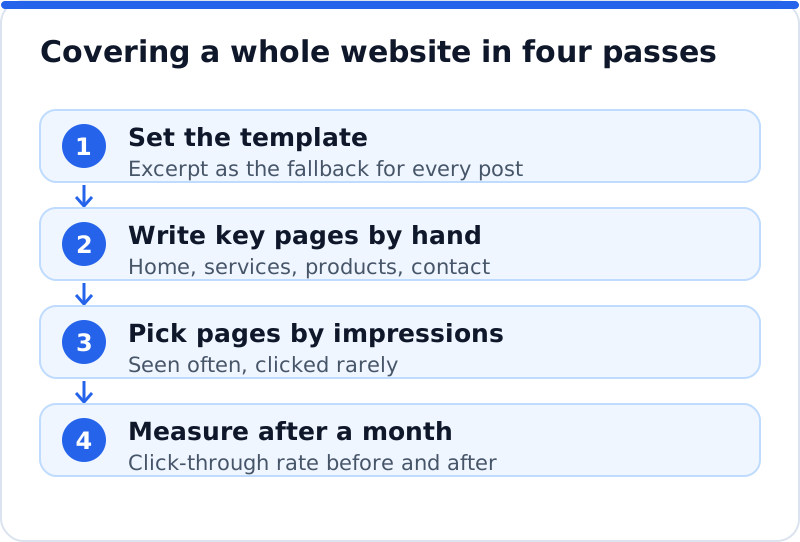
Nobody needs to write three hundred descriptions in one sitting. Start by setting the site-wide template to use the excerpt, and spend an hour writing excerpts for posts that lack them, because each excerpt then does double duty. Next, write descriptions by hand for the pages that matter most to your income, which are usually the home page, main services or products, and contact page. Then use Search Console to choose the next group: in the Performance report, sort pages by impressions and look for pages with many impressions and a low click-through rate. Those pages already have Google's attention, and a better description is the cheapest way to convert it into visits.
For the middle of that list, a plugin can take most of the typing off your hands. Our AI website SEO plugin checks the website, writes a description for each page that lacks one or has a weak one, based on that page's own content and the search it should win, and waits for you to approve it. Approved descriptions go into the description field of Yoast SEO, Rank Math, All in One SEO or SEOPress, so you never end up with two description tags. Every change is logged with the old value and can be undone in one click, and if you edit a description afterwards, your edit is kept. The same approach covers titles, keywords, alt text and redirects, which is explained in more depth in the overview of the AI SEO plugin for WordPress. A page's fix costs about 0.1 to 0.3 credit, at about $0.65 a credit, and installing the plugin and running the check cost nothing.
Checking and measuring the results
Start with the page itself. Open it in a private window, view the source and confirm that only one meta description tag appears, carrying the text you wrote. If two appear, a theme or second plugin is adding its own, and one of them needs switching off. Then ask Google to look again by using the URL Inspection tool in Search Console and requesting indexing for your most important pages. Wait about four weeks, then compare each page's click-through rate in the Performance report with the four weeks before, using the date comparison, and keep a short note of what you changed and when.
Read the numbers with care. Click-through rate depends on position, so a page that slipped from fifth to eighth may get fewer clicks even with a better description. Seasonal searches swing on their own, so compare like with like. Remember too that Google may still show page text instead of your description for some searches, which does not mean the description failed. Look for patterns across a group of pages rather than drawing conclusions from one. If you want every description on the website checked in one pass, the AI SEO tools for business websites flag pages with missing, duplicated or overlong descriptions alongside other problems.
Questions business owners ask
Does every page need a meta description?
Every page you want people to find in Google benefits from one. That includes the home page, services, products, important blog posts and useful category pages. Pages that you keep out of search, such as thank-you pages or account pages, do not need one. A template based on the excerpt is a reasonable safety net for older posts with little traffic. Spend your writing time where the impressions are, and let the template cover the rest.
Why does Google ignore my description?
Google picks the snippet it believes best matches each search, so for some searches it will choose text from your page instead. This happens more often when the description is vague, very short, stuffed with keywords or a poor match for what the page says. It also happens when the search asks about a detail that only appears in the body of the page. Making the description specific to the page and its main search makes Google more likely to use it. You cannot force Google's choice, but you can make your text the obvious best option.
Can I use the same description on similar pages?
It is better not to, even when the pages are similar. Two location pages for the same service should mention their own towns and anything that differs, such as local opening hours or the team that covers that area. Identical descriptions make the pages look interchangeable to Google and to searchers. Writing a unique opening clause and keeping a shared ending is a sensible compromise. That way each page stays distinct while you save time on the parts that really are the same.
Your first ten descriptions
Open Search Console, find the ten pages with the most impressions, and check what each one currently shows as its description. Rewrite the weak or missing ones using the shape above: what the page offers, a concrete reason to choose you and a light call to action. Confirm each one in the page source, note the date and leave the pages alone for a month. Then compare click-through rates and keep what works. Once those ten are earning more clicks, set the template, write the excerpts and move on to the next ten.
Check your WordPress website, approve the fixes and they are applied for you: titles, descriptions, keywords, schema, alt text and redirects, each with undo.
Get the AI Website SEO Plugin for WordPress →