WordPress SEO Without an SEO Plugin: What You Still Need
What WordPress handles for search by itself, the gaps you must close without an SEO plugin, the theme's part in it and a practical checklist for a lean setup.
- Works with Yoast SEO and Rank Math
- You approve every change
- One-click undo
WordPress can put a page in front of Google on its own, and many owners never realise how much it already does. It prints a title for every page, builds an XML sitemap, sets a canonical address on posts and pages, and gives you clean permalinks with one setting. What it does not do is let you write a separate search title for each page, add a meta description, control how pages look when shared or describe your business in structured data. Doing WordPress SEO without a plugin is therefore a real option for a lean website, but only if you know exactly which gaps you are choosing to close another way. What follows covers what core WordPress handles, what is missing, which jobs belong to your theme, how to set things up step by step, and when a small plugin that prints only the needed tags is enough. A checklist at the end lets you confirm that nothing important was left out.
To have these fixes applied on your own WordPress website, try our WordPress plugin that applies SEO fixes, part of our AI SEO Tools.
Check your website with the AI website SEO plugin for WordPress before you choose an SEO plugin
What WordPress does for SEO by itself
The title tag is the first thing WordPress handles. Any theme that declares title tag support, which nearly every modern theme does and which block themes get automatically, lets WordPress print a title built from the page name, a separator and the Site Title from Settings, then General. The home page uses the Site Title and the Tagline instead, which is why the old default tagline "Just another WordPress site" still appears in Google for some older websites. Since version 5.5, WordPress also builds an XML sitemap at /wp-sitemap.xml that lists posts, pages, categories, tags and author archives. It adds a canonical tag on single posts and pages, so a page reached by more than one address still points Google to its main version.
A few quieter features help too. The Search engine visibility box under Settings, then Reading, adds a noindex instruction to every page when ticked, which is right for a website under construction and disastrous if left on after launch. WordPress serves a basic robots.txt file when none exists, and that file points to the sitemap. When you change the slug of a published post, WordPress usually remembers the old address and redirects visitors to the new one. Images have an Alternative Text field in the Media Library and in the Image block settings, so alt text needs no plugin at all.
What goes missing with WordPress SEO without a plugin
The biggest gap is control over the search title. Without a plugin, the title tag is always the page name plus the site name, so a page called "Lessons" on a piano teacher's website in Boston appears in Google as "Lessons" followed by the site name, rather than "Piano Lessons in Boston for Children and Adults". You can rename the page itself, but that changes the visible heading too, and a good heading is not always a good search title. The second gap is the meta description, which WordPress does not print at all, so Google picks text from the page. Sometimes that works, but often it chooses an opening hours block, a cookie notice or the first line of a sidebar.
Sharing and structured data are the other gaps. WordPress prints no Open Graph tags, so when someone shares a page on Facebook, LinkedIn or WhatsApp, the platform guesses the title, text and image, often badly. It prints no business schema, which means Google gets no structured statement of your name, address, phone and logo from the website itself. There is no per-page noindex switch for thin pages such as tag archives or thank-you pages, and no screen for managing redirects beyond the automatic one for changed post slugs. The table below sets out each job and how it gets done on a website with no SEO plugin.
| SEO job | What WordPress does by itself | What you need without an SEO plugin |
|---|---|---|
| Title tag | Prints page name and site name | Accept it, or add a custom title another way |
| Meta description | Nothing | A small code snippet or a lightweight plugin |
| XML sitemap | Built in at /wp-sitemap.xml since 5.5 | Nothing more, unless you must exclude pages |
| Canonical tag | Printed on single posts and pages | Nothing more for most websites |
| Sharing tags | Nothing | Open Graph tags from code or a small plugin |
| Business schema | Nothing | JSON-LD on the home page, added once |
| Redirects | Changed post slugs only | Server rules or a redirect tool |
| Image alt text | Field in the Media Library and Image block | Fill it in on every meaningful image |
Your theme's share of the work
A theme does more for search than most owners assume, and without an SEO plugin its choices matter even more. It must declare title tag support, or WordPress cannot print the title properly and older themes may hard-code a poor one. It should show each page's title as a single H1 and use H2 and H3 headings in a sensible order, so the structure of the page is clear. It should load quickly and work well on a phone, since Google judges the mobile version of a page and slow pages lose visitors before they read a word. Some themes also print breadcrumbs or basic structured data, which you need to know before adding any of your own.
Check your theme in a few minutes. Open a service page, view the source and search for the title tag to confirm there is exactly one. Count the H1 tags on the same page, because some themes wrap the logo in an H1 as well as the page title. Run the page through PageSpeed Insights and note the mobile results, since a heavy theme will undo much of your other work. A café in Barcelona with a beautiful but slow theme might gain more from a lighter theme than from any SEO plugin.
Setting up WordPress SEO without a plugin
A no-plugin setup takes an afternoon if you work in order. Start with the settings WordPress already offers, then fill the fields it already has, and only then decide what to add. Do the steps below on a staging copy if you have one, or straight after a backup if you do not. Each step is small, but together they cover most of what a basic SEO plugin would have done for you. Note the date when you finish, so later changes in Search Console can be traced back to this work.
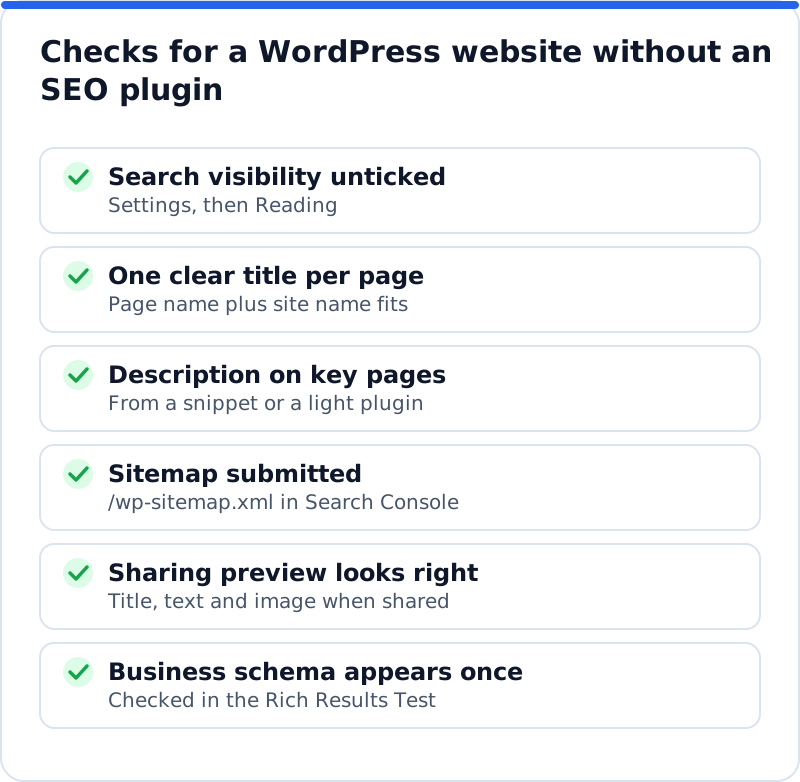
- Under Settings, then General, set a clear Site Title and a Tagline that names what you do and where, because the home page title uses both.
- Under Settings, then Permalinks, choose Post name so addresses read like words rather than numbers.
- Under Settings, then Reading, make sure the box that discourages search engines is unticked on the live website.
- Rename vague page titles, such as "Services", to clear names like "Electrical Rewiring in Glasgow", since that name becomes both the heading and the search title.
- Fill the Alternative Text for every meaningful image in the Media Library, describing what the photo shows.
- Add the website to Google Search Console, verify it and submit /wp-sitemap.xml in the Sitemaps report.
Step four is the one that matters most, and it needs care. Because the page name doubles as the search title, it has to work as both a heading visitors read and a listing people click. Keep it under about 60 characters so the site name still fits, lead with the service and the place, and avoid stuffing in extra keywords. An electrician in Glasgow might use "Electrical Rewiring in Glasgow" as the page name and let the site name finish the title in Google. On a lean website, that one change does most of what a custom SEO title would have done.
Adding descriptions and sharing tags by hand
If you are comfortable with a little code, a meta description and Open Graph tags can be added without an SEO plugin. The usual method is a short function in a child theme's functions.php file, or in a code snippets plugin, that hooks into wp_head and prints a meta description built from each page's excerpt. The same function can print og:title, og:description and og:image tags using the page title, the excerpt and the featured image. Never put this in the parent theme's files, because the next theme update will overwrite them. Test it on one page first and view the source to confirm the tags appear once.
This approach has limits worth weighing honestly. Every page now needs a well-written excerpt, which WordPress shows in the editor sidebar for posts but not for pages, until one line of code adds excerpt support to pages. If you later install an SEO plugin, you must remove your snippet, or pages will print two descriptions. Business schema can be added the same way, as one JSON-LD block on the home page with your name, address, phone, hours and logo, but it must be kept in step with any change to those details. For a boutique in Milan with twenty pages and a developer on call, this can be a tidy solution, while for an owner with no access to code it quickly becomes a burden.
When a lightweight plugin is enough
Between hand-written code and a full SEO plugin sits a middle path: a small plugin that prints only the tags you need. For many lean websites, that means a custom title, a meta description and Open Graph tags on each page, plus business schema on the home page, and nothing else. The core sitemap, canonical tags and robots handling stay with WordPress, which already does them well. This keeps the front end light and the admin screens simple, with fewer settings to misconfigure. The key test for any such plugin is that it adds nothing to the page beyond the tags it manages, with no extra scripts or styles.
AI WebMaker's plugin, AI Website SEO Tools, fits this middle path. With no SEO plugin installed, it prints the title, description and Open Graph tags itself, and if you install Yoast SEO, Rank Math, All in One SEO or SEOPress later, it writes into their fields instead so pages never get two titles. Right after activating it, you can run a check from the WordPress dashboard before creating any account, with a score out of 100, what costs the most visitors and the traffic within reach. The fixes themselves are written for your pages in your AI WebMaker account, applied only when you press Apply, logged with the value they replaced and undone with one click. It needs WordPress 5.8 or later and PHP 7.4 or later, installing and running the check cost nothing, and the AI work is paid in credits with no subscription, about 0.1 to 0.3 credit per page fix at about $0.65 a credit.
When a full SEO plugin earns its place
A no-plugin or lightweight setup suits websites with a few dozen pages, a stable structure and an owner who prefers fewer moving parts. A full SEO plugin earns its place once the website grows or the needs widen. Online shops with hundreds of products, publishers with many categories and tags, and websites that need fine control over which archives are indexed all benefit from per-page robots settings and sitemap controls. Websites that are migrating, restructuring or regularly changing addresses need a proper way to manage redirects. Teams with several editors also gain from the guidance in the editor, which keeps standards consistent when many people publish.
Checking a website that has no SEO plugin
Whichever path you chose, check the result the way Google sees it. Use the URL Inspection tool in Search Console on your home page and a main service page to confirm both are indexed and that Google picked the canonical you expect. Open the Sitemaps report to see that /wp-sitemap.xml was read without errors. Paste the home page into the Rich Results Test to confirm your business schema, if you added it, is read correctly and appears only once. Then share a page in a private message to yourself to see whether the preview uses the right title and image.
Questions business owners ask
Will my rankings suffer without an SEO plugin?
Not by itself, because an SEO plugin does not rank pages; it helps you control signals that Google reads. A well-built theme, clear page names, good content and links matter far more than which tool prints the tags. What you lose without one is control over the search title, the meta description and sharing previews, which mainly affect how many people click. If those are handled by code or a lightweight plugin, the gap closes almost completely. The bigger risk is forgetting a setting such as the search engine visibility box.
Is the WordPress sitemap good enough?
For most business websites, yes. The core sitemap lists posts, pages, categories, tags and author archives, and Google reads it without trouble once you submit it in Search Console. Its weakness is control, because removing a page type or a single page from it needs code. If your author archives or tag pages are thin, you may want them out of the sitemap and out of the index, which is easier with an SEO plugin. Check the Pages report in Search Console to see whether those archives cause problems before acting.
Can I add a meta description without any code?
Not with WordPress alone, since core has no meta description field. The excerpt box looks similar, but WordPress does not print it in the page head on its own. You need either a snippet that prints the excerpt as a description, a lightweight plugin that adds the field, or a full SEO plugin. Choose the option that matches how often you add pages and who maintains the website. Whatever you pick, write descriptions first for the pages that bring the most visits.
Lean, but not empty
WordPress SEO without a plugin works when you treat it as a set of deliberate choices rather than a missing piece. Let core handle the sitemap, canonical tags and robots, let your theme handle headings, speed and mobile, and close the remaining gaps for titles, descriptions, sharing tags and business schema with careful code or one light tool. Revisit the decision as the website grows, because a shop or a busy blog will soon want more control. If you later decide a plugin is worth it, see what to expect from a WordPress SEO plugin with AI before you install one, and for checks, backlinks and keyword research browse the AI SEO tools for business owners. Start today by checking your Reading settings, then view the source of your home page to see exactly what Google reads.
Check your WordPress website, approve the fixes and they are applied for you: titles, descriptions, keywords, schema, alt text and redirects, each with undo.
Get the AI Website SEO Plugin for WordPress →