Yoast SEO and AI: Filling Every Yoast Field Without the Typing
Which Yoast SEO fields shape your Google listing, why green lights are not the goal, and how to fill empty fields across a whole website while Yoast stays in charge.
- Works with Yoast SEO and Rank Math
- You approve every change
- One-click undo
Yoast SEO gives every page on a WordPress website a set of boxes, and those boxes only help when someone fills them in with care. On most business websites the boxes on the newest posts are tidy while the older service pages, location pages and product pages still carry whatever Yoast generated by default. That gap is where a Yoast SEO AI workflow earns its keep: the analysis and output stay with Yoast, and the writing of titles, descriptions and keyphrases is done for every page from that page's own content. The sections that follow cover the Yoast fields that matter, where each one lives, what the traffic-light analysis can and cannot tell you, and how to write strong values with good and weak examples. You will also see how site-wide fixes can be written into Yoast's own fields so nothing is printed twice, and how to review and measure the result.
To have these fixes applied on your own WordPress website, try our AI SEO plugin with undo, part of our AI SEO Tools.
Add the AI website SEO plugin to WordPress and fill your empty Yoast fields page by page
The Yoast fields that shape your listing
Yoast places its controls in two spots in the block editor: a sidebar opened from the Yoast icon at the top right, and a Yoast SEO box below the content. Both show the same core fields. The Focus keyphrase is the search you want the page to win, and it drives most of the SEO analysis. Under Search appearance you will find the Google preview with the SEO title, the slug and the meta description, which together decide how the page looks in results. Further tabs hold Schema settings for the page type and Social settings for how the page looks when shared, plus Advanced settings for whether search engines may show the page at all.
| Yoast field | Where it lives | What it controls |
|---|---|---|
| Focus keyphrase | Top of the Yoast sidebar or box | The search the SEO analysis checks against |
| SEO title | Search appearance, Google preview | The title tag Google usually shows as the blue link |
| Meta description | Search appearance, Google preview | The snippet text Google may show under the title |
| Slug | Search appearance, Google preview | The page address after your domain |
| Page type and Article type | Schema tab | How Yoast describes the page in structured data |
| Allow in search results | Advanced section | Whether the page carries a noindex instruction |
Yoast stores these values with the page itself, in WordPress post meta under names that begin with _yoast_wpseo, such as the title and the meta description. That detail matters later, because any tool that fills them must write to those same entries rather than print its own tags. Under each title and description field, Yoast shows a coloured bar that turns green when the length sits in a sensible range for the Google preview. The preview itself is the best guide, since Google cuts titles by pixel width rather than a fixed character count. Treat the bar as a nudge and the preview as the truth.
Templates, schema and site settings
Not everything happens page by page. Under Yoast SEO, then Settings, the Content types section sets a default SEO title and meta description for posts, pages and any custom post types. The default title for posts is usually built from variables shown as Title, Page, Separator and Site title, stored behind the scenes as %%title%%, %%page%%, %%sep%% and %%sitename%%. If a page's SEO title box is left empty, Yoast prints that template instead, which is why so many websites end up with titles that simply repeat the page name. A template is a safety net, not a strategy, because it cannot add the town, the service detail or the reason to click.
The Site representation settings tell Yoast whether the website belongs to an organisation or a person, with its name, logo and other profiles. Yoast uses those details in the structured data graph it prints on every page, alongside entries for the website and the page itself. The Schema tab on each page lets you change the page type, such as an About page or a Contact page, and the article type for posts. The basic settings focus on identity, such as name, logo and profiles, rather than full local business details like opening hours. Check what your setup already prints before adding any other business schema, so you do not end up describing the company twice.
What the traffic lights can and cannot tell you
Yoast's SEO analysis lists checks with green, orange and red bullets, and a coloured dot summarises the page in the editor and in the posts list. The checks look at things you control on the page: whether the focus keyphrase appears in the introduction, the SEO title, the meta description, the slug and subheadings, whether images use it in alt text, how long the text is and whether there are internal and outbound links. There is also a "previously used keyphrase" check that warns when another page already targets the same phrase. The readability analysis looks at sentence length, paragraph length, passive voice and transition words. These are sensible habits, and a page that fails most of them usually has a real problem.
What the lights cannot tell you is whether the keyphrase was the right choice. Yoast checks the page against the phrase you typed, so a beauty salon in Lisbon can score green for "glow rituals" while nobody searches for that phrase at all. The analysis does not know how strong the competing pages are, how many links point to yours or whether Google already prefers another page on your own website. Chasing a perfect score can also make text worse, with the keyphrase forced into every subheading. Use the lights to catch omissions, then judge success by clicks and impressions in Search Console.
Where most Yoast websites leave fields empty
Open the posts list or the pages list and look at the Yoast columns, which show the SEO score and readability score for each item. On a typical business website the pattern is clear within a minute. Blog posts written in the last year often have a focus keyphrase and a description, while service pages built at launch have neither. Category pages, the shop page and older landing pages are often untouched, and they print only the template title with no description at all. When the description is missing, Google picks text from the page itself, which can be a cookie notice, an address block or the first line of a sidebar.
Yoast offers a Bulk editor under Yoast SEO, then Tools, where you can see and edit titles and descriptions for many posts in one table. It is useful for spotting gaps, because empty descriptions stand out at once, but every value you type yourself is still written one row at a time. For an HVAC company in Phoenix with sixty city and service pages, that is a long afternoon of near-identical decisions, and the quality drops by the fortieth row. This is exactly the kind of work a site-wide approach handles well, provided every value is still checked before it goes live. The table below shows what good and weak values look like for three businesses.
| Business and page | Field | Weak value | Stronger value |
|---|---|---|---|
| Dental clinic in Leeds, whitening | SEO title | Teeth Whitening | Teeth Whitening in Leeds: Prices and How It Works |
| Bakery in Lyon, celebration cakes | Meta description | Welcome to our website. We are a bakery. | Order celebration cakes in Lyon for birthdays and weddings, with collection from our shop and three days' notice. |
| HVAC company in Phoenix, AC repair | SEO title | AC Repair Phoenix AC Air Conditioning Phoenix | AC Repair in Phoenix With Same-Day Visits Across the Valley |
Writing Yoast titles and descriptions that earn clicks
Start each page by choosing the focus keyphrase, because the title and description should follow from it. Pick the search a customer would type when they are ready to act, such as "teeth whitening Leeds" rather than "dental aesthetics". Write the SEO title with the main phrase near the start, then add one concrete detail that sets the page apart, such as prices, speed or a place, and finish with the brand only if there is room. Keep it inside the Google preview, which usually means about 50 to 60 characters depending on the letters used. Then write the description as a short pitch of about 120 to 155 characters that answers what the searcher wants to know.
Weak values share a few habits that are easy to spot once you know them. Titles that are only the page name, such as "Services", waste the most valuable words on the page. Titles that repeat the same phrase three times look like spam to people, and Google often rewrites them anyway. Descriptions that start with "Welcome to our website" spend the visible part of the snippet on nothing. The Phoenix example only works if the company truly offers same-day visits, so every promise in a title or description has to be checked against the business. Accurate and specific beats clever every time.
How Yoast SEO AI fixes reach the right fields
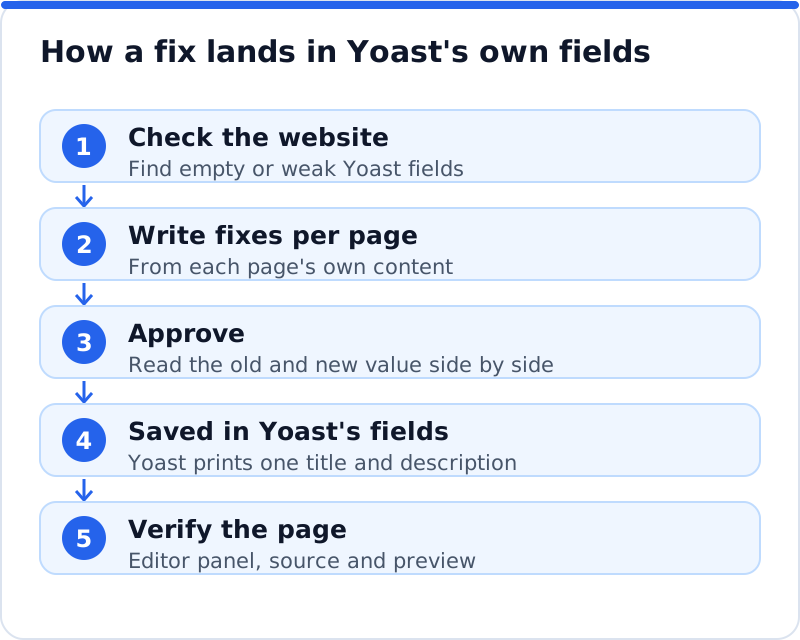
There are two broad ways to bring AI writing into a Yoast website. One is to press a suggestion button inside the editor, page by page, which keeps control tight but leaves the effort with you. The other is a site-wide tool that checks the whole website, writes fixes for the pages that need them and, once you approve, saves each value into Yoast's own fields. The second route only works safely if the tool writes to the same entries Yoast reads, so that Yoast keeps printing a single title tag and a single description. A tool that prints its own tags beside Yoast's would leave pages with two titles, and Google would have to guess.
The test is simple and worth doing on day one. After a fix is applied, open the page in the editor and look at the Yoast fields: the new title and description should appear there, exactly as if you had typed them. View the page source and search for the title tag to confirm there is only one, with the new text inside it. Check that the Yoast analysis now reflects the new values, including the focus keyphrase if one was written. If all of that holds, Yoast is still the engine, and the AI layer is simply filling its boxes for you.
Using the AI Website SEO plugin with Yoast
AI WebMaker's plugin, AI Website SEO Tools, works this way with Yoast SEO. It writes search titles, meta descriptions and focus keyphrases into Yoast's fields, so pages never get two titles or descriptions, and it adds business schema on the home page only when Yoast does not already output the same. It also fills alt text for images that have none and can add 301 redirects for pages that show "not found", with each area behind its own permission that the website refuses when switched off. Every change is logged with the value it replaced, and undo is one click from your account or from WordPress, keeping your own version if you edited the field since. You can also require approval inside WordPress as well as in your account, which suits agencies looking after client websites.
Reviewing Yoast SEO AI changes before they go live
Review is quicker when you know what to look for. Start with the pages that matter most, such as the home page and the main service pages, and read every value there in full. For each one, ask whether the title names the right service and place, whether every claim is true, and whether the description gives a reason to click. On lower-value pages, such as older blog posts, a quick scan of the old and new values side by side is usually enough. A wedding photographer in Edinburgh, for example, might read every gallery page carefully but approve descriptions for old styled-shoot posts in a batch.
Keep the pace steady rather than changing everything in one night. Approve a first batch of ten to twenty pages, note the date, and leave them alone for several weeks so their effect can be judged. In Search Console's Performance report, compare clicks, impressions and click-through rate for those pages against the same length of time before the change. A title and description that earn more clicks at a similar position are working, even if the Yoast lights did not move. If a page drops, check the change log and undo that one change rather than reversing the whole batch.
Questions business owners ask
Should I fill the focus keyphrase on every page?
Fill it on every page you want to win a search, which usually means the home page, service and product pages, location pages and articles. It guides Yoast's analysis and reminds you what the page is for, but Google does not read it as a ranking signal. Each important page should have its own phrase, because two pages chasing the same search tend to hold each other back. Pages such as the privacy policy or a thank-you page do not need one. Use the "previously used keyphrase" warning as a prompt to give each page a distinct job.
Will filling Yoast fields automatically change my rankings?
Better titles and descriptions mainly change how many people click your listing, and that is valuable in itself. They also make sure the main phrase appears in the title, which helps Google understand the page. Rankings depend on far more, including content quality, links and how well the page answers the search. Expect the first gains in click-through rate on pages that already appear in results. Pages that do not show up at all usually need content or links, not just a new title.
What if Google ignores my Yoast SEO title?
Google sometimes shows a different title from the one you set, usually when it judges yours too long, stuffed, vague or mismatched with the page. Keep titles within the preview, make them describe the page honestly and avoid repeating the brand or keyphrase. Make sure the H1 on the page and the SEO title agree on the topic, because a big mismatch invites a rewrite. Check the change in Search Console after Google has recrawled the page. Some rewriting will always happen, but clear and accurate titles keep it rare.
Keeping Yoast as the engine
Yoast SEO is at its best as the engine that prints clean tags, builds sitemaps and describes your website in structured data, while the hard part is filling its boxes well on every page. A Yoast SEO AI approach to that writing, with approval, a log and undo, lets you keep Yoast exactly as it is and still close the gaps the posts list reveals. For the wider decisions about which AI features to trust and what to check before installing, read our guide to choosing a WordPress SEO plugin with AI. To see how checking, backlinks and keyword work fit together, browse our AI SEO tools for business websites. Then open your pages list, sort by the Yoast score and start with the empty fields on your most valuable pages.
Check your WordPress website, approve the fixes and they are applied for you: titles, descriptions, keywords, schema, alt text and redirects, each with undo.
Get the AI Website SEO Plugin for WordPress →