WordPress SEO Audit: Checking Your Website the Way Google Does
A step-by-step audit of a WordPress website using a crawler and Google Search Console, with a practical way to decide which findings deserve your time first.
- Works with Yoast SEO and Rank Math
- You approve every change
- One-click undo
Google never sees your website the way you do. It ignores the photography and the colour scheme, reads the code instead, follows every link it can find and compares each page with every other page on the web that answers the same search. A WordPress SEO audit is the exercise of looking at your own site through those eyes, page by page, and writing down what gets in the way. Done well, it ends with a short list of fixes ranked by the visitors they can bring, not a frightening report with three hundred warnings. The steps below show how to crawl the site, read Google Search Console properly, check the pages, speed, schema and links, and then decide what to fix first. You need no special training, only an afternoon, a crawler and access to Search Console.
To have these fixes applied on your own WordPress website, try our WordPress plugin that applies SEO fixes, part of our AI SEO Tools.
Start with the AI website SEO plugin for WordPress and get your audit score out of 100
What a WordPress SEO audit is for
An audit answers one question: what on this particular site is costing visits, and how many? That makes it different from a general checklist, which tells you what good looks like on any site. Audits are worth running before a redesign, after a migration, when enquiries drop for no clear reason, or simply once a year. An HVAC company in Columbus that moved hosts last spring, for example, might find that half its service pages quietly fell out of the index during the move. Without an audit, that kind of problem can sit unnoticed for months while the owner blames the season. The output you want is a ranked list of problems, each with the pages affected and the fix, not a score for its own sake.
Step one: crawl the site like a search engine
Start with a crawl, because it gives you a complete inventory of what Google can reach by following links. A crawler is a program that starts at your home page, follows every link and records what it finds on each address. Several desktop and online crawlers exist, and most will handle a business site of a few hundred pages without trouble. Export the results to a spreadsheet so you can sort and filter them. On WordPress sites, expect to see more addresses than you have pages, because tag archives, author archives, category pages and sometimes image attachment pages all appear as separate addresses. The crawl gives you the raw material for nearly every later step, so check that it captured the following for each address before moving on.
- The status code, so you can separate working pages (200) from redirects (301 or 302) and missing pages (404).
- The search title and meta description, with their lengths, so missing, long and repeated ones stand out.
- The H1 heading and the number of H1s, since a page with none or several needs attention.
- The canonical address and any noindex instruction, which tell you what the page asks Google to do with it.
- The word count and the number of internal links pointing in, which reveal thin pages and orphans.
Step two: compare the crawl with Search Console
A crawl shows what Google could find, while Search Console shows what Google actually did. Open the Page indexing report and look at both lists: indexed pages and pages not indexed, each with a reason. "Crawled, currently not indexed" means Google visited but decided the page was not worth keeping for now, which often points to thin or near-duplicate content. "Discovered, currently not indexed" means Google knows the address but has not crawled it yet, which on a small site can hint at weak internal linking. "Alternate page with proper canonical tag" and "Page with redirect" are usually fine, because they describe pages that point elsewhere on purpose.
Now compare the two sources. Any important page that the crawler found but Search Console does not list as indexed deserves a closer look with the URL Inspection tool, which shows when Google last crawled it, the canonical Google chose and whether indexing is allowed. A solicitor's practice in Manchester might discover that its conveyancing page is marked as a duplicate of its residential property page, with Google choosing the wrong one as canonical. That single finding explains a missing ranking better than any score could. Note each such page in your spreadsheet with the reason, because these are often the highest-value fixes of the whole audit.
Titles, descriptions and duplicates
Sort the crawl export by title and the repeated ones jump out. WordPress sites often have the same title on many pages because a theme or SEO plugin template fills it with the site name, or because location pages were copied from one original. Repeated titles force Google to guess which page answers which search, and it frequently rewrites them in results. Check length as well: Google usually shows about 50 to 60 characters of a title depending on pixel width, so longer ones get cut off at the end, where the location or service often sits. Missing meta descriptions are less serious, because Google will pick text from the page, but a written one usually earns more clicks on your key pages.
| Finding | Where it shows | Why it matters | Usual WordPress cause |
|---|---|---|---|
| Duplicate titles | Crawl export, sorted by title | Pages compete and Google may rewrite them | An SEO plugin template applied without page titles written |
| Missing meta descriptions | Crawl export, empty description column | Google picks a snippet that may not sell | Fields in the SEO plugin left blank |
| Page not indexed | Search Console, Page indexing report | The page cannot appear in results at all | Thin content, duplicate content or a stray noindex |
| Broken internal links | Crawl export, status 404 | Visitors hit dead ends and links lose value | Changed slugs or deleted pages |
| Duplicate schema | Rich Results Test on the home page | Conflicting business details | Theme and SEO plugin both output schema |
Headings, thin pages and internal links
Next, filter the crawl for pages with no H1 or more than one. In most WordPress themes the page title becomes the H1, so a second one usually comes from a Heading block set to level 1 or from a page builder section styled as a heading. Look at word counts too, not because length ranks pages, but because a service page of eighty words rarely answers what a customer needs to know. Groups of near-identical pages, such as twenty location pages with only the town name swapped, are a classic thin-content pattern that Google tends to index selectively. Merging them or making each one genuinely local is better than leaving them as they are.
Internal links are the roads inside your website, and the crawl shows which pages sit on a busy road and which sit at the end of a track. Sort pages by the number of internal links pointing in. Your most valuable service pages should be near the top of that list, linked from the menu, the home page and related articles. Any page that appears in your sitemap but has no internal links at all is an orphan, and Google has little reason to treat it as important. Fixing this is often as simple as adding a sentence with a descriptive link from two or three related pages.
Speed and structured data
For speed, test a handful of representative pages in PageSpeed Insights: the home page, a service page, a blog post and a contact page. The tool shows field data from real Chrome users when your site has enough traffic, and lab data from a simulated test in every case. Google's Core Web Vitals use three measures: Largest Contentful Paint (good at 2.5 seconds or less), Interaction to Next Paint (good at 200 milliseconds or less) and Cumulative Layout Shift (good at 0.1 or less). The Core Web Vitals report in Search Console groups your pages by these field results, which makes it easier to see whether a problem affects one template or the whole site. Large hero images, slider plugins and heavy page builders are the usual suspects on WordPress.
For structured data, test the home page and one typical page in Google's Rich Results Test, which shows the schema Google detects and whether it qualifies for rich results. The Schema Markup Validator from schema.org checks any type of schema against the vocabulary, even types Google does not use for rich results. Look for duplicates in particular, such as two LocalBusiness blocks from the theme and the SEO plugin with different opening hours. Check that the name, address and phone number match your Google Business Profile exactly. A furniture shop in Copenhagen with three different phone formats across its schema, footer and profile sends a weaker signal than one that is consistent everywhere.
Backlinks and outside signals
Your site's reputation lives partly on other websites, so the audit needs a look outward. The Links report in Search Console lists the top sites linking to you and the pages they link to most. Check whether any of those links point to addresses that now return 404, because a redirect to the right living page recovers their value straight away. Look at the linking sites themselves: a handful of relevant local and trade sites is a healthy pattern for a business. Google's own guidance says most sites will not need to disavow links, so reserve that tool for clear, deliberate spam you cannot remove, especially after a manual action.
Prioritise by visits within reach
Here is where most audits go wrong. Reports count issues, and a site with four hundred images missing alt text in an old gallery looks worse than a site whose main service page sits on the second page of Google. The second problem is almost always worth more. Rank findings instead by the visits they could bring: open the Performance report in Search Console, filter by page, and look for important pages with many impressions but an average position between about 5 and 15. Those pages are already close, so a better title, clearer content or a few internal links can move them onto the first page, where clicks actually happen.
A veterinary practice in Edinburgh might find its "dog vaccinations" page shown thousands of times a month at position nine with very few clicks. Rewriting its title and description, adding a section on vaccination schedules and linking to it from the home page is a morning's work with a real return. Meanwhile, the missing alt text on two hundred gallery images can wait for a quiet week. Write each finding as a task with the page, the fix and the reason, then order the list by the visits at stake. That list, not the score, is the real product of a WordPress SEO audit.
Turning findings into fixes and re-checking
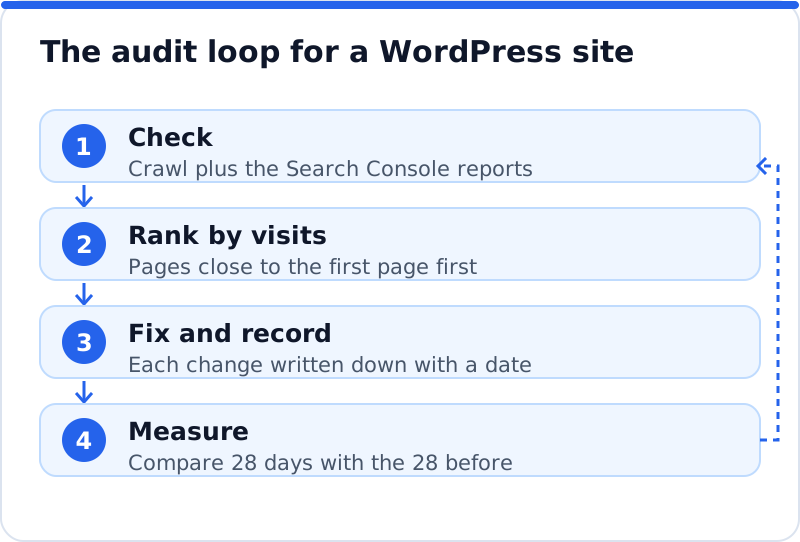
An audit only pays when the fixes reach the site, so close the loop deliberately. Make the highest-value changes first, record each one with the date, and leave a few weeks before judging the effect, because Google needs time to recrawl and re-rank. Compare the last 28 days with the 28 days before in the Performance report, looking at clicks and impressions for the pages you changed. Then run a lighter version of the audit every month: the crawl for new errors, the Page indexing report for new exclusions and the Performance report for pages drifting down. Small monthly checks catch problems while they are still small.
Where AI WebMaker's tools fit into an audit
The manual audit above works, but it takes time to assemble. AI Website SEO Tools on aiwebmaker.co checks a website the way Google does and returns a score out of 100, weighted 60% on on-site checks and 40% on backlink trust, across six areas from Found by Google to Keywords and traffic. It reads up to 12 pages, lists each page's problems, suggests the keyword each main page should win and estimates the visits a month now and within reach, which matches the way this audit ranks findings. On WordPress, the AI Website SEO Tools plugin can then apply the approved fixes into your SEO plugin's fields, with a log and one-click undo. A monthly re-check emails you what changed, so the loop keeps running without you remembering to start it.
Questions business owners ask
How long does a WordPress SEO audit take?
For a business site of up to about fifty pages, a careful first audit takes most of a day. The crawl itself runs in minutes, but reading Search Console, checking speed and schema and writing the prioritised list take longer. Later monthly checks take under an hour once you know where to look. Sites with thousands of pages or an online shop need more time, mainly for duplicate and thin content. Budget the time honestly, because a rushed audit tends to produce a long list and no decisions.
Why do audit tools give my site different scores?
Each tool weighs different checks and invents its own scale, so scores are not comparable between tools. One may punish missing alt text heavily while another barely notices it. Google does not publish a site score at all, so no tool reproduces Google's view exactly. Use a score to track your own site over time with the same tool, not to compare tools or competitors. The findings and the visits at stake matter far more than the number on top.
Should I pay someone for an audit?
A good specialist audit can be worth it before a redesign or migration, or when traffic has fallen sharply and you cannot see why. Ask to see a sample report first and check that it ranks findings by impact rather than listing every warning a tool produced. Ask too who will make the fixes, since an audit without implementation changes nothing. For routine yearly checks, the steps above are well within reach of a careful owner. Many businesses do the routine checks themselves and bring in help for the harder findings.
Running your next WordPress SEO audit
Your next WordPress SEO audit can start this week with two tools you already have access to: a crawler and Search Console. Crawl the site, compare it with the Page indexing report, then work through titles, headings, thin pages, links, speed, schema and backlinks. Rank everything you find by the visits within reach, fix the top few and measure them a few weeks later. If you are choosing software to help apply the fixes, the guide to the best AI SEO plugin for WordPress explains which features matter. For the wider picture of checking, links and fixes together, see the AI SEO tools for business websites. Block out an afternoon in your calendar now and begin with the crawl, because everything else in the audit builds on it.
Check your WordPress website, approve the fixes and they are applied for you: titles, descriptions, keywords, schema, alt text and redirects, each with undo.
Get the AI Website SEO Plugin for WordPress →