Does an SEO Plugin Slow Down WordPress?
Where SEO plugins can cost speed and where they cost almost nothing, how to measure it yourself with PageSpeed Insights and Query Monitor, and a test routine you can repeat.
- Works with Yoast SEO and Rank Math
- You approve every change
- One-click undo
An SEO plugin exists to bring you visitors, so it would be a poor bargain if it made every page slower for the people it brought. The worry is common, and the question "does an SEO plugin slow down WordPress?" deserves a better answer than a shrug or a promise. The honest answer is that the tags an SEO plugin prints cost almost nothing, while extra features, background jobs and busy admin screens can cost a lot more than people expect. Speed is measurable, so you never have to take anyone's word for it, including ours. You will learn where any plugin can cost speed, how SEO plugins differ, and what Core Web Vitals mean in plain words. You will also get a step-by-step routine with PageSpeed Insights and Query Monitor that shows exactly what a plugin adds to your own website.
To have these fixes applied on your own WordPress website, try our AI SEO plugin with undo, part of our AI SEO Tools.
Does an SEO plugin slow down WordPress at all?
The core job of an SEO plugin is light work. On each page it reads a few stored values, such as the SEO title, the meta description and the sharing details, and prints them as tags in the page head. That adds a few lines of text and a handful of quick database lookups, which no visitor would notice. The cost appears when a plugin does more than that on every request, such as loading its own scripts and styles on public pages, running extra database queries for features you never use, or writing logs on each visit. It also appears behind the scenes, in admin screens and scheduled tasks, where visitors never see it but site owners do.
So the useful question is not whether a plugin is "heavy" in general, but what this particular plugin does on your website with your settings. A chiropractor in Seattle with a twelve-page website and page caching may never measure any difference at all. A busy online tea shop in Hamburg with thousands of products and many logged-in customers may feel every extra query. The same plugin can be invisible on one site and noticeable on another. That is why measuring your own website beats any general claim.
Where plugins cost speed
Every plugin can cost speed in five places, and only the first is seen directly by visitors on cached pages. Front-end assets are the scripts, stylesheets and fonts a plugin adds to public pages, and each one is another file the browser must fetch. Database queries run when a page is built, and extra or slow queries add time before the first byte arrives. Autoloaded options are settings WordPress loads on every single request, so a plugin that stores large amounts there taxes every page. Admin load and scheduled tasks affect editing screens and background work, which can slow a server shared with the public site.
| Where the cost appears | Who feels it | How to see it |
|---|---|---|
| Scripts and styles on public pages | Every visitor | View the page source, PageSpeed Insights |
| Extra database queries | Visitors on uncached pages, logged-in users | Query Monitor, by component |
| Large autoloaded options | Every request that runs WordPress, admin included | Site Health, Query Monitor |
| Heavy admin screens | Editors and owners | Query Monitor while editing |
| Scheduled tasks and background jobs | The whole server at busy moments | Tools such as WP Crontrol, hosting stats |
Scheduled tasks deserve a word of explanation, because they are the least visible. WordPress runs its scheduled jobs, known as WP-Cron, when someone visits the website, unless your host replaces it with a real server schedule. A plugin that rebuilds data, sends reports or checks external services on a timer adds work to some of those visits. Some plugins use a job queue such as Action Scheduler to spread that work out. Usually this is harmless, but on cheap shared hosting a large background job at a busy hour can slow everyone down.
How SEO plugins differ
The main SEO plugins, Yoast SEO, Rank Math, All in One SEO and SEOPress, all print the standard tags, and the differences lie in what else they do and how much of it you can switch off. Most offer extra modules, such as XML sitemaps, breadcrumbs, redirects, 404 monitoring, local business details, image tools and content analysis in the editor. Rank Math groups its features as modules you can switch on or off from its dashboard, and SEOPress and All in One SEO also let you disable features you do not need. Yoast SEO keeps a table of "indexables" that it builds in the background so it can print tags quickly on each page. Each approach is reasonable, and none is automatically faster than another on every website.
The features that matter most for speed are the ones that run on every request or write to the database often. A 404 monitor, for example, records each missing address a visitor or bot requests, and on a website that bots probe heavily, that log can grow large. Content analysis in the editor runs in the admin, so it affects editors rather than visitors. Sitemaps are usually built when they are requested, which is occasional. A sensible approach is to keep the features you use, switch off the rest, and measure before and after.
Core Web Vitals in plain words
Core Web Vitals are Google's three measures of how a page feels to a real visitor, and they are worth understanding before you test anything. Largest Contentful Paint measures how long the main content, usually a large image or heading, takes to appear, and Google calls 2.5 seconds or less good. Interaction to Next Paint measures how quickly the page responds when someone taps or clicks, and 200 milliseconds or less is good. Cumulative Layout Shift measures how much the page jumps around while loading, and a score of 0.1 or less is good. Google judges each one by the experience of most visitors, using the 75th percentile, rather than by the fastest visit.
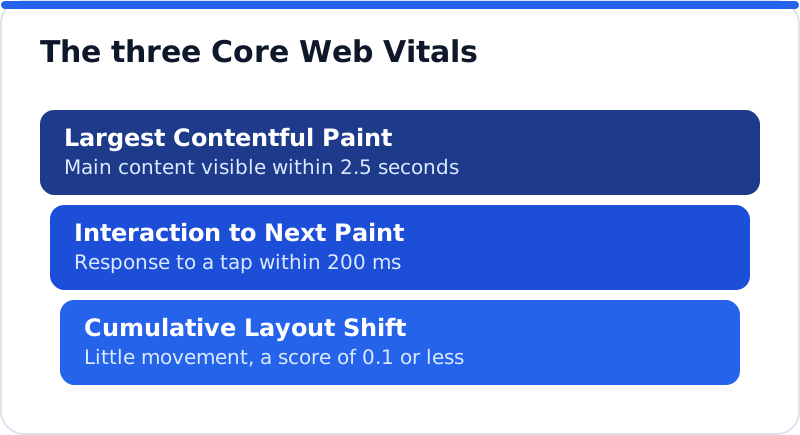
An SEO plugin rarely affects these numbers much, but where it does, the route is usually clear. Extra scripts on public pages can delay Interaction to Next Paint on slower phones. Extra stylesheets that block rendering can push back Largest Contentful Paint. Slow database work shows up as a later start for everything, since the browser waits for the first byte. Layout shift is almost never caused by an SEO plugin, so if that score is poor, look at images without set sizes, late-loading fonts or banners.
Measuring with PageSpeed Insights
PageSpeed Insights, from Google, is the easiest place to start, and it shows two different kinds of data. The top section, when your website has enough visitors, shows field data from the Chrome User Experience Report, which reflects real Chrome users over the previous 28 days. Below that is lab data from Lighthouse, a single simulated visit on a throttled mobile connection, which produces the familiar score out of 100. Field data tells you how real visitors fare, while lab data is better for testing a change today. The lab score varies from run to run, so test each page three times and look at the middle result.
To test a plugin fairly, compare like with like. Test the home page and one busy inner page, such as a main service page or a product page, on mobile and desktop. Make the change, clear every cache, then test the same pages the same way. Look at the detailed findings too, especially the list of scripts and the "reduce unused JavaScript" suggestion, which often names the files and the plugin folders they come from. A wedding venue in the Cotswolds testing a new SEO plugin this way can see within ten minutes whether anything new appeared on its pages.
Finding slow code with Query Monitor
Query Monitor is a developer tool plugin that shows what happens on the server while a page is built, and it is surprisingly readable for non-developers. Once installed, it adds a summary to the admin toolbar showing page generation time, memory use and the number of database queries. Its panel can group queries by component, so you can see how many queries each plugin and the theme ran and how long they took. It also lists slow and duplicate queries, outside requests to other services, and the scripts and styles each page loads. It shows information only to administrators, so visitors are not affected while you investigate.
Use it on both public pages and the screens you use most, such as the post editor and the plugin's own settings. If an SEO plugin accounts for a large share of query time on a public page, check which of its features are responsible and whether you use them. If the admin is slow but public pages are fast, the issue is probably editor analysis or a dashboard widget, which matters to your staff but not to Google. Recent WordPress versions also include a Site Health check, under Tools, that warns when autoloaded options have grown large. Remove Query Monitor or deactivate it when you are done, since it is a diagnostic tool rather than something to leave running.
Caching, and purging after changes
Page caching changes the picture for visitors, because a cached page is served as a finished file without running most plugin code. Caching plugins such as WP Rocket, LiteSpeed Cache, W3 Total Cache and WP Super Cache, along with many hosts' own caches, can hide the cost of slow queries for most visitors. They do not hide it for logged-in users, shop baskets, checkout pages or the first visit after the cache is cleared. They also do nothing about front-end scripts, which the browser still has to load. Caching is a strong help, but it is not a reason to ignore what a plugin adds.
Caching brings one practical side effect for SEO work. When you change a title, a description or schema, the cached page still holds the old version until the cache is cleared. Visitors and Google may keep seeing the old tags for hours or days, which makes it look as if the change failed. Clear the cache after each SEO change, or use tools that purge it automatically. A recruitment agency in Birmingham that updates job page titles every week will save itself a lot of confusion with that habit.
A routine to test if an SEO plugin slows down WordPress
The most reliable way to answer the speed question is to test your own website before and after, on a staging copy if you have one. The routine below takes under an hour and can be repeated whenever you add or change a plugin. Write down every result, so you have a baseline to compare against next time. If results are close, the plugin is not your problem, and your time is better spent on images, hosting or the theme. If one stands out, you will know exactly which feature or file to look at.
- Run PageSpeed Insights three times on the home page and one key inner page, on mobile, and note the middle score and the Core Web Vitals.
- Open both pages with Query Monitor active and note the page generation time and the queries for the plugin's component.
- View each page's source and list any scripts or stylesheets loaded from the plugin's folder.
- Deactivate the plugin or switch off one of its features, clear every cache, and repeat the same tests.
- Compare the numbers, keep the features you need, and switch off anything that costs more than it gives.
How our plugin stays out of the way
The AI Website SEO Tools plugin was designed so the speed question has a short answer, as part of a wider approach to automatic SEO for WordPress. It adds nothing to the front end except the tags it manages, and when Yoast SEO, Rank Math, All in One SEO or SEOPress is present, it writes into their fields rather than printing a second set. Optional page-view counting is off by default, and when switched on it is a tiny script with no cookies and no personal data. Its background work happens when approved changes arrive, and only on hosts that block incoming requests does it fetch them itself, every 15 minutes and when an administrator opens the dashboard. After each change it purges the common caches (WP Rocket, LiteSpeed Cache, W3 Total Cache, WP Super Cache and SiteGround's), so stale tags rarely linger. A ski rental shop in Innsbruck can run the routine above with it activated and deactivated, and see the difference for itself.
Questions business owners ask
Should I remove my SEO plugin to make the website faster?
Usually not, since the tags it prints are needed and cost very little. Without an SEO plugin, WordPress prints a basic title but no meta descriptions, sharing tags or business details. The speed gain from removing a well-configured SEO plugin is normally tiny, while the loss in search appearance can be real. A better approach is to switch off modules you do not use and measure again. Images, hosting and the theme are far more common causes of slow pages.
Is it bad to run two SEO plugins at once?
Yes, mainly because of duplicate tags rather than speed. Two plugins printing their own titles, descriptions and schema leave Google with conflicting signals. The extra queries and settings also add a little weight for no benefit. If you are switching plugins, most of the main ones offer an import tool for moving your existing titles and descriptions across. Complete the move, check a few pages, and then deactivate the old plugin.
Why is my admin slow when my website is fast?
Page caching speeds up public pages but does not apply to logged-in screens, so admin slowness shows the true cost of plugins. Editor analysis, dashboard widgets and many active plugins all add up there. Query Monitor will show which component takes the most time on the screens you use. Switching off unused features often makes the biggest difference. If the admin is slow everywhere, the hosting plan may simply be too small for the website.
A quick speed check before you install anything
The answer to whether an SEO plugin slows down WordPress lives on your own server, and it takes less than an hour to find. Record a baseline with PageSpeed Insights and Query Monitor, install or change one thing, clear the caches and test again. Keep the features you use, switch off the rest, and look past the plugin to images, hosting and the theme if pages are still slow. Repeat the routine whenever you add a plugin, so speed never drifts without you noticing. For the wider picture of fixes, content and links, the AI SEO tools for business websites explain how each part fits, and a quick check of your own website is the right place to start.
Check your WordPress website, approve the fixes and they are applied for you: titles, descriptions, keywords, schema, alt text and redirects, each with undo.
Get the AI Website SEO Plugin for WordPress →