Pages Not Indexed by Google: Every Reason and How to Fix It
Every reason in Search Console's Page indexing report explained in plain words: what it means, whether it needs fixing, how to fix it and how to confirm Google agrees.
- Any website
- Visits within reach
- Each problem joined to its fix
A page that Google has not indexed is, as far as search is concerned, a page that does not exist: it cannot rank, be clicked or bring a single enquiry. Pages not indexed by Google are listed in Search Console with a short reason beside each group, and those reasons are more useful than most owners realise. Some describe a real fault, such as a server error or a tag left behind after a redesign. Others describe Google working exactly as it should, such as skipping a duplicate copy of a page. Below you will find what each reason means, whether it needs action, how to fix it, and how to use URL Inspection and Validate fix to confirm that Google has accepted the change.
To see your own website the way Google does, try our AI website SEO tools, part of our AI SEO Tools.
This article is part of our complete guide: Website SEO Analysis.
Test which of your pages Google leaves out with the AI website SEO tools
Pages not indexed by Google are not always a problem
Google handles every page in stages: it discovers the address, crawls the page, decides whether to store it in the index, and only then ranks it. A page can drop out at any of those stages, and the Page indexing report tells you which stage and why. A healthy website always has pages that are not indexed. Google's own help says you should not expect every address on your website to be indexed, only the canonical pages, which are the main versions of each piece of content. Old addresses that now redirect, copies of pages with tracking codes on the end and deliberately hidden thank-you pages all belong in the not indexed group.
What deserves attention is a page you want customers to find appearing under a reason that should not apply to it. A physiotherapy clinic in Bristol should worry if its sports massage page is excluded by a noindex tag, but not if its booking confirmation page is. The total of not indexed pages tells you very little, because one shop with a filter menu can create thousands of harmless variations. Look instead at which pages sit under each reason, starting with the ones that earn money. If no page of your website appears in Google at all, even for your business name, that is a wider question that usually starts with a site-wide setting rather than the page-level reasons covered here.
Finding every reason in the Page indexing report
Open Search Console and select Pages under Indexing in the left menu. The chart splits known pages into Indexed and Not indexed, and the table below it, titled "Why pages aren't indexed", lists each reason with the number of pages affected. A Source column shows whether a reason comes from your website or from Google's own systems, and Google's help notes that, generally, only issues where the source is the website are yours to fix. Clicking a reason opens a chart of its history and a list of example addresses you can inspect one by one. The menu above the chart can limit the report to all submitted pages, which is the most useful view, since it shows only the pages your sitemap says you want indexed.
Read the labels exactly, because a few sound alike and mean quite different things. The report joins the two halves of the crawled and discovered reasons with a hyphen, and they are written with a comma here. Google's help article also words a couple of reasons differently from the report, for example calling the noindex reason URL marked 'noindex'. The report is updated periodically rather than live, and shows a last updated date, so a fix made this morning will not appear yet. The table covers the reasons a business website meets most often.
| Reason in the report | What it means | Needs fixing? |
|---|---|---|
| Excluded by 'noindex' tag | The page asks not to be indexed | Only if the page should be found |
| Blocked by robots.txt | Google may not fetch the page | Only if the page should be found |
| Crawled, currently not indexed | Read, then left out for now | Usually, by improving the page |
| Discovered, currently not indexed | Known but not yet crawled | Often, through links and hosting |
| Duplicate without user-selected canonical | Google indexed another version | Only if Google chose wrongly |
| Alternate page with proper canonical tag | Points correctly to its main version | No |
| Page with redirect | Forwards to another address | No, if the redirect is intended |
| Not found (404) | The address does not exist | Only if it has value or links |
| Soft 404 | Looks missing but reports success | Yes |
| Server error (5xx) | The server failed to answer | Yes |
Reasons caused by your own settings
Excluded by 'noindex' tag means the page carries a rule, in its HTML or in a response header, telling search engines not to index it. On a thank-you page or a customer account area that is correct, while on a service, product or article page it is almost always an accident. On WordPress, look first at the "Discourage search engines from indexing this site" box under Settings, then Reading. Then check your SEO plugin, since Yoast SEO, Rank Math, All in One SEO and SEOPress each let you hide whole content types, such as all pages, as well as single pages in their advanced settings. Wix and Squarespace have a per-page option to hide a page from search results, and on any platform you should clear every cache afterwards so Google sees the clean version.
Blocked by robots.txt means a rule in the robots.txt file at the root of your website forbids Google from fetching the address. Open your domain followed by /robots.txt and look for a Disallow line covering the page, such as a rule for a whole folder left over from development. The robots.txt report under Settings in Search Console shows the file Google last fetched and any problems in it. A related warning, Indexed, though blocked by robots.txt, means Google stored the address anyway because other pages link to it, and to remove such a page you must unblock it and add noindex, since Google cannot read a tag on a page it may not fetch. Two rarer reasons belong here too: Blocked due to unauthorized request (401) means a page asks for a login, and Blocked due to access forbidden (403) usually means a security plugin or firewall is turning Googlebot away.
Duplicates, canonicals and redirects
Google stores one version of each piece of content, the canonical, and lists the other copies as duplicates. Duplicate without user-selected canonical means the page names no main version, so Google chose one itself, and Google describes this as working as intended. It becomes a problem only when Google chose the wrong version, such as a print copy or an address with a tracking code. Inspect one of the listed addresses to see the canonical Google selected, and if it is wrong, add a canonical tag pointing to the version you prefer. The main WordPress SEO plugins already add one to each page by default, so on WordPress the cause is usually a mixed signal rather than a missing tag.
Duplicate, Google chose different canonical than user means you named a main version but Google indexed another, usually because internal links, the sitemap or redirects point somewhere else. Make the signals agree by linking to the preferred address everywhere and listing only that address in the sitemap. Alternate page with proper canonical tag is the healthy version of this, and Google says there is nothing to do, so a hotel in Salzburg with an address per booking date, all pointing to one room page, can ignore it. Page with redirect lists old addresses that forward to new ones, which is normal after a redesign, and only needs you to update internal links and the sitemap. Redirect error does need fixing, because it covers loops and chains that run too long, so point each old address straight at its final destination.
Not found, soft 404 and server errors
Not found (404) means the address does not exist, either because a page was deleted or because a link points to an address that never existed. Google treats a 404 as a normal answer, so act only when the missing page had visitors, links from other websites or a clear replacement, and then add a permanent 301 redirect to the closest equivalent page. Soft 404 is trickier, because the server reports success while the page looks missing or empty to Google. An online tea shop in Amsterdam whose sold-out product pages show nothing but the word "unavailable" is a typical case. Return a real 404 or a redirect for pages that are truly gone, and give pages that should stay real content, such as a description, alternatives and a note on when stock returns.
Server error (5xx) means Google asked for the page and your server failed to answer. A few errors during maintenance do no lasting harm, but repeated ones make Google slow its crawling and, over time, drop pages it cannot reach reliably. Crawl stats, under Settings in Search Console, shows host status and the errors Google met, so compare those dates with plugin updates, traffic peaks or changes at your host. Overloaded shared hosting, a broken plugin and an aggressive firewall are the usual causes. Share the affected addresses and times with your hosting company, because they can read the server logs that show exactly what failed.
Crawled or discovered but not indexed
Crawled, currently not indexed means Google fetched and read the page but chose not to store it for now. Google says such a page may be indexed in the future and that there is no need to resubmit it, so pressing Request indexing repeatedly rarely helps. The usual reason is too little value: thin pages, pages that closely repeat others, or pages that add little beside what is already indexed. An accountancy firm in Dublin with twenty town pages, each with the same two paragraphs and a different place name, should expect most of them to land here. Merge pages that say the same thing, redirect the extras, and give each remaining page content a searcher could not get elsewhere on your website, such as prices, examples of past work and local details.
Discovered, currently not indexed is one step earlier: Google knows the address but has not crawled it yet, often because it chose to wait so as not to overload the server. Faster and more reliable hosting helps, and so does cutting low-value addresses such as endless filter combinations. Internal links matter most, because a page linked from your menu and from related pages looks central, while a page reachable only from the sitemap looks like an afterthought. A kitchen fitter in Manchester with new project pages stuck here would link each one from its services page and the relevant gallery. On a website with only a handful of pages in this group, patience and better linking usually solve it within weeks.
Checking one page with URL Inspection
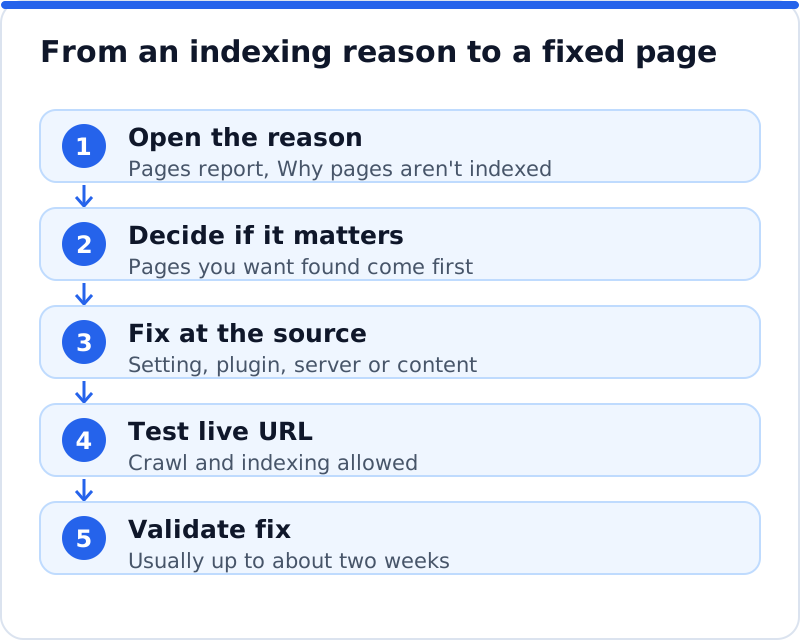
The report works on groups, while URL Inspection, in the search bar at the top of Search Console, works on one address. It tells you whether the URL is on Google, is on Google but has issues, or is not on Google, and the Page indexing section explains why: how Google found the page, when it was last crawled, whether crawling and indexing were allowed, and the canonical you declared beside the one Google selected. A wedding photographer in Edinburgh puzzled by a missing gallery page can see in seconds whether it is blocked, noindexed or treated as a copy. Test live URL checks the page as it is now, which matters after a fix, but it cannot promise that Google will index the page. When the live result is clean, press Request indexing, keeping in mind the daily limit on requests.
Validating fixes for pages not indexed by Google
Once every page under a reason is fixed, open that reason in the Page indexing report and press Validate fix. Google then rechecks the listed addresses, and its help says validation typically takes up to about two weeks, though it can take much longer. The status moves through stages such as Started, Looking good and Passed, and Search Console emails you when it ends. If Google still finds the problem on pages it rechecks, validation can end as Failed, and the details show which addresses to fix before starting again. Validate the reasons that come from your website, such as noindex mistakes, soft 404s and server errors, and note the date and the count, so a falling number shows the fix is working.
How an outside analysis helps
Search Console tells you what Google decided, but not always which setting caused it, and only after Google has crawled the pages. Our SEO analysis for any website reads up to 12 of your pages the way Google does, on WordPress, Wix, Squarespace, Shopify or anything else, and lists each page with its own problems. Settings that keep pages out of the index, such as a stray noindex or a blocking robots.txt rule, show up in the Found by Google area, one of six areas behind the score out of 100. Each problem is joined to the tool that fixes it, with steps and code to paste, and on WordPress the plugin can apply many fixes, including 301 redirects for pages that show "not found". The analysis also shows the visits within reach, so you know which pages are worth rescuing first, and for backlinks, content and the rest of the toolkit there are the AI SEO tools for business websites.
Questions business owners ask
How many of my pages should be indexed?
There is no target number, because it depends on how your website is built. The pages that should be indexed are the ones a searcher could usefully land on: your home page, service and product pages, location pages with real content, and articles. Redirects, duplicates with a proper canonical, account areas, baskets and thank-you pages should not be. Compare the indexed count with the number of genuine pages you would want customers to find, using the submitted pages view if your sitemap is clean. If the two are close, the not indexed total, however large, is probably made of addresses that do not matter.
Should I keep requesting indexing for a page?
No, once is enough for each change. Request indexing asks Google to crawl the page, and repeating the request does not move it up the queue or change Google's decision. If a page stays under crawled, currently not indexed after a request, the page itself needs to change. Improve the content, add internal links from relevant pages and make sure it is in your sitemap, then request again only after a real change. Save your daily requests for new pages and for important pages you have just fixed.
Do pages that are not indexed hurt the rest of my website?
A page that is not indexed cannot rank, but it does not usually drag down your other pages. Genuine 404s, redirected old addresses and deliberate noindex pages are all normal parts of a healthy website. The exceptions are worth knowing, though. Large numbers of thin or duplicate pages can take up crawling that would be better spent on your main pages. Repeated server errors are the more serious case, because they make Google slow its crawling of the whole website, not just the failing pages.
A Page indexing review for this month
Open the Page indexing report today and switch the view to all submitted pages, so you are looking at the pages you asked Google to index. Go through each reason and sort its pages into two piles: correct as they are, and pages you want found. Fix the second pile at the source, starting with server errors, noindex mistakes and robots.txt blocks, then improve the thin pages that Google crawled and left out. Test each fixed page live in URL Inspection, request indexing for the most important ones and press Validate fix for each reason you have cleared. Then test your website with an analysis, so the settings that keep pages out of Google are caught before the next crawl rather than after it.
Your score out of 100, the visits within reach, every page read the way Google does and the tool that fixes each problem. Works on any website.
Analyse your website with AI Website SEO Tools →