Google Search Console Setup for Business Owners
How to set up Search Console properly the first time, from property type and verification to sitemaps, users and a first-week routine, with what each number really means.
- Any website
- Visits within reach
- Each problem joined to its fix
Google already keeps a record of every search where your website appeared, and Search Console is the place where it lets you read it. The tool costs nothing, the data comes straight from Google rather than from an outside estimate, and it is the only place Google tells you directly which of your pages it has stored and why others were left out. A careful Google Search Console setup takes less than an hour, yet many websites are set up halfway: the wrong property type, a verification tag that later disappears, no sitemap, or access held by an agency that left years ago. Getting those details right at the start saves real trouble later, especially on the day something goes wrong and you need answers quickly. You will learn which property type to choose, how each verification method works, where WordPress and other platforms keep the settings you need, how to submit a sitemap and add users, and which reports to read in your first week.
To see your own website the way Google does, try our SEO analysis for any website, part of our AI SEO Tools.
Start with a check from the AI website SEO tools, then confirm every finding in Search Console
What Search Console gives a business owner
Search Console answers three questions that no other tool can answer with Google's own data. Which searches show your pages, and how often do people click them? Which of your pages has Google stored in its index, and what is wrong with the ones it left out? Is anything on the website, such as a security problem or a manual action, harming how Google treats it? Analytics tools tell you what visitors do after they arrive, while Search Console tells you what happened in Google's results before they arrived. The two are complementary, and for SEO work the second is the one you cannot do without.
It is also the starting point for any diagnosis. If you find pages not indexed by Google, the indexing reports and the URL Inspection tool tell you within minutes whether a setting, an error or a duplicate is responsible. Google sends email alerts to owners when it finds new indexing problems, security issues or manual actions, which means you hear about trouble without having to look. An optician in Nottingham who set up Search Console on launch day would learn about a broken sitemap or a page blocked by mistake long before a customer mentions it. Setting it up early also starts the record of your data, which becomes more valuable with every month it covers.
Domain property or URL-prefix property
The first decision is the property type, and it matters more than it looks. A Domain property covers everything on your domain: http and https, with and without www, and every subdomain such as shop or blog. A URL-prefix property covers only addresses that start with the exact prefix you enter, including the protocol, so https://www.example.com and https://example.com would be two different properties. For most businesses a Domain property is the better choice, because it gathers all your data in one place and still reports correctly if your main address changes. Its one drawback is that it can only be verified through your domain's DNS settings, which some owners find harder to reach.
| Domain property | URL-prefix property | |
|---|---|---|
| What it covers | Every protocol, www and subdomain | Only addresses with the exact prefix entered |
| How you verify | A DNS record at your domain provider | HTML file, HTML tag, Google Analytics, Google Tag Manager or DNS |
| Best for | Most business websites, as the main property | A section of a site, or when DNS access is not possible |
| What to enter | The bare domain, with no https or www | The full address, including https and www if used |
You can have both, and that is often sensible. A Domain property gives the complete picture, while a URL-prefix property for a single section, such as a blog or a shop on its own subdomain, lets you look at that part in isolation. Agencies sometimes add a URL-prefix property because they can verify it with a tag in the website without asking the owner for DNS access. That is fine, but the business should still own a Domain property itself. If you only ever create one property, make it the Domain property.
Verifying that you own the website
Verification proves to Google that you control the website, and Search Console offers several ways to do it. For a Domain property, Google gives you a TXT record to add in the DNS settings at your domain provider, which is usually the company where you bought the domain or the host that manages its DNS. For a URL-prefix property, you can also upload an HTML file to the website's root folder, add a meta tag to the home page's head section, or use an existing Google Analytics or Google Tag Manager setup that you control. Whichever method you choose, leave the record, file or tag in place afterwards. Google rechecks verification from time to time, and removing it can cost you access.
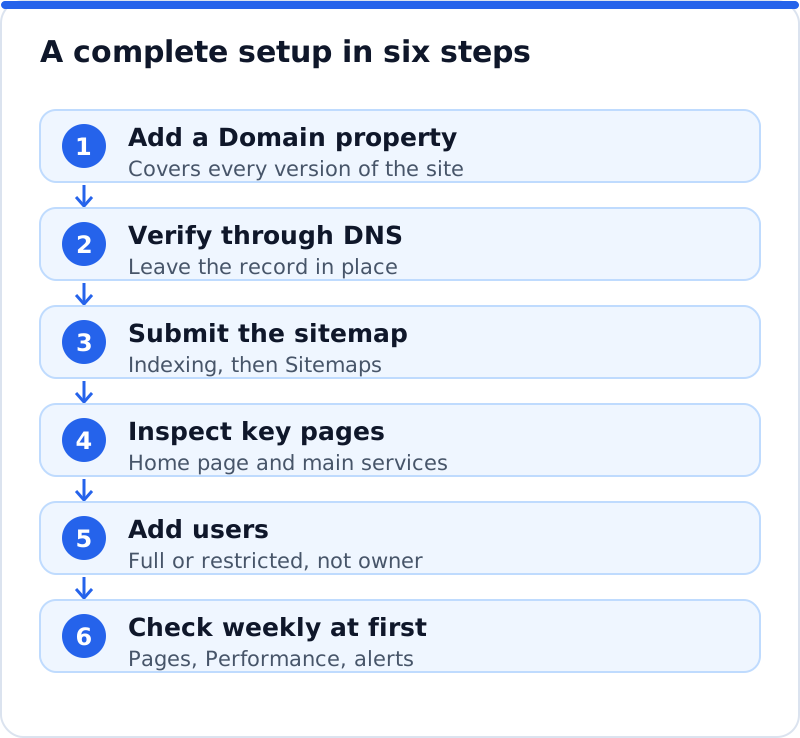
- In Search Console, add a Domain property, type your bare domain, and copy the TXT record Google gives you.
- Sign in to your domain provider, open the DNS settings for the domain, and add a new TXT record with the value Google provided.
- Save the record, return to Search Console and press Verify; if it fails, wait a while, because DNS changes can take time to spread.
- Once verified, leave the TXT record in place permanently, and note where it lives in case anyone tidies the DNS settings later.
On WordPress, the meta tag method is the usual route when DNS access is awkward. Yoast SEO, Rank Math, All in One SEO and SEOPress each have a settings area for webmaster tools or site connections where you paste the verification code, and the plugin then adds the tag to every page. Google's own Site Kit plugin can also connect a WordPress website to Search Console as part of its setup. Wix, Squarespace and Shopify each offer either a built-in connection or a place to add the verification tag, though the exact menus change over time. A wine bar in Bordeaux using Squarespace, for example, would look in its site's SEO or connected services settings rather than editing any code.
Submitting your sitemap
A sitemap is a file listing the pages you want Google to know about, and submitting it helps Google find pages faster and report on them more clearly. Most platforms create one automatically. WordPress has had a built-in sitemap at /wp-sitemap.xml since version 5.5, but SEO plugins replace it with their own: Yoast SEO and Rank Math use /sitemap_index.xml, All in One SEO uses /sitemap.xml and SEOPress uses /sitemaps.xml. Wix, Squarespace and Shopify generally publish theirs at /sitemap.xml. Open the address in a browser first to confirm the file loads and lists your real pages.
In Search Console, open Indexing, then Sitemaps, type the sitemap's address after your domain, and submit it. The report shows when Google last read the file, whether it could fetch it, and how many pages it discovered. A status of success means Google could read the file, not that every listed page will be indexed. If Google reports that it could not fetch the sitemap, check that the address is right, that robots.txt does not block it, and that a security plugin is not refusing Google's requests. You only need to submit once, because Google rereads the sitemap on its own as your website changes.
The reports worth learning first
Search Console has many reports, but a handful cover almost everything a business owner needs. The Performance report shows clicks, impressions, click-through rate and average position for your website in Google Search, broken down by query, page, country, device and date. The Pages report under Indexing shows which pages are indexed and lists the reasons the others are not, while URL Inspection does the same for a single address and lets you request indexing. The Links report lists the pages most linked from other websites, the sites that link most, and the anchor text they use, plus your internal links. Under Experience, the Core Web Vitals report groups your pages as good, in need of improvement or poor, based on real visits from Chrome users, and it needs a certain amount of traffic before it shows data.
Two more reports are short but important. Manual actions, under Security and Manual Actions, tells you whether Google's team has taken action against the website for breaking its spam policies, and it should normally say that no issues were detected. Security issues, in the same section, flags hacked content, malware and deceptive pages that could put visitors at risk. Check both once after setup to confirm the website starts with a clean record. After that, the email alerts will tell you if either changes.
What the numbers mean
The Performance report uses four numbers, and each has a precise meaning. An impression is counted when a link to your website appears in results someone loads, usually even if they did not scroll down far enough to see it, although some features such as carousels count only when the result is scrolled into view. A click is counted when someone follows that link to your website. Click-through rate is simply clicks divided by impressions, so it shows how often your listing was chosen when it was shown. Average position is the highest position your website held in each set of results, averaged across all of them, so a lower number is better.
Averages can mislead when many different searches are mixed together. A page might hold first place for a rare search and twentieth place for a common one, and the average would hide both facts. That is why the report is most useful when you filter it, for example to one page, to one query, or to searches that exclude your business name. Note too that the most recent day or two of data is often incomplete, and that Search Console keeps sixteen months of history. A pest control company in Dallas comparing this summer with last summer can do that directly in the report with the date comparison option.
Adding users and keeping access tidy
Search Console has three main permission levels. Owners have full control, including adding and removing other users, and an owner is either verified, through their own verification method, or delegated by a verified owner. Full users can see all data and take most actions, such as requesting indexing or submitting sitemaps, but cannot manage other users. Restricted users can see most data but cannot change anything. To add someone, open Settings, then Users and permissions, choose Add user, and enter their Google account email with the right permission.
Give agencies and freelancers full or restricted access rather than ownership whenever you can. A freelance developer in Berlin looking after several client websites can do almost all of the work as a full user, and the business stays in control of who sees its data. When someone stops working with you, remove their access the same week. Also check the ownership verification list in Settings, because people who verified the website years ago through their own tags or files can still appear as verified owners. Remove their verification method from the website and then remove them from the list.
A first-week routine and where our analysis fits
The first week after setup is about establishing a clean starting point. On day one, confirm that the property is verified, the sitemap is submitted and Manual actions and Security issues are both clear. Over the next few days, inspect your home page and your three most important service or product pages with URL Inspection, and request indexing for any that are not on Google. Once data appears, read the Pages report for reasons pages are excluded, and note your top queries and pages in the Performance report as a baseline. At the end of the week, write down the numbers you will compare against in a month, so progress can be measured rather than guessed.
Search Console tells you what Google has done with your website, but not always why a page underperforms or what to change. Our AI website SEO analysis reads up to twelve of your pages the way Google does, gives the website a score out of 100, and shows the keyword each main page should win and the visits within reach. Each problem is joined to the page it affects and the tool that fixes it, with steps and the code to paste, so you can then confirm the result in Search Console. A monthly re-check emails you what changed, which pairs well with Search Console's own alerts. For backlinks, content and the rest of the toolkit, see the AI SEO tools for business websites.
Questions business owners ask
Do I need Google Analytics as well?
They answer different questions, so most businesses benefit from both. Search Console reports what happens in Google's results: searches, impressions, clicks and positions, along with indexing and security information. Google Analytics reports what visitors do on your website after they arrive from any source, such as which pages they read and whether they contact you. For SEO decisions, Search Console is the essential one, because it shows the searches that analytics tools cannot see. If you only have time for one this month, set up Search Console first.
Why do clicks in Search Console differ from visits in Analytics?
The two tools count different things in different ways. Search Console counts clicks on Google's results, while analytics tools count sessions on your website, and a visitor who declines cookies or blocks scripts may click but never be counted as a visit. Some clicks land on pages without the analytics code, and some visits arrive after redirects that change how they are recorded. Time zones and processing delays also differ between the tools. Expect the figures to be close in direction but not equal, and compare trends within each tool rather than the raw numbers across them.
Will setting up Search Console improve my rankings?
Not by itself, since verifying a website does not change how Google ranks it. What it does is show you the problems and opportunities that affect rankings, which is where the improvement comes from. A physiotherapy practice in Cork that finds its treatment pages excluded by a stray noindex tag, and fixes it, will see those pages start to appear. A hair salon in Chicago that spots a page with many impressions and few clicks can rewrite its title and win more visits. The tool is the map, and the gains come from acting on what it shows.
Your Search Console checklist for this week
Add a Domain property today, verify it through your DNS settings, and leave the verification record in place. Submit your sitemap, confirm that Manual actions and Security issues are clear, and inspect your most important pages one by one. Add anyone who helps with the website as a full or restricted user, and remove any old owners who no longer need access. Note your baseline numbers at the end of the week and set a monthly reminder to compare them. Then start with an analysis of your website, so you know which pages to watch most closely as Search Console fills with data.
Your score out of 100, the visits within reach, every page read the way Google does and the tool that fixes each problem. Works on any website.
Analyse your website with AI Website SEO Tools →