Noindex Mistakes That Hide Pages From Google
How the noindex rule works, the everyday accidents that switch it on, how to find every noindexed page on a website and how to get those pages back into Google.
- Any website
- Visits within reach
- Each problem joined to its fix
One short word in a page's code, noindex, can tell Google to drop a page from its results however good the page is. That power is useful when you want a thank-you page or a login screen kept out of search, and harmful when the word lands on your home page or your best service page by accident. The accidents are common because the switch hides in many places: a setting used while the site was being built, a tick box in an SEO plugin, a page builder option or a line a developer added to the server. Owners rarely notice, because the page still looks perfect to visitors. You will learn exactly what noindex does, how it differs from blocking a page in robots.txt, the mistakes that switch it on, how to find every affected page and how to get those pages back into Google quickly.
To see your own website the way Google does, try our see your website the way Google does, part of our AI SEO Tools.
Get a check from the AI website SEO tools that finds every page a noindex tag is hiding
What a noindex rule tells Google
A noindex rule is an instruction to search engines that a page may be crawled but must not be shown in results. The most common form is a meta tag in the head of the page: <meta name="robots" content="noindex">. The name "robots" addresses every search engine that follows the rule, while <meta name="googlebot" content="noindex"> speaks to Google alone. The same rule can also be sent as an HTTP response header called X-Robots-Tag, which the server adds before the page itself arrives. That header form is the only way to apply noindex to files that have no head section, such as PDFs and images, and it is invisible when you view a page's source. The value "none" in either form means both noindex and nofollow, so it has the same hiding effect.
Google treats noindex as a firm instruction rather than a hint. When Googlebot fetches a page and finds the rule, the page is removed from results the next time it is processed, even if it ranked well for years. Links on the page can still be followed unless nofollow is added too, which is why noindex is often paired with "follow" on pages you want crawled through but not shown. Other search engines, such as Bing, also respect noindex, though each may interpret combined rules slightly differently. Keep in mind that noindex is not a privacy tool: anyone with the address can still open the page. If something must be kept private, it needs a password, not a tag.
Noindex and robots.txt do different jobs
Many owners use robots.txt and noindex as if they were the same thing, and the mix-up causes some of the most stubborn problems. Robots.txt is a file at the root of your website that tells crawlers which addresses they may not fetch at all. Noindex is read on the page itself, so Google must be allowed to fetch the page to see it. If you block a page in robots.txt and add noindex to it, Googlebot obeys the block, never reads the tag and never learns that you wanted the page dropped. Google's documentation is direct about the result: a blocked page can still appear in search, typically as a bare address with no description, when other pages link to it. In Search Console that situation often shows as "Indexed, though blocked by robots.txt".
The practical rule is simple. Use noindex when you want a page kept out of results, and leave it crawlable so the instruction can be read. Use robots.txt to stop crawlers wasting time on endless filtered or internal search addresses, not to remove pages from Google. Google also stopped supporting a noindex line inside robots.txt itself in 2019, so any old file that contains one is doing nothing. If a page is both blocked and noindexed, remove the robots.txt block first, let Google recrawl the page and read the tag, and only then decide whether a block is still needed.
| Method | Where it lives | What Google does | Typical use |
|---|---|---|---|
| Meta robots noindex | In the page's head section | Crawls the page, then drops it from results | Thank-you pages, internal search results |
| X-Robots-Tag header | In the server's response headers | Same as the meta tag, also works for PDFs and images | Files, whole folders set by a developer |
| Robots.txt disallow | One file at the root of the site | Does not fetch the page, may still list the bare address | Keeping crawlers out of endless filter pages |
| Password protection | Platform or server login | Cannot read the page, so cannot show its content | Private client areas, unfinished sites |
How noindex ends up on the wrong pages
The most frequent accident starts while the website is being built. Designers sensibly hide an unfinished site from Google, then the site goes live and nobody switches the setting back. On WordPress that setting is the "Discourage search engines from indexing this site" box under Settings, Reading, which makes every page carry a noindex rule. A roofing company in Denver can launch a handsome new website, run adverts to it for months and only later discover that not a single page has been indexed. The same thing happens when a staging copy is moved over the live site during a redesign, carrying its hidden status with it.
SEO plugins cause the second group of accidents, usually through settings that apply to many pages at once. Yoast SEO, Rank Math, All in One SEO and SEOPress all let you choose whether each content type and each taxonomy, such as categories and tags, appears in search results. Switching off "pages" instead of "tags" during setup can hide every service page in one click. Each plugin also has a per-page control in its advanced settings, and a page copied from a hidden template keeps that choice. A law firm in Munich might duplicate a noindexed draft to create a new practice page and publish it without ever opening the advanced tab. The page goes live, earns links and never appears in Google.
Website builders have their own switches. Wix offers a "Let search engines index this page" toggle in each page's SEO basics, plus a site-wide option in the dashboard that overrides the per-page choices. Squarespace has a "Hide page from search results" option in each page's SEO settings, and Shopify can mark a page as hidden from search through a metafield or theme code. Landing page tools and page builders sometimes add their own robots settings to templates, and membership or maintenance plugins may noindex everything while they are active. Finally, a developer may add an X-Robots-Tag header to a whole folder, such as a folder of brochures, and the rule quietly spreads to new files saved there.
Finding every noindexed page
Google Search Console is the place to start, because it reports what Google actually saw. Open the Page indexing report under Indexing, scroll to the table titled "Why pages aren't indexed" and look for the reason "Excluded by 'noindex' tag". Click it to see the list of affected addresses and the date each one was last crawled. Some entries will be pages you meant to hide; any service page, product page or article in it is a mistake. If your sitemap includes noindexed pages, that is a mixed message too, because the sitemap says "index this" while the page says the opposite.
For a single page, the URL Inspection tool at the top of Search Console gives a precise answer. Paste the address and, if the page is excluded, the details show whether indexing is allowed and where the noindex was found, either in the robots meta tag or in the X-Robots-Tag header. Press "Test live URL" to check the page as it is now, rather than as Google last saw it. Outside Search Console, open the page in a browser, view its source and search for "noindex". To check the header form, open the browser's developer tools, choose the Network tab, reload the page and read the response headers of the first request.
| Where to look | What you see | Catches |
|---|---|---|
| Page indexing report | "Excluded by 'noindex' tag" with a list of addresses | Every noindexed page Google has crawled |
| URL Inspection, live test | Whether indexing is allowed and where noindex was found | One page, as it is right now |
| View page source | The meta robots tag in the head | Meta tags from themes, plugins and builders |
| Browser developer tools | The X-Robots-Tag in the response headers | Server rules and headers on PDFs |
| A crawl of the website | Every page with its robots status | Pages Google has not crawled yet |
Removing noindex and getting pages back
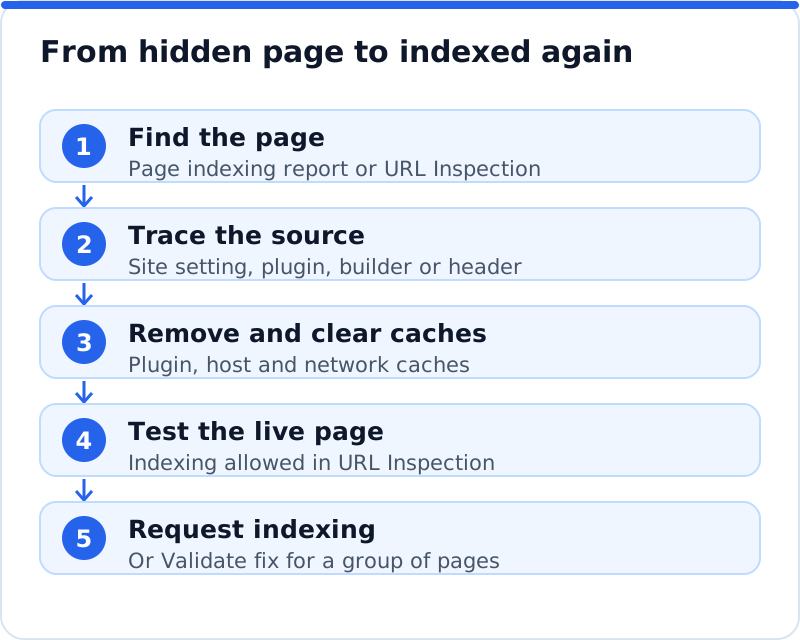
Fixing the problem means removing the rule at its source, not just on the page you happened to notice. If the whole site is affected, look first at the platform's site-wide setting, such as the WordPress Reading setting or the Wix dashboard option. If a group of pages is affected, look at the SEO plugin's content type and taxonomy settings. If only one page is affected, open its advanced SEO settings or its page settings in the builder. For headers, ask whoever manages the server or the hosting panel to remove the X-Robots-Tag rule for that folder or file type. Then clear every cache, including any caching plugin, the host's cache and a content delivery network, because a cached copy can keep serving the old tag for days.
Once the live page is clean, tell Google. In URL Inspection, run "Test live URL" and confirm that indexing is now allowed, then press "Request indexing". Do this for your most important pages first, since there is a daily limit on requests. For many pages, return to the Page indexing report, open the "Excluded by 'noindex' tag" reason and press "Validate fix", which asks Google to recheck the listed addresses. Make sure the pages are in your sitemap and that nothing in robots.txt blocks them. Important pages are often back within days, while less visited ones can take several weeks, so note the date and be patient.
When noindex is the right choice
Noindex is a useful tool when it is used on purpose. Thank-you and order confirmation pages add nothing for searchers and can distort your conversion tracking if people land on them from Google. Internal search result pages create endless thin variations of your content, which is exactly the kind of page Google prefers not to show. Login screens, account areas, shopping carts and checkout steps belong out of results too. Thin tag archives on a blog, each with one or two posts, are often better hidden than left to compete with real articles. A dental practice in Leeds might reasonably noindex its patient forms, its appointment confirmation page and its staff-only pages while keeping every treatment page open.
A few combinations cause trouble even when the intention is right. Do not add noindex to a page and also point its canonical tag at another page, because the two signals contradict each other and Google may carry the noindex over to the page you wanted indexed. Do not noindex paginated pages of a product category if they are the only route to products further down the list, unless you keep them followed. Never noindex a page and then block it in robots.txt, for the reason explained earlier. Keep a short written list of the pages you have hidden on purpose and why, so that anyone looking after the website later can tell a choice from a mistake.
Stopping noindex mistakes from returning
Most noindex accidents happen at predictable moments, so a short check at those moments prevents nearly all of them. The launch of a new website is the riskiest moment, followed by a redesign, a move to a new host and the installation or reset of an SEO plugin. Each of these can carry over a hidden status or reset a setting to its default. A bakery in Lyon that changes its theme should not assume its old settings survived the switch. A quick look at the Page indexing report a week after any of these changes catches problems before they cost a month of visits.
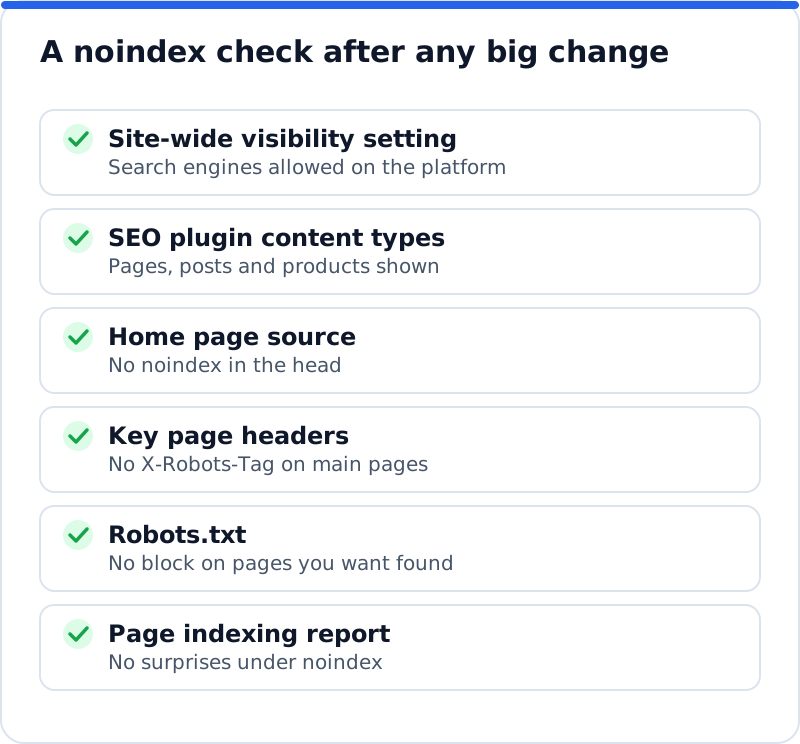
A monthly habit covers the rest. Open the Page indexing report once a month and compare the count under "Excluded by 'noindex' tag" with the month before. A sudden rise usually means a setting changed, a plugin updated or a template spread a rule to new pages. Look at the newest entries first, because they point to whatever changed most recently. For agencies, the habit takes a few minutes per client site. It is far easier to explain a caught mistake than a quarter of lost enquiries.
How AI WebMaker spots hidden pages
The AI website SEO tools check any website, whether it runs on WordPress, Wix, Squarespace, Shopify or anything else, and read up to 12 of its pages the way Google does. Noindex problems appear in the "Found by Google" area, one of six areas in the score out of 100, alongside robots.txt rules, the sitemap and the main address. Each page the check read is listed with its own problems, so a hidden service page shows up by name rather than as a vague warning. Every problem is joined to the fix, with steps to follow and, where it helps, the code to paste. On WordPress, the AI website SEO plugin can apply many fixes from your account after you approve them, with a log of each change and one-click undo. It is one part of the wider set of AI SEO tools for business websites, and the monthly re-check emails you what changed, which is exactly when a returning noindex shows itself.
Questions business owners ask
How long does it take for a page to return after removing noindex?
There is no fixed time, because it depends on how often Google crawls the page. A home page or a well-linked service page is often recrawled within a few days, especially after a request in URL Inspection. Pages deep in the website, with few internal links, can take several weeks. Rankings may not return to their old positions at once, since Google reassesses the page as it would a new one. Add a link to the page from your home page or a busy page while you wait, as this helps Google find it again sooner.
Should I use noindex or delete the page?
If a page has no value to anyone, deleting it and redirecting its address to the closest useful page is usually cleaner. Noindex suits pages that visitors still need but searchers do not, such as confirmation pages, account areas and internal search results. Deleting a page without a redirect leaves a "not found" error for anyone following an old link. Noindexing a page you no longer need leaves clutter that someone will have to understand later. Ask whether a person arriving from Google would be glad to land there, and let the answer decide.
Can Google ignore my noindex tag?
Google follows a noindex rule it can read, so when a noindexed page still appears, the cause is almost always that Google has not read the rule. The page may be blocked in robots.txt, the tag may sit in code that loads too late, or Google may not have recrawled the page since you added it. Check with the live test in URL Inspection, which shows whether the rule is detected now. If it is detected and you need the page gone quickly, the Removals tool in Search Console can hide it temporarily while the noindex takes effect. Rules added only by JavaScript are less reliable, so put noindex in the page's HTML or in the header.
A noindex check to run this week
Open Search Console today and look at the "Excluded by 'noindex' tag" list in the Page indexing report. Mark each address as either hidden on purpose or hidden by mistake, and fix the mistakes at their source, starting with the pages that bring in enquiries. Test each fixed page live in URL Inspection and request indexing, then validate the fix for the rest. Write down which pages should stay hidden and why, and repeat the check after any launch, redesign or plugin change. If the Page indexing report lists other reasons besides noindex, the next step is to work through every cause of pages not indexed by Google, from robots.txt blocks to soft 404s.
Your score out of 100, the visits within reach, every page read the way Google does and the tool that fixes each problem. Works on any website.
Analyse your website with AI Website SEO Tools →