Squarespace SEO: A Practical Checklist for Business Sites
A step-by-step Squarespace SEO checklist covering every setting that shapes how a business site appears in Google, with the mistakes to avoid on each.
- Any website
- Visits within reach
- Each problem joined to its fix
A Squarespace site usually looks finished long before it is ready for Google, because the design does the talking while the search settings stay politely out of sight. Squarespace SEO rewards owners who work through those settings in order: the site title and home page description first, then each page's SEO title and description, then slugs, images, headings and redirects. None of it needs code, and most of it can be done in an evening for a site of twenty pages. The catch is that Squarespace has three different kinds of title and several places where text quietly becomes alt text, so it is easy to fill in the wrong field and wonder why nothing changed. The checklist below walks through each setting, explains what it controls and where it lives, and ends with the mistakes that most often keep a handsome Squarespace site out of the results.
To see your own website the way Google does, try our AI website SEO tools, part of our AI SEO Tools.
Check your Squarespace website with AI website SEO tools and get each fix with the steps to apply it
Start with the site title and home page
The home page is treated differently from every other page on Squarespace, and that catches many owners out. Squarespace's help centre says SEO titles are not available for home pages, so the title Google sees comes from the home title format in the site's SEO settings. In the SEO panel, open SEO Settings and look for the search appearance area, which has Home, Pages and Items tabs. The Home tab holds the SEO site description, which acts as the meta description of your home page, and the title format for the home page, which uses the variable %s for your site title. Because you can add your own text to that format, an interior designer in Brighton could set it to the site title followed by "Interior Design in Brighton and Hove", so the home page names the service and the place.
Take care with the site title itself, because it appears in many places. On Squarespace it is the business name shown in the header, and by default it is also added to the end of every page's title in search results. A short, clear site title leaves room for the words that matter on each page. If your business name is long, consider whether the Pages and Items formats need to include it at all, since Google usually shows only about 50 to 60 characters of a title. Check the result by searching for your own site after Google has crawled it again.
Page SEO titles and descriptions
Every page has an SEO tab in its settings, and it is the heart of Squarespace SEO. Open the Pages panel, hover over a page, click the gear icon and choose the SEO tab, where you will find the SEO Title and SEO Description fields. Blog posts, products and events have the same tab: open the collection, open the item's settings and choose SEO. Squarespace recommends descriptions of between 50 and 300 characters and notes that search engines cut them off at around 160, so aim for roughly 140 to 160 characters with the important part first. The SEO title has a 100-character limit, but writing to that limit would leave Google cutting off almost half of it.
It helps to understand the three kinds of title Squarespace uses, because each does a different job and only one of them is meant for Google. A therapist in Portland might want the menu to say "Couples" while search results say "Couples Therapy in Portland: In-Person and Online Sessions", and Squarespace allows exactly that. If you leave the SEO title empty, the page title is used instead, which is why so many sites show short menu words in search results. The table sets out what each title controls. Once you have the right field, the writing rules are simple: name the service, name the place if you serve a local area, and give a reason to click.
| Title type | Where you set it | What it controls |
|---|---|---|
| Navigation title | Page settings | The link name in your site's menu |
| Page title | Page settings | Used in search results and browser tabs only when no SEO title exists |
| SEO title | SEO tab in page settings | The title in search results, browser tabs and social shares |
| Title format | SEO Settings, search appearance | How the site title is added to page and item titles |
URL slugs that read well
The URL slug is the last part of a page's address, and on Squarespace you edit it in the URL slug field of the page settings. For a blog post, open the post's settings and change the Post URL field on the Content tab. Good slugs are short, lower case and describe the page, such as /couples-therapy rather than /page-3 or /new-page-copy. Blog posts follow a post URL format set in the blog's preferences, which can include the title and the date; a format without the date keeps addresses tidy and stops posts looking old. The help centre notes that a new format only applies to new posts, so existing addresses stay as they are.
The most important rule is to decide on slugs before a page earns links and rankings, and then leave them alone. Squarespace does not redirect an old slug when you change it, so the old address simply shows a "page not found" error. Anyone following a link from another website, a saved bookmark or a printed QR code will hit that error. If a slug truly needs to change, add a redirect at the same time, as described further down. Treat every slug change as a two-step job: rename, then map.
Image alt text and image sizes
Squarespace takes alt text from different places depending on where the image sits, and this is the area where owners most often fill in the wrong field. For an image block, open the block editor and type into the Image alt text field on the Content tab; if you leave it empty, no alt text is shown. Gallery block images use the image title, or the description if there is no title, and gallery sections use the image description. Product images accept alt text through Edit metadata, and if you add none, the product name is used. Section background images do not support alt text at all, which is fine for decoration but a problem if the background carries important information.
Where nothing else is set, Squarespace uses the file name as alt text, so "IMG_4471.jpg" can end up describing a photo of your best work. Rename image files before uploading, and write alt text that describes what is actually in the picture, such as "Hand-thrown blue stoneware bowls on a wooden shelf" for a ceramics studio in Barcelona. Image size matters as well: Squarespace recommends uploading images about 2,500 pixels wide and keeping files to 500 KB or less so pages load quickly. It then creates several smaller versions of each image automatically, so phones receive a size that fits their screen. A large original that weighs several megabytes still slows uploads and can slow the page, so compress photos before adding them.
Headings in text blocks
Headings give a page its outline, and Squarespace sets them through the formatting options in text blocks. When you select text and apply a style, Squarespace tags it as Heading 1 through Heading 4 or as a paragraph, so the style you choose is also the heading level in the code. Squarespace's guidance says Google does not penalise several H1 tags on a page, but one clear H1 that states the page's topic is still the most readable structure for visitors and search engines. Use Heading 2 for the main sections below it and Heading 3 for smaller points within them. On product pages, the product title is already the H1, so headings in the description should start at Heading 2.
The common mistake is choosing a heading style because of how it looks. A large Heading 1 used for a decorative slogan such as "Welcome" tells Google the page is about the word "Welcome", while the real service heading sits lower down as a Heading 3. If you want a big decorative line, adjust the font sizes in the site styles rather than misusing the heading levels. Read each important page from top to bottom and check that the headings alone would make a sensible table of contents. If they would not, rearrange them before you work on anything else on that page.
Redirects with URL mappings
Squarespace handles redirects through a single text box called URL mappings, found in the Developer tools panel. Each redirect is one line in the form /old-url -> /new-url 301, where 301 marks a permanent move; a 302 can be used for a temporary one. Click Save once the lines are added, and test each old address in a private browser window. The help centre explains that redirects only work once the page you are redirecting from has been deleted or disabled, so a live page at the old address will win over the mapping. The box holds up to 400 KB, which Squarespace says is usually around 2,500 lines, more than enough for most business sites.
Redirects matter most in three situations: when you change a slug, when you merge or delete pages, and when you move to Squarespace from another platform. A boutique hotel in Porto that rebuilt its old site on Squarespace, for example, should map every old room and offer page to its new equivalent. Without those lines, the links that travel blogs and booking partners built over years would lead to errors. Map each old page to the closest new page rather than sending everything to the home page, which Google may treat much like a missing page. Keep a copy of your URL mappings in a document so you can see the history of what moved where.
Search Console through the Analytics panel
Search Console shows how Google sees your site, and Squarespace makes the connection from its analytics area. Open the Analytics panel, choose Search keywords, click Connect and sign in with the Google account you want to use, then allow the permissions. Squarespace notes that data can take about 72 hours to appear, that any site-wide password must be removed first, and that trial sites must be published. Squarespace creates a sitemap for every site, but you submit it yourself: in Search Console open Sitemaps, enter sitemap.xml under "Add a new sitemap" and submit. A "Couldn't fetch" message is normal for a day or two while Google processes it.
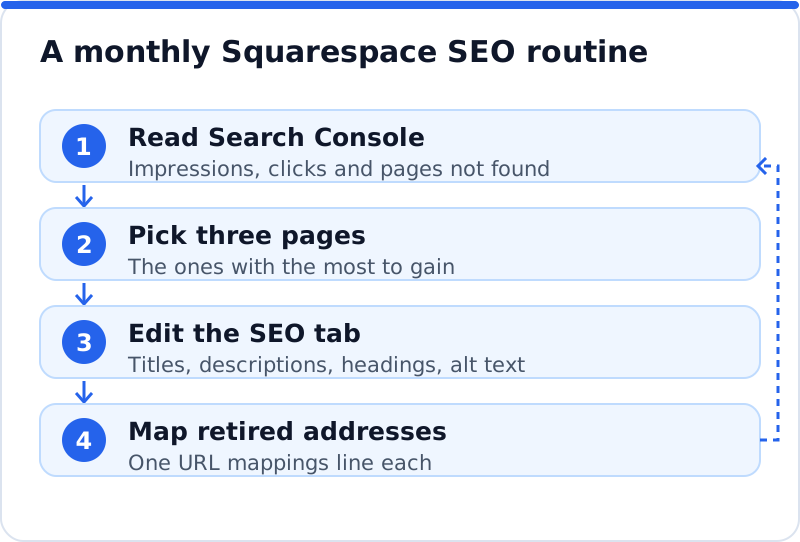
Once data arrives, the Search keywords panel in Squarespace shows your top searches, and Search Console itself gives the fuller picture. Look for pages with many impressions and few clicks, because those usually need a better SEO title or description. Look for pages that never appear at all, and use the URL Inspection tool to see whether Google has indexed them. Check the Pages report for addresses marked "not found", since each one is a candidate for a URL mapping. A monthly look at these reports, comparing four-week periods, is enough for most business sites.
Common Squarespace SEO mistakes
A few errors come up so often on Squarespace sites that they are worth checking even if everything else looks right. Most of them come from the gap between what a page looks like and what its settings say. Others come from features that are helpful in one place and confusing in another, such as the file name becoming alt text. None of them takes long to fix once you know where to look. Work through the list below on your most important pages first.
- Leaving the SEO title empty, so search results show the short navigation or page title instead.
- Changing a page or post slug without adding a line to URL mappings, which turns the old address into an error.
- Uploading photos with camera file names and no alt text, so images are described as strings of letters and numbers.
- Using Heading 1 for decorative text and a smaller heading for the real topic of the page.
- Forgetting to submit the sitemap after connecting Search Console, which slows down the discovery of new pages.
Checking Squarespace SEO across the whole site
Working page by page is fine for fixing, but it is a slow way to find problems, especially ones that repeat across many pages. The AI Website SEO Tools from AI WebMaker read a Squarespace site the way Google does, check up to 12 pages, and list each page's problems alongside the keyword the page should win. You get a score out of 100, results in six areas from being found by Google to keywords and traffic, and an estimate of the visits a month you get now and could reach. Because Squarespace has no plugin to apply changes, each fix comes with steps and any code to paste. They belong to a wider set of AI SEO tools for business websites, and if you are still comparing builders, the guide to SEO for Wix, Squarespace and Shopify puts the three side by side.
Questions business owners ask
Is Squarespace good for SEO?
Squarespace handles the technical basics well, including sitemaps, mobile-friendly templates, clean addresses and structured data for common content types. What it cannot do is write your titles and descriptions or decide what each page should rank for. A florist in Amsterdam with clear SEO titles, descriptive alt text and useful pages can compete well on Squarespace. Sites that struggle usually have empty SEO fields or thin pages rather than a platform problem. The settings in this checklist cover almost everything a typical business needs.
Do I need code injection for SEO on Squarespace?
For most business sites, no, because titles, descriptions, slugs, alt text, redirects and structured data are all handled without code. Code injection is useful for things such as a verification tag, extra structured data or a tracking script, and it is only available on some plans. Avoid adding schema that duplicates what Squarespace already generates, since the platform's own structured data cannot be removed. If a fix does need code, add it carefully and test the page afterwards. When in doubt, a developer familiar with Squarespace can add a snippet in minutes.
Why does Google show a different title from my SEO title?
Google sometimes rewrites titles when it thinks another version describes the page better for a particular search. This happens more often when a title is very long, stuffed with keywords or does not match the page's main heading. Check that your SEO title is under about 60 characters and that it agrees with the Heading 1 on the page. Also check that the title format is not adding the site title in a way that pushes the title over the limit. Give Google a few weeks after a change, since it needs to crawl the page again before showing the new version.
Your Squarespace checklist in one sitting
Set aside an evening, open your site's SEO settings and fix the home title format and SEO site description first. Then open the SEO tab on each of your main service or product pages and fill in a hand-written SEO title and description for every one. Check the image blocks on those pages for empty alt text and files named by the camera, and correct the headings so each page has one clear Heading 1. Connect Search Console from the Analytics panel, submit the sitemap, and add URL mappings for any addresses you have changed. With those settings in place, a whole-site check is the quickest way to see what still stands between your Squarespace site and more visits.
Your score out of 100, the visits within reach, every page read the way Google does and the tool that fixes each problem. Works on any website.
Analyse your website with AI Website SEO Tools →