Open Graph Tags: How Your Pages Look When Shared
What each Open Graph and X card tag does, the image sizes that display well, where to set the tags on common platforms and how to test and refresh a shared preview.
- Any website
- Visits within reach
- Each problem joined to its fix
A shared link is a small advert you did not design, unless you tell each app what to put in it. When someone pastes your page into Facebook, LinkedIn, WhatsApp or Slack, the app looks for a handful of hidden lines called Open Graph tags and builds the preview from them: a picture, a headline and a short description. Without those lines, the app guesses, and the guess is often a cropped logo, a cookie banner or a blank grey box. A good preview earns clicks from people who already trust the person sharing, so it is some of the most valuable attention a business website gets. You will learn what each Open Graph tag does, how X card tags fit in, which image sizes display well, where to set the tags on WordPress, Wix, Squarespace and Shopify, and how to test and refresh a preview that will not update.
To see your own website the way Google does, try our AI website SEO tools, part of our AI SEO Tools.
Add AI website SEO tools to your routine and see which pages are missing Open Graph tags
What Open Graph tags are
Open Graph is a set of meta tags, first published by Facebook in 2010, that lets a page describe itself to any app that displays links. The tags sit in the head of the page, out of sight, and each one uses a property attribute starting with "og:". Facebook, LinkedIn, WhatsApp, Slack, Microsoft Teams, iMessage and many other apps read them, which is why one set of tags serves almost everywhere your link might travel. The tags do not change how the page looks to a visitor. They only control the card that appears when the address is shared.
Open Graph tags are not a Google ranking factor, so adding them will not move a page up the results by itself. Their value is in clicks from outside search: a referral from a customer's LinkedIn post or a link sent round a family WhatsApp group. Those visitors often arrive ready to act, because someone they know put the link in front of them. A clear, attractive preview also makes people more likely to share the page again. Many SEO checks include sharing tags for exactly this reason, since a well-labelled page is easier to recommend.
The core Open Graph tags
The Open Graph protocol names four tags as required on every page: og:title, og:type, og:image and og:url. In practice og:description belongs with them, because most apps display it when it is present. A few optional tags make the card more reliable, such as og:site_name for the business name and og:image:width and og:image:height, which let an app draw the image without measuring it first. Facebook notes that adding the width and height helps the image appear on the very first share, before its crawler has processed the picture. The table shows each core tag with a short example for a bakery in Lyon.
| Tag | What it controls | Example value |
|---|---|---|
| og:title | The headline on the card | Sourdough Workshops in Lyon |
| og:description | One or two lines under the headline | Learn to bake sourdough at home in a three-hour class. |
| og:image | The picture, as a full https address | https://example.com/images/workshop-1200x630.jpg |
| og:url | The page's main address, used to group shares | https://example.com/workshops/sourdough |
| og:type | The kind of content | website for pages, article for blog posts |
| og:site_name | The business name shown on some cards | Boulangerie Martin |
Each tag deserves a few seconds of thought. The og:title can match the page's search title, though it often reads better without the business name on the end, since the card already shows the domain. The og:description should say why someone should click, in a sentence or two, rather than repeat the title. The og:url must be the page's canonical address with https and the correct www choice, because apps use it to count likes and shares in one place. The og:image must be a full address starting with https, not a path such as "/images/photo.jpg", which many apps cannot follow.
X card tags and how they fall back
X, formerly Twitter, uses its own set of tags called cards, which start with "twitter:". The most important is twitter:card, which chooses the layout: "summary" shows a small square image beside the text, while "summary_large_image" shows a wide picture above it. You can also set twitter:title, twitter:description, twitter:image and twitter:image:alt. When the twitter: versions of the title, description or image are missing, X generally falls back to the matching Open Graph tags. So a sensible setup is a full set of Open Graph tags plus a twitter:card line, and separate X tags only where you want different wording.
The large image card works best with a wide picture of about 2:1, so an image made for Facebook's 1.91:1 shape displays with only a slight trim at the edges. The twitter:image:alt tag describes the picture for people using screen readers, which is good practice and costs nothing to add. A twitter:site tag can name the business's X account so it appears with the card. X's own preview tool no longer shows a rendered card, so the most reliable test is to start a new post, paste the link and look at the preview before deleting the draft. If the card is wrong there, check the twitter:card line first, as it is the tag most often forgotten.
Choosing a sharing image that displays well
The image does most of the work on a shared card, so choose it with care. Facebook recommends 1200 by 630 pixels, a ratio of about 1.91 to 1, and says images smaller than 600 by 315 pixels display much smaller. LinkedIn uses a very similar shape, so one image at 1200 by 630 pixels covers Facebook, LinkedIn, X and most messaging apps. Keep the file size modest, a well-compressed JPEG or PNG rather than a raw camera file, because some apps skip images that take too long to fetch. Save it at a stable address that will not change, since apps remember images by their address.
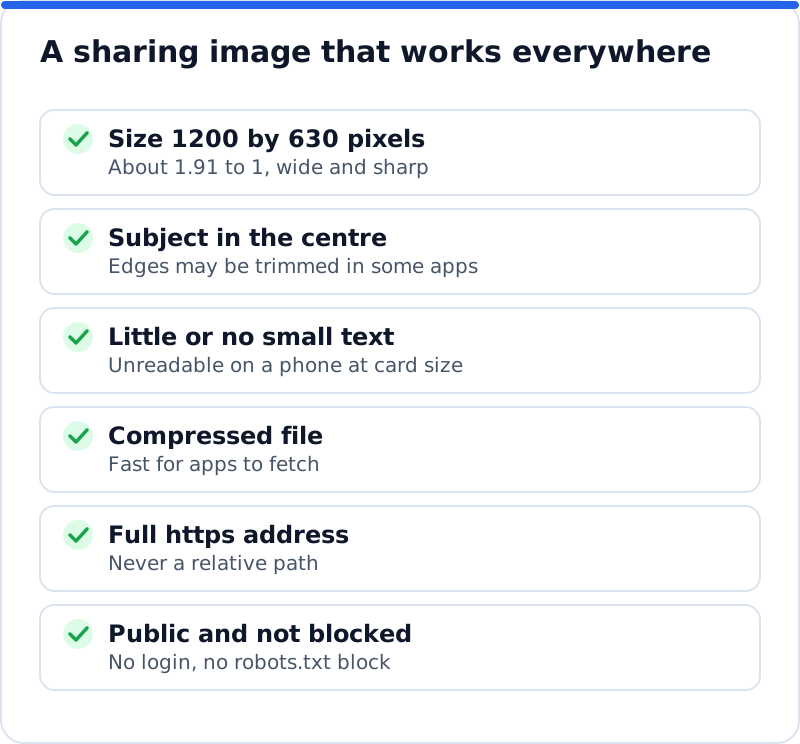
Composition matters as much as size. Keep the main subject in the middle, because square and slightly narrower crops trim the edges. Avoid small text on the image, which turns into a smudge on a phone, and never rely on the image alone to carry the message. A real photograph of your work, your premises or your team usually outperforms a logo on a coloured background. A physiotherapy clinic in Edinburgh might use a photo of a session in progress for its treatment pages and a photo of the reception for its contact page. Each important page deserves its own image, with a site-wide default as the safety net.
Where to set Open Graph tags on your platform
On WordPress, the major SEO plugins handle Open Graph tags for you. Yoast SEO, Rank Math, All in One SEO and SEOPress each add a Social tab to the page editor, where you can set a sharing title, description and image for that page, and each has a site-wide default image in its settings. If you leave the social fields empty, the plugin builds the tags from the SEO title, the meta description and the featured image. Running two plugins that both print Open Graph tags gives apps conflicting instructions, so let one plugin own them. Some themes and social sharing plugins add their own tags too, which is worth checking in the page source.
Website builders handle the tags in their own panels. Wix lets you set the sharing image, title and description for a page in that page's settings, and set defaults for each type of page under SEO Settings in the dashboard, which also has a separate section for X. Squarespace lets you set a site-wide social sharing image in its settings and a social image for each page in that page's settings. Shopify sets a default social sharing image for the store under Online Store, Preferences, and with Shopify's own themes product, collection and blog pages use their featured image instead. Menu names change from time to time on all three platforms, so if a label differs, search their help centre for "social share image".
Testing with the platform debuggers
Never assume a card looks right because the tags are present. The Facebook Sharing Debugger, at developers.facebook.com/tools/debug, fetches your page as Facebook's crawler does and shows the card it would build, the tags it found and any warnings. LinkedIn's Post Inspector, at linkedin.com/post-inspector, does the same for LinkedIn and shows the title, description and image it will use. Both tools reveal problems you cannot see in the source, such as an image the crawler could not download or a redirect that sends the crawler to a different page. Test your home page, a main service or product page and a recent blog post, since each usually takes its tags from a different template.
Read the warnings with care. A missing og:image warning usually means the tag is absent or the address is relative. An image that appears tiny means the picture is below the size the app needs for a large card. A title or image from a different page often means og:url points to the wrong address, such as every page pointing to the home page. If the debugger shows a page from a staging address, the live site was copied without updating its settings. Fix the cause, then use the debugger again to fetch a fresh copy.
Refreshing a preview that will not update
Apps save a copy of each card the first time a link is shared and reuse it, so a fix on your page does not show at once. In the Facebook Sharing Debugger, paste the address and press "Scrape Again" to make Facebook read the page afresh. LinkedIn's Post Inspector refreshes LinkedIn's copy when you inspect the address. For images, Facebook caches by the image's own address, so replacing a picture with a new file under the same name may still show the old one. Upload the new image under a new filename, point og:image at it and scrape again.
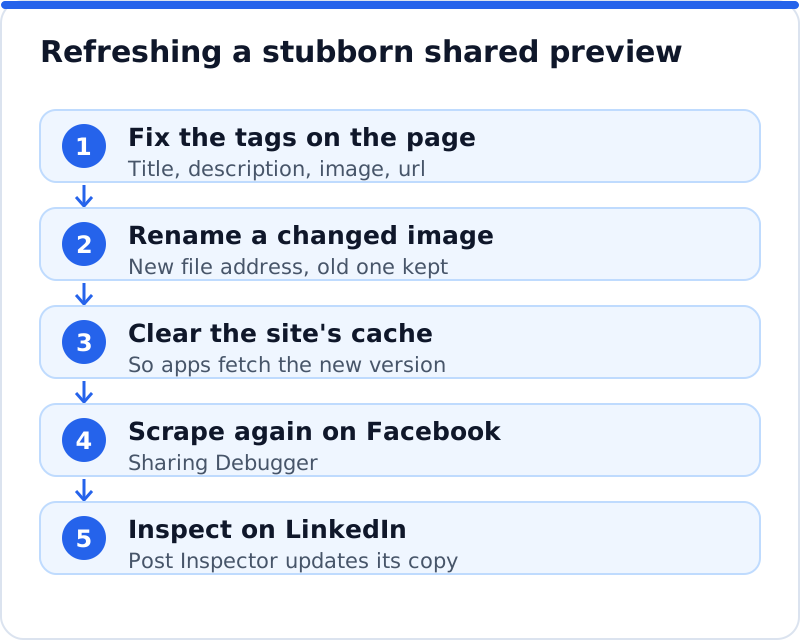
Some limits are worth knowing. A refresh changes the card for new shares, but posts already published may keep the old preview. WhatsApp and some other messaging apps have no public tool to clear their copy, so new shares there can take a while to show the update. Clear your own website's cache and any content delivery network first, or the apps will fetch the old tags again. Keep old image files in place for a time, because earlier posts may still point to them.
Common Open Graph mistakes
The most common mistake is a single image and description for the whole website, so every page shares as the same logo and the same line about the business. The second is a relative image address, which looks correct in the source but produces an empty card. The third is two sets of tags, often from an SEO plugin and a theme, which leaves each app to pick one, not always the one you wanted. The fourth is an image blocked from crawlers, either by robots.txt or by sitting behind a login on a members area. The fifth is a stale card: the page was improved months ago but the preview still shows the old headline, because nobody asked the apps to fetch it again.
Two quieter mistakes are worth checking. Some websites set og:url to the home page on every page, which makes apps treat all shares as shares of the home page. Others leave the og:title as a bare page name such as "Services", which says nothing in a busy feed. A roofing firm in Denver would do far better with "Roof Repairs in Denver: Inspections Within the Week", which names a clear service, a place and a reason to click. Check the blog in particular, since posts published by different people often miss a featured image. A quick test of five or six pages each quarter catches most of these.
How sharing tags affect what an SEO check reports
Sharing tags sit in their own area of most good website checks, because they shape how pages perform outside search. Our AI website SEO tools read up to 12 pages of any website and report sharing problems under "Sharing and rich results", one of the six areas behind the score out of 100. Each page is listed with its own problems, and each fix comes with steps and the code to paste. On WordPress, the AI website SEO plugin writes titles and descriptions into your SEO plugin's fields, and prints the title, description and Open Graph tags itself when no SEO plugin is installed. If you want to understand how this area weighs against indexing, listings and backlinks, read what an SEO score measures and why points are not the same as visits. The tools include a monthly re-check with an email of what changed, and they sit with the wider AI SEO tools for business websites.
Questions business owners ask
Do Open Graph tags help my Google rankings?
Not directly, because Google does not use them as a ranking signal. They help the page win clicks when it is shared on social networks and in messaging apps, which brings visitors from outside search. Some of those visitors link to the page from their own websites, which can help over time. Open Graph tags also make a page look cared for to anyone who checks it, including partners and journalists. Treat them as part of presenting the page well rather than as a search trick.
Do I need separate X card tags?
Usually you need only one extra line. X falls back to your Open Graph title, description and image when its own versions are missing, so the twitter:card tag that chooses the layout is the essential addition. Add separate twitter:title or twitter:description tags only when you want different wording on X. Many WordPress SEO plugins add the twitter:card line automatically. Check by pasting the link into a draft post on X and looking at the preview.
Why does WhatsApp show no image for my link?
The usual causes are a missing or relative og:image, an image file that is very large, or an image the app cannot fetch because of a block or a login. Check the page in the Facebook Sharing Debugger first, since WhatsApp reads the same tags and the debugger shows errors clearly. Compress the image and make sure its address starts with https. WhatsApp also keeps its own copy of previews, so a fixed link can take time to show the image in new chats. Testing with a new address, such as the page with a harmless question mark parameter, shows whether the fix works.
Give your next shared link a proper card
Pick the five pages people share most often, usually the home page, the main service or product pages and the most popular blog post. Check each one in the Facebook Sharing Debugger and LinkedIn's Post Inspector, and write down which tags are missing or wrong. Create a 1200 by 630 pixel image for each page, set the sharing title and description in your platform or SEO plugin, and add a twitter:card line if it is missing. Scrape each page again so the apps forget the old card, then share one link yourself to see the result. Once those five look right, set a sensible default image for every other page, so nothing on your website shares as a blank box.
Your score out of 100, the visits within reach, every page read the way Google does and the tool that fixes each problem. Works on any website.
Analyse your website with AI Website SEO Tools →